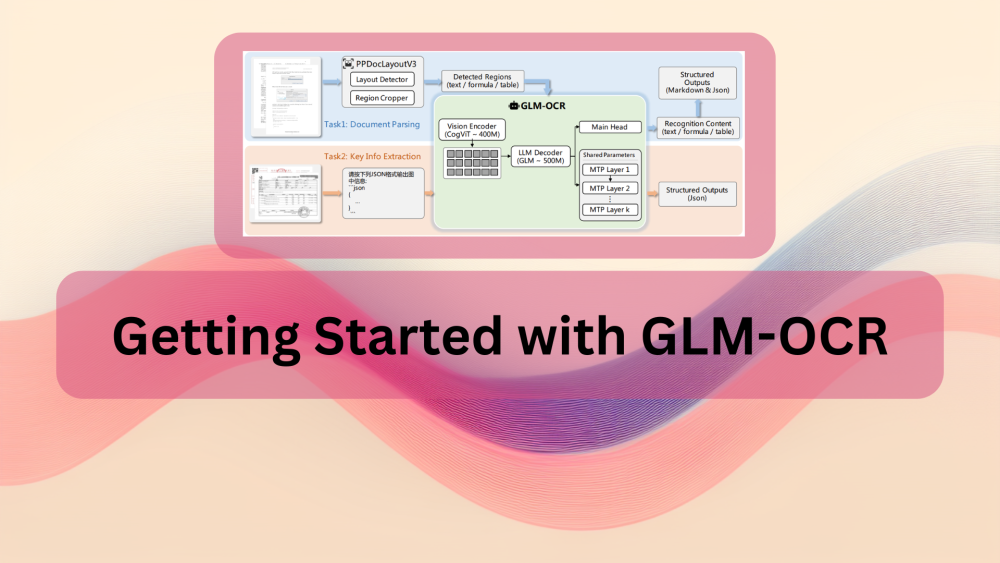
VLM-based OCR models are gradually catching up to become mainstream components in document processing pipelines. The primary bottleneck has always been the size of these models. Usually larger than 3B parameters, the cost-to-performance ratio is difficult to justify. However, GLM-OCR shifts the perspective. With just 0.9B parameters, it competes with models much larger than itself. In this article, we will explore GLM-OCR, along with what makes it special, and run inference on real-world documents.
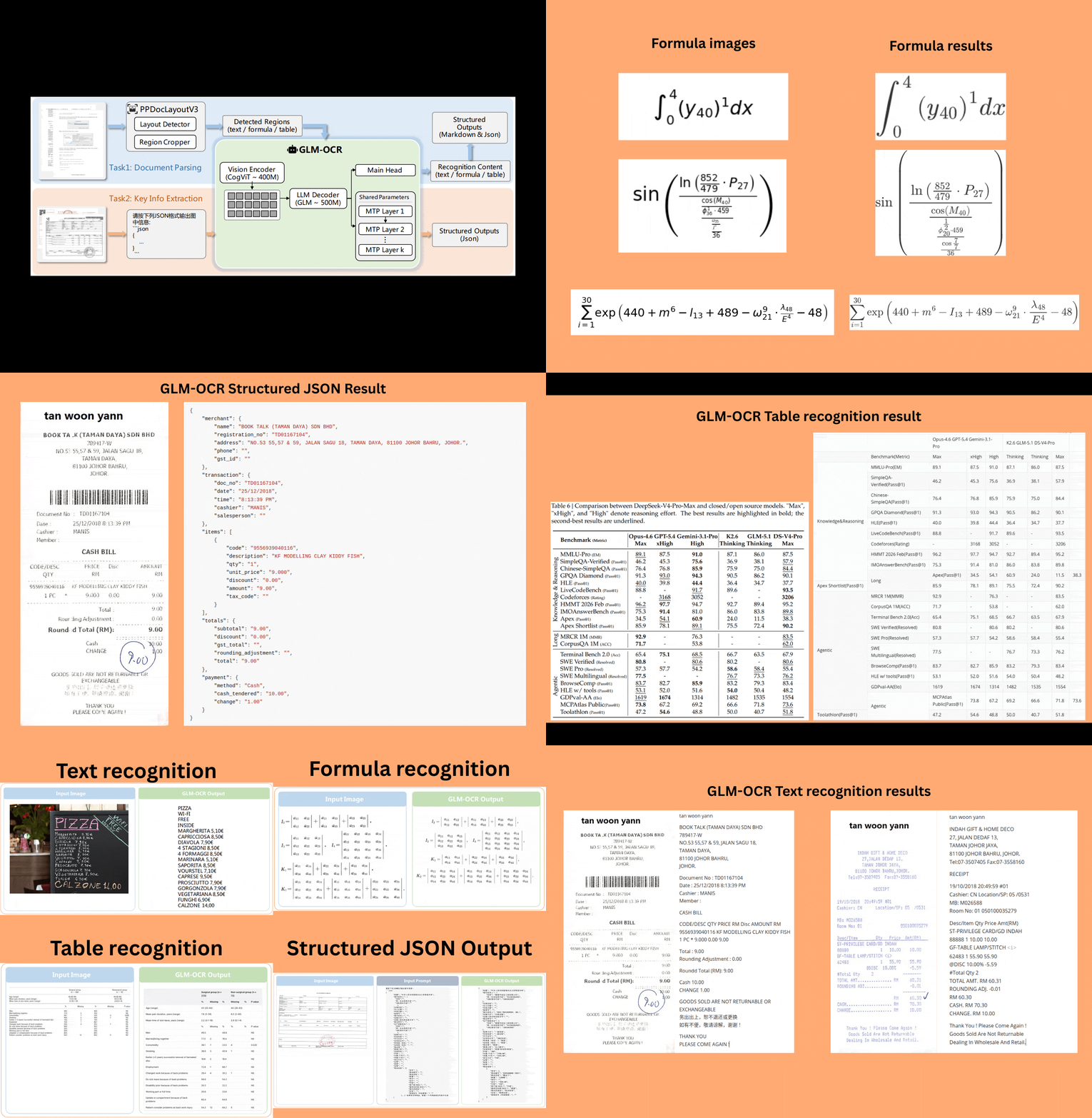
Paired with a small yet powerful vision encoder and language decoder, GLM-OCR is meant for real-world document understanding, edge deployment, and large-scale production systems. Here, we will focus on the following components of the model:
- What makes GLM-OCR special?
- What vision encoder and language decoder are used?
- Which tasks does GLM-OCR support?
- How to set up GLM-OCR locally for inference?
GLM OCR – Exploring the Technical Report
In this section, we will explore some of the important components of the GLM-OCR technical report.
The model was published in the GLM-OCR Technical Report by authors from z.ai and Tsinghua University.
Here, we will cover how GLM-OCR is different from other models, the vision encoder and language decoders used, and the tasks supported by the model.
What Makes GLM-OCR Special?
GLM-OCR is a 0.9B model with performance reaching and surpassing much larger models, like Gemini-3 Pro and GPT-5.2.
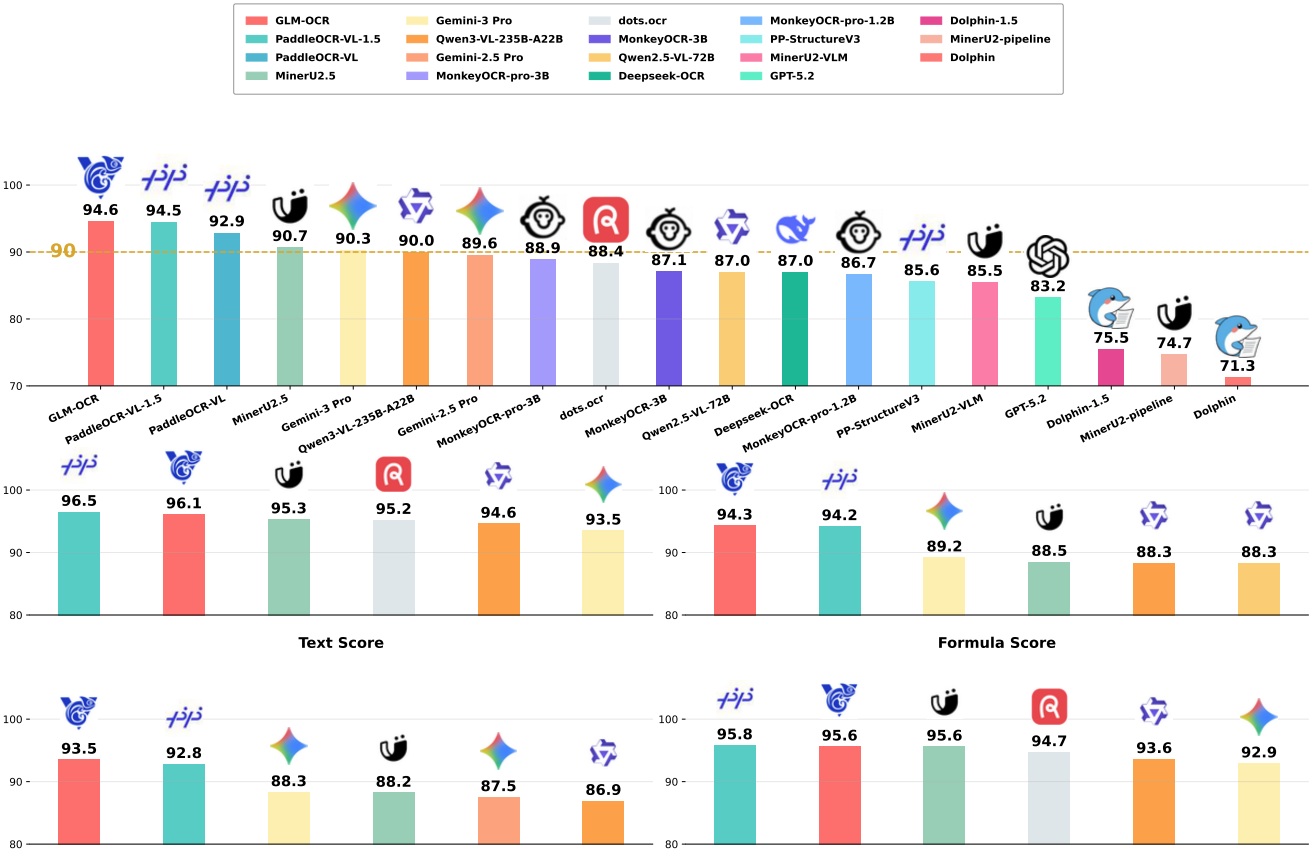
The smaller model footprint also means that we can easily deploy the model on edge and mobile devices. Furthermore, unlike other VLMs meant for OCR, GLM-OCR is not an autoregressive model. It uses Multi-Token Prediction (MTP). Instead of predicting a single token per decoding step, it predicts multiple tokens per step. This significantly improves the decoding throughput.
Furthermore, upon release, GLM-OCR supports modern inference libraries like vLLM, SGLang, and Ollama.
Given its small footprint and competitive performance, GLM-OCR’s benefits are threefold:
- Strong performance on complex tasks such as tables, formulas, and code.
- High throughput and low latency.
- Flexbible integration with serving libraries.
Architecture of GLM-OCR
Under the hood, GLM-OCR uses the 0.4B CogVit vision encoder and the 0.5B GLM language decoder.
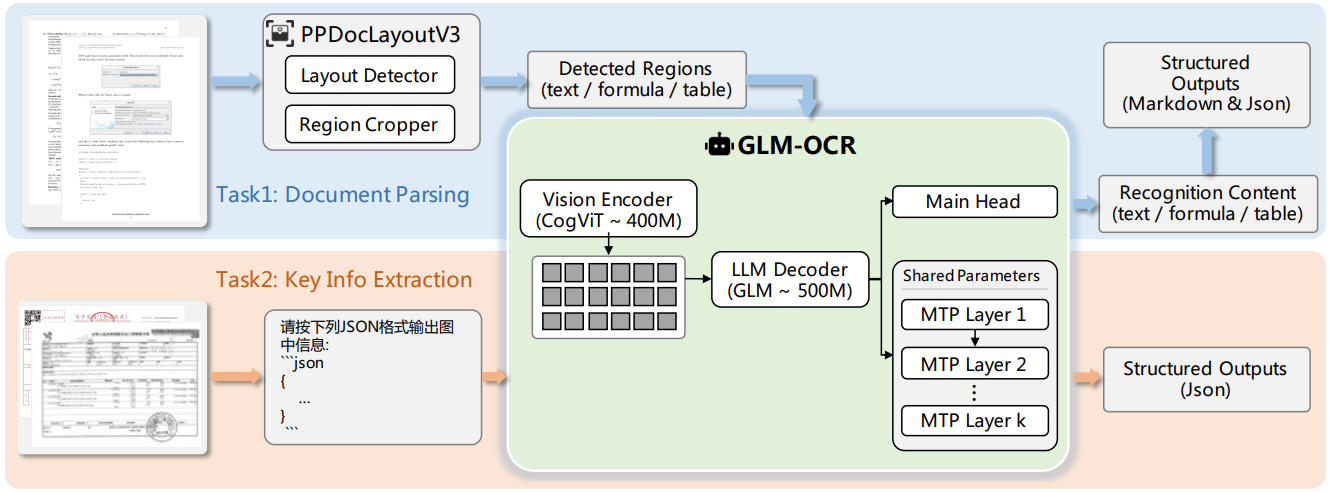
The vision encoder is responsible for visual representation from the document images, and the language decoder (an autoregressive model) generates the structured text outputs. These outputs are conditioned on the visual representation from the vision encoder.
Furthermore, the architecture adopts multi-token prediction (MTP). For long-form generation tasks, MTP addresses two challenges:
- Instead of predicting one token at a time, the model predicts k tokens per inference step. This significantly reduces the inference time per document.
- MTP also helps in more robust prediction. As the model predicts multiple tokens per step, it can plan ahead, resulting in analyzing local dependencies and predicting fewer broken tags in structured output.
Tasks Supported by GLM-OCR
In Figure 3, we can see one additional component as well, PPDocLayoutV3. This brings us to the two high-level tasks that GLM-OCR can perform.
- Layout Analysis and Document Region Detection: Under the hood, GLM-OCR uses PPDocLayoutV3 for layout analysis and region cropping. All the prominent regions, such as text, formula, and tables, are detected, cropped, and passed down to the GLM-OCR model. The model then outputs structured markdown and JSON.
- Key Information Extraction (KIE): In KIE, we feed the entire document into the GLM-OCR model to obtain either text, table, or JSON formatted data. As this flow lacks the layout information, the model learns to predict the output based on specific prompts.
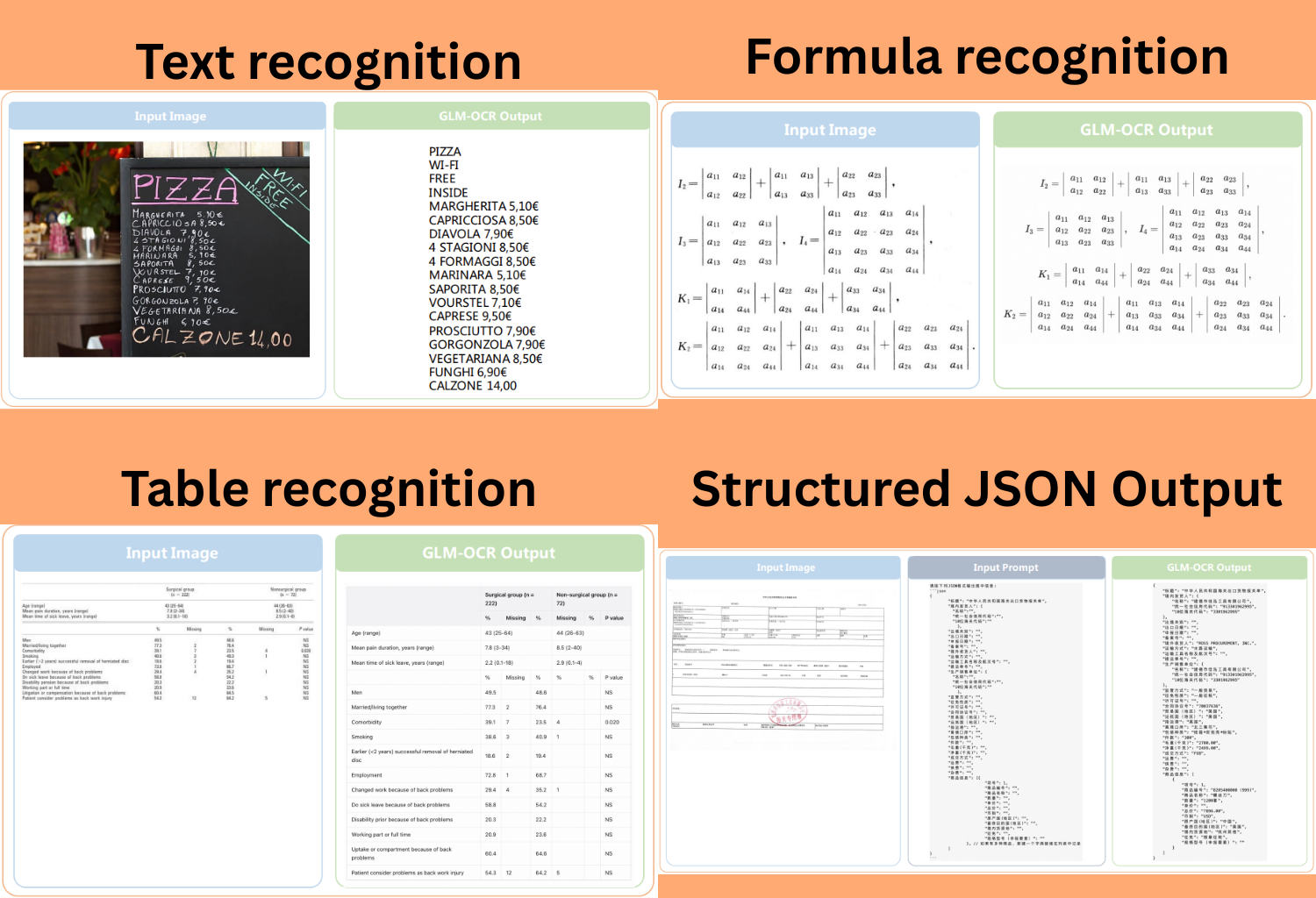
As such, for KIE, we can prompt the model in four distinct ways.
- Text recognition: With this prompt, we can extract information from dense text documents. The model outputs plain text present in the document image.
- Table recognition: This prompt specifically outputs the data in a Markdown tabular format. If the document contains tables, it preserves the row and column alignment.
- Formula recognition: With this prompt, we can steer the model to recognize mathematical expressions and convert them to LaTeX.
- Structured JSON format: We can also prompt the model with a custom JSON schema to extract the key items from a document.
The following figure shows one example from each task, which is provided in the technical report.
In the next section, we will create a simple script to run inference using GLM-OCR and check out each of the above tasks.
Inference Using GLM-OCR
In this section, we will focus on the code for running inference using GLM-OCR. We will focus on the following components:
- Text recognition
- Table recognition
- Formula recognition
- Structured output with JSON formatted prompt
Project Directory Structure
Let’s take a look at the directory structure before jumping into the codebase.
|-- input
|   |-- formula
|   |   |-- eq_00000.png
|   |   |-- eq_00001.png
|   |   |-- eq_00019.png
|   |   `-- eq_00042.png
|   |-- sroiev2
|   |   |-- X00016469612.jpg
|   |   |-- X00016469619.jpg
|   |   |-- X00016469620.jpg
|   |   |-- X00016469622.jpg
|   |   |-- X00016469623.jpg
|   |   |-- X00016469669.jpg
|   |   |-- X00016469672.jpg
|   |   |-- X00016469676.jpg
|   |   |-- X51005200938.jpg
|   |   |-- X51005230617.jpg
|   |   |-- X51005255805.jpg
|   |   `-- X51005268200.jpg
|   `-- table
|       |-- table_1.png
|       |-- table_2.png
|       `-- table_3.png
|-- outputs
|   |-- X00016469619
|   |   `-- X00016469619.jpg.md
|   |-- formula
|   |   |-- eq_00000.png.md
|   |   |-- eq_00001.png.md
|   |   |-- eq_00019.png.md
|   |   `-- eq_00042.png.md
|   |-- sroie_v2_test_outputs [347 entries exceeds filelimit, not opening dir]
|   |-- sroie_v2_train_outputs [626 entries exceeds filelimit, not opening dir]
|   `-- table
|       |-- table_1.png.md
|       |-- table_2.png.md
|       `-- table_3.png.md
|-- README.md
|-- inference.py
`-- prompt.json
- The
inputdirectory contains several subdirectories with images for different use cases. - The
outputdirectory contains all the resulting OCR files in markdown format. - We have the
inference.pyscript directly in the project’s parent directory. Theprompt.jsonfile contains the structured JSON that we have defined for one of the OCR use cases.
The inference script and input files are provided as a zip file along with the article. You can download and extract the file to get started right away.
Download Code
Installing Requirements
There is only one major requirement for this codebase, transformers. Let’s install the specific version of the library that we need here.
pip install transformers==5.12.1
This is all the setup that we need. Let’s jump into the codebase.
Inference Code for GLM-OCR
The entirety of the inference code is present in the inference.py file. Let’s walk through the codebase.
Imports and Command Line Arguments
The following code block contains the imports of all the modules that we need, along with the argument parser for the command-line arguments.
from tqdm import tqdm
from transformers import AutoProcessor, AutoModelForImageTextToText

import argparse
import os
import json

parser = argparse.ArgumentParser()
parser.add_argument(
    '--image-path',
    dest='image_path',
    help='Path to the input image',
)
parser.add_argument(
    '--dir-path',
    dest='dir_path',
    help='Path to the input directory',
)
parser.add_argument(
    '--prompt',
    choices=[
        'Text recognition',
        'Table recognition',
        'Formula recognition'
    ]
)
parser.add_argument(
    '--prompt-file',
    dest='prompt_file',
    help='Path to a text file containing the prompt, helpfule for JSON contracts',
)
parser.add_argument(
    '--output-path',
    dest='output_path',
    help='Folder path to save the output text',
)
args = parser.parse_args()

if args.image_path is not None and args.dir_path is not None:
    raise ValueError('Please provide either an image path or a directory path, not both.')

if args.image_path is None and args.dir_path is None:
    raise ValueError('Please provide either an image path or a directory path.')

if args.dir_path is not None and args.output_path is None:
    parser.error('--output-path is required when processing a directory')

if args.prompt is None and args.prompt_file is None:
    raise ValueError('Please provide either a prompt or a prompt file.')
We can provide either a path to a single image or a path to a directory of images. To carry out the tasks supported by GLM-OCR, we can either prompt it via --prompt or --prompt-file. The former is for specific tasks that we want, while the latter is to adhere to a specific JSON structure. We can also provide an output path to save the results using the --output-path argument.
Helper Functions
We have several helper functions that do separate tasks.
The following two functions are for loading the model and creating the user prompt message, respectively.
MODEL_PATH = 'zai-org/GLM-OCR'

def load_model():
    try:
        processor = AutoProcessor.from_pretrained(MODEL_PATH)
        model = AutoModelForImageTextToText.from_pretrained(
            pretrained_model_name_or_path=MODEL_PATH,
            torch_dtype='auto',
            device_map='auto',
        )
        print(model)
        return model, processor
    except Exception as e:
        print(f'Error loading model: {e}')
        raise

def create_messages(image_path, prompt):
    if not os.path.exists(image_path):
        raise FileNotFoundError(f'Image file not found: {image_path}')

    messages = [
        {
            'role': 'user',
            'content': [
                {
                    'type': 'image',
                    'url': image_path
                },
                {
                    'type': 'text',
                    'text': prompt
                }
            ],
        }
    ]

    return messages
The next function carries out the forward pass on an image.
def run_ocr_on_image(messages, model, processor):
    try:
        inputs = processor.apply_chat_template(
            messages,
            tokenize=True,
            add_generation_prompt=True,
            return_dict=True,
            return_tensors='pt'
        ).to(model.device)

        inputs.pop('token_type_ids', None)
        generated_ids = model.generate(**inputs, max_new_tokens=8192)
        output_text = processor.decode(
            generated_ids[0][inputs['input_ids'].shape[1]:],
            skip_special_tokens=True
        )
        return output_text
    except Exception as e:
        print(f'Error processing image: {e}')
        raise
Then we have a function to save the results in the respective directory.
def save_output_to_file(output_text, output_path, image_path):
    os.makedirs(output_path, exist_ok=True)
    file_name = os.path.basename(image_path)
    output_file_path = os.path.join(output_path, f'{file_name}.md')
    with open(output_file_path, 'w', encoding='utf-8') as f:
        f.write(output_text)
    print(f'Output saved to {output_file_path}')
The final code block contains the function to start the OCR pipeline and the main block.
def run_ocr(
    image_path=None, dir_path=None, prompt=None, model=None, processor=None
):
    if image_path is not None:
        try:
            messages = create_messages(image_path, prompt)
            outputs = run_ocr_on_image(messages, model, processor)
            if args.output_path:
                save_output_to_file(outputs, args.output_path, image_path)
            print(f'Output for image {image_path}: {outputs}')
        except Exception as e:
            print(f'Failed to process {image_path}: {e}')

    elif dir_path is not None:
        image_files = [f for f in os.listdir(dir_path) if f.lower().endswith(('.png', '.jpg', '.jpeg'))]
        if not image_files:
            print(f'No image files found in {dir_path}')
            return

        for filename in tqdm(image_files, desc='Processing images'):
            try:
                image_path = os.path.join(dir_path, filename)
                messages = create_messages(image_path, prompt)
                outputs = run_ocr_on_image(messages, model, processor)
                if args.output_path:
                    save_output_to_file(outputs, args.output_path, image_path)
                print(f'Output for image {image_path}: {outputs}')
                print('----------------------------------------')
            except Exception as e:
                print(f'Failed to process {filename}: {e}')

if __name__ == '__main__':
    model, processor = load_model()

    if args.prompt_file:
        pre_prompt = 'Please output the information in the diagram in the following JSON format:\n'
        # Read JSON file for structured prompt.
        with open(args.prompt_file, 'r') as f:
            json_prompt = str(json.load(f))

        prompt = pre_prompt + json_prompt

    else:
        prompt = args.prompt

    print('*' * 50)
    print(f"Using prompt: {prompt}")
    print('*' * 50)

    run_ocr(
        image_path=args.image_path,
        dir_path=args.dir_path,
        prompt=prompt,
        model=model,
        processor=processor
    )
The run_ocr function first recognizes whether we provided an image path or a directory path. Accordingly, it creates the user message, carries out the forward pass on each image, and saves the results in the specified output directory.
The main block first loads the model. It then checks whether we provided the path to a structured JSON prompt file. In case we do so, the user prompt is updated and the run_ocr function is called with the required arguments.
Executing GLM-OCR Inference Script
Let’s carry out the inference for a few of the cases. We can start with the receipt OCR use case, wherein we have a few receipt images in the input/sroiev2 directory.
python inference.py --dir-path input/sroiev2/ --output-path outputs/sroiev2 --prompt "Text recognition"
We are providing the path to the input directory and the path to the output directory to store results, and the prompt to carry out Text recognition. All the results are stored in outputs/sroiev2 directory in markdown format. Here are a few samples and the results side by side.
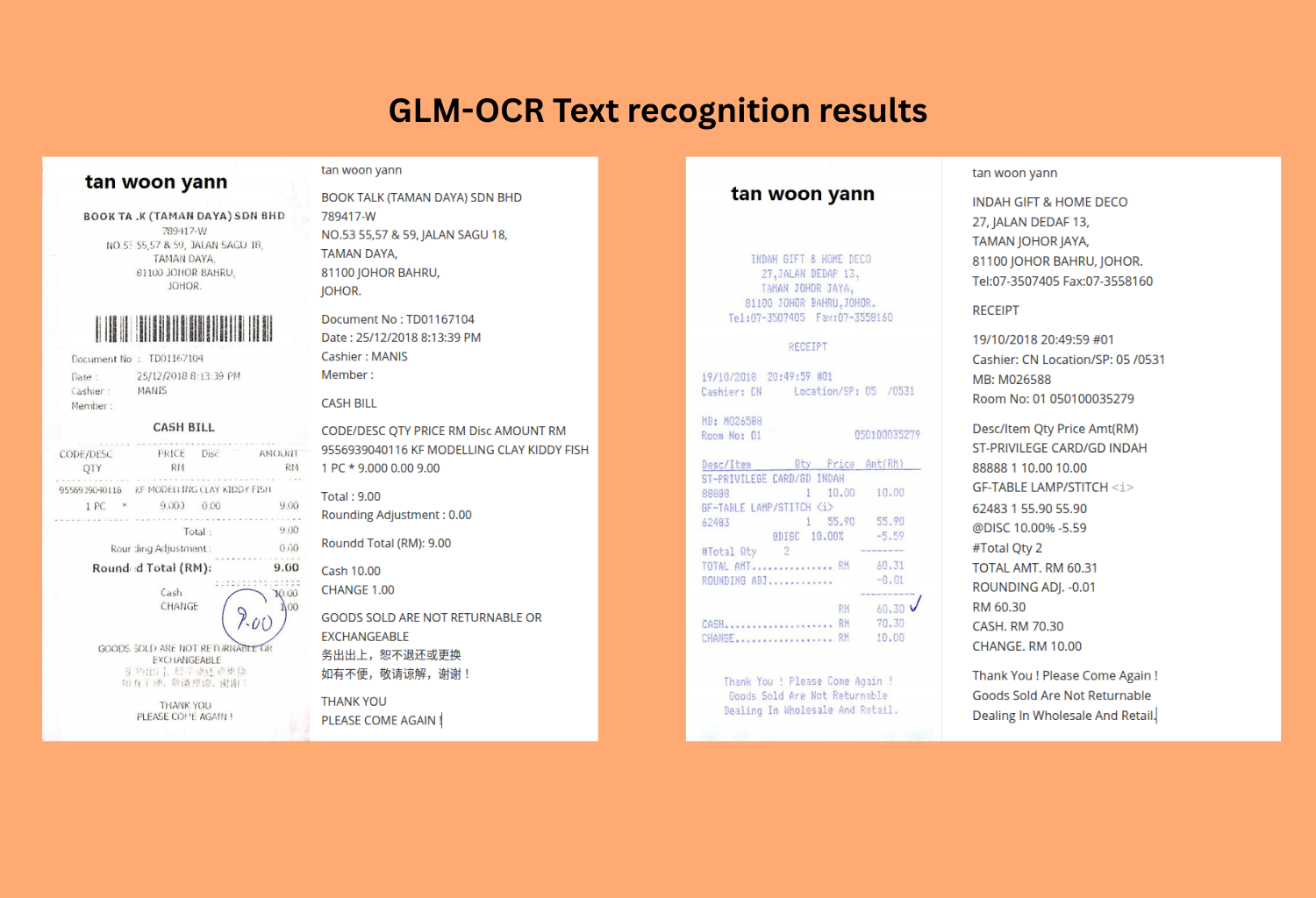
As we can see, all the above results are entirely correct. However, we can also see instances where the model does not adhere to the layout (such as the small tables). This is one of the drawbacks of the Text recognition mode.
If you wish to know more about fine-tuning VLMs for receipt OCR, you will find these two articles helpful:
Next, let’s carry out some more complex experiments involving tables.
python inference.py --dir-path input/table/ --output-path outputs/table/ --prompt "Table recognition"
Here, we provide the input path to a directory containing images of tables and the prompt as Table recognition.
Let’s take a look at one input and the result.
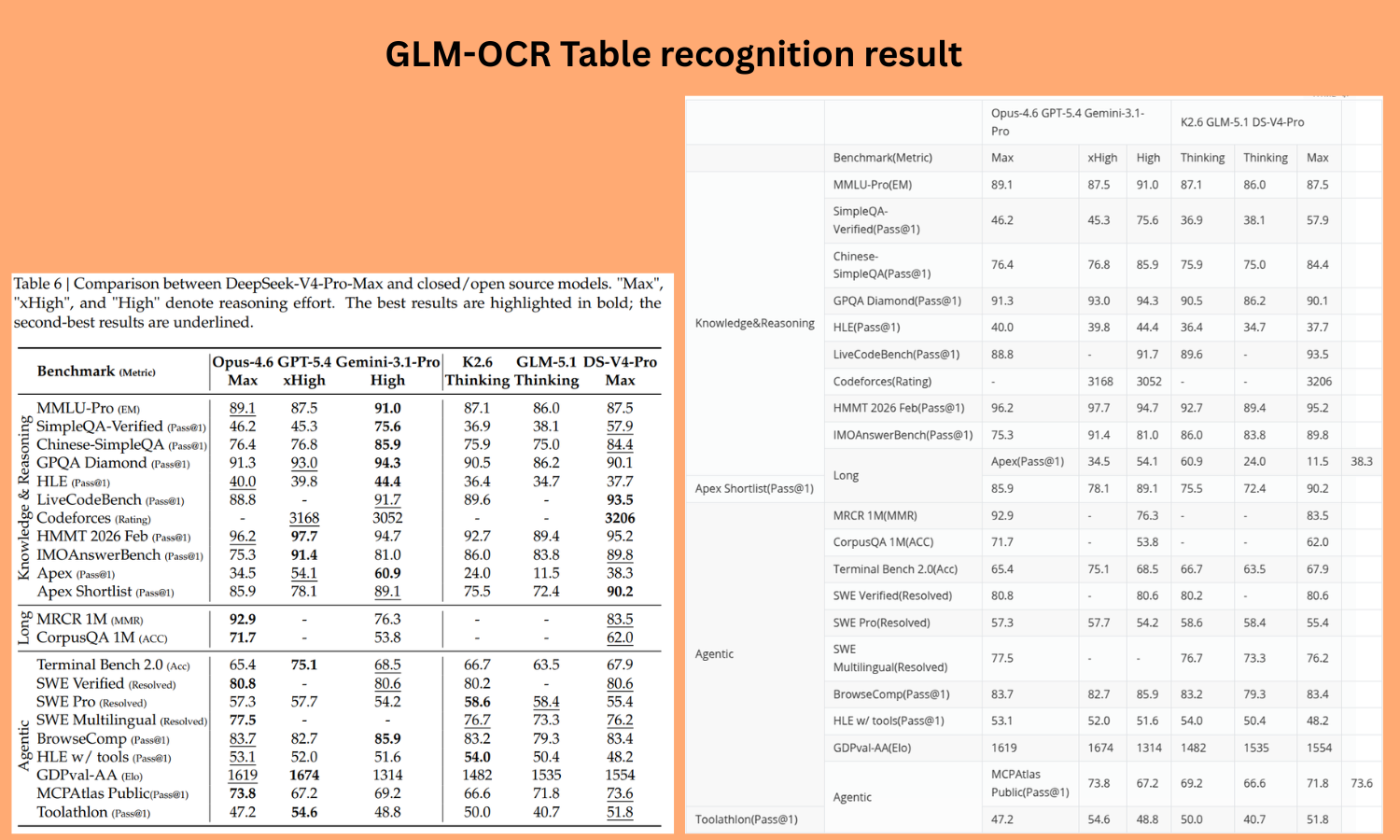
This is a challenging use case with merged rows and unclear boundaries in the columns. We can clearly see that this is a weak point of the model where it is not performing well.
Next, let’s try out the formula recognition workflow.
python inference.py --dir-path input/formula/ --output-path outputs/formula/ --prompt "Formula recognition"
The following image shows all the inputs and the corresponding results.
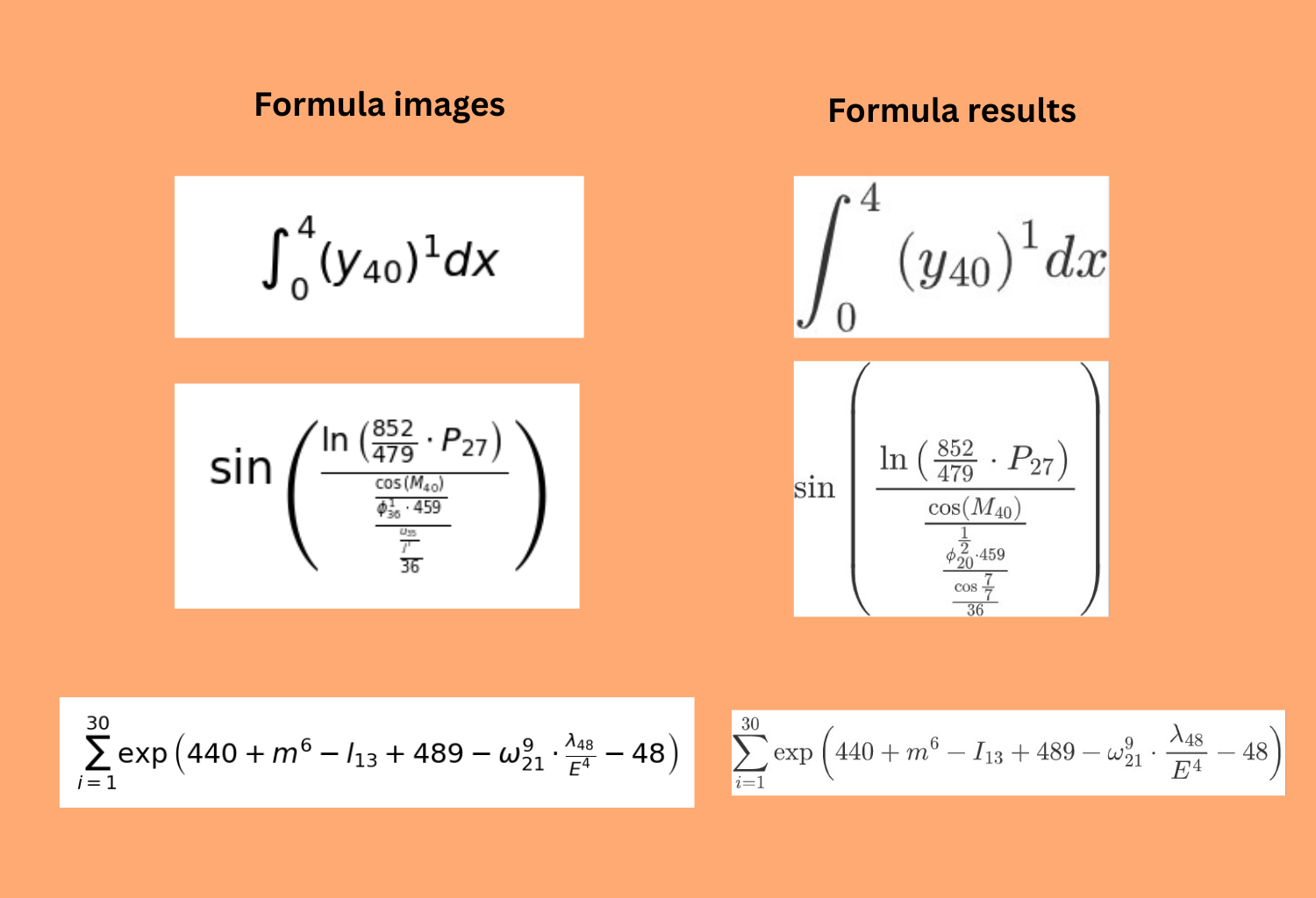
It is clear that the model performs very well with simple formulas. However, there are mistakes when the formula is either complex or the notations are too small.
Finally, let’s run inference for a structured JSON output with GLM-OCR. We have the following JSON structure in the prompt.json file.
{
  "merchant": {
    "name": "",
    "registration_no": "",
    "address": "",
    "phone": "",
    "gst_id": ""
  },
  "transaction": {
    "doc_no": "",
    "date": "",
    "time": "",
    "cashier": "",
    "salesperson": ""
  },
  "items": [
    {
      "code": "",
      "description": "",
      "qty": "",
      "unit_price": "",
      "discount": "",
      "amount": "",
      "tax_code": ""
    }
  ],
  "totals": {
    "subtotal": "",
    "discount": "",
    "gst_total": "",
    "rounding_adjustment": "",
    "total": ""
  },
  "payment": {
    "method": "",
    "cash_tendered": "",
    "change": ""
  }
}
Let’s pass this as an input contract format along with one of the receipt images.
python inference.py --image-path input/sroiev2/X00016469612.jpg --output-path outputs/json --prompt-file prompt.json
The following is the input image and the structured JSON output we get from the model.
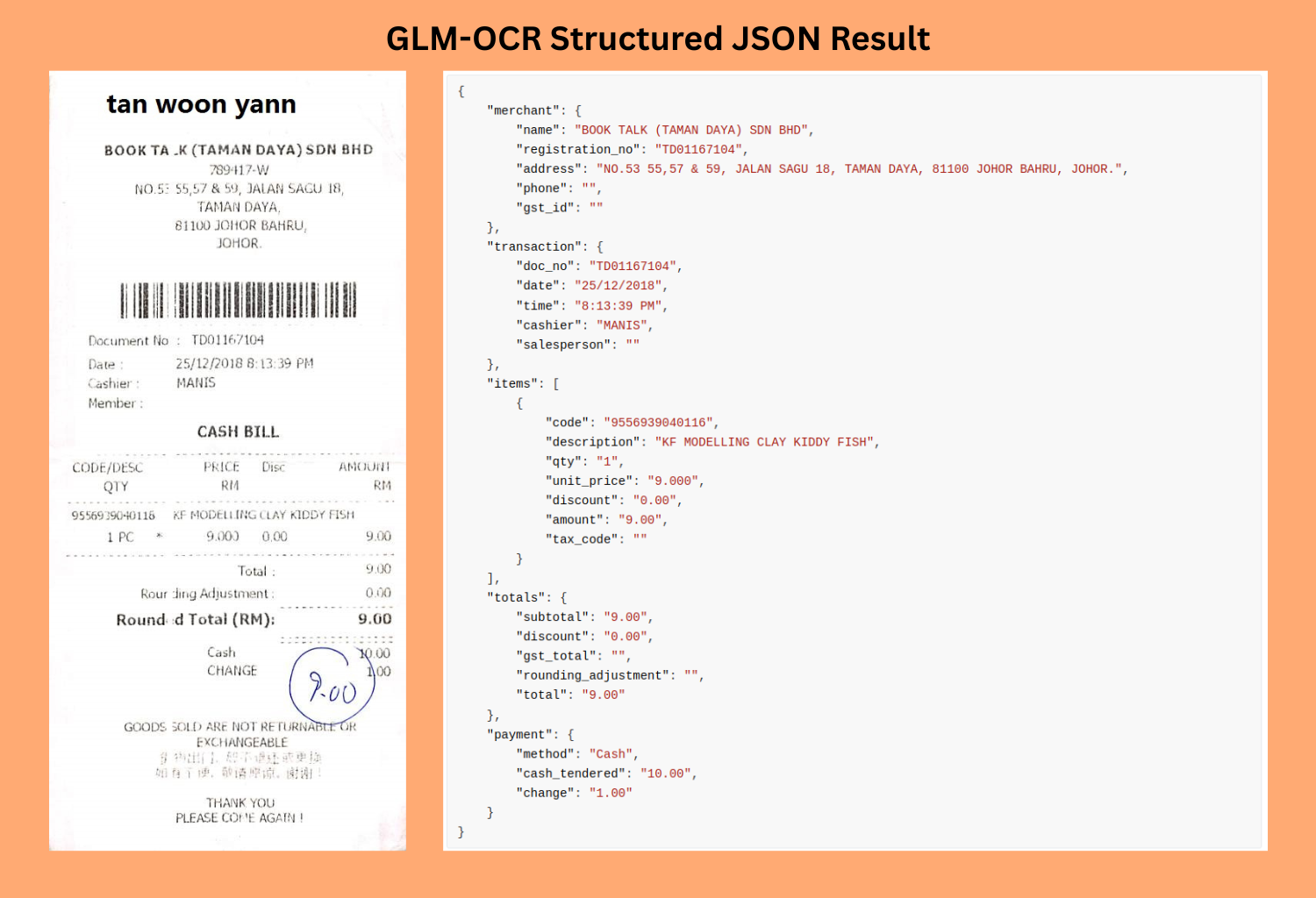
As we can see, the model is able to extract all the relevant fields that are present in the image and populate the values against the keys.
Summary and Conclusion
In this article, we covered a brief introduction to GLM-OCR. We started with a discussion of the important components from the technical report and then moved on to inference using GLM-OCR. We covered workflows for different prompt scenarios, structured JSON output, and discussed where the model falters. I hope that this article was worth your time.
If you have any questions, thoughts, or suggestions, please leave them in the comment section. I will surely address them.
You can contact me using the Contact section. You can also find me on LinkedIn, and X.


3 thoughts on “Getting Started with GLM-OCR”