
In the previous article, we covered how to bootstrap an agent using Amazon Bedrock AgentCore, deploy it, and test it with different methods. However, the agent had access to only the default tools and MCPs. For most use cases, this is not enough. This article takes it to the next step, where we will be extending AgentCore Agents with custom tools and MCP servers.
Here, we will still manage only a single agent. However, the crucial part is understanding how to add a few meaningful custom tools and MCP servers. We will cover everything, from setup to deployment, in this article.
What are we going to cover with custom tools and MCP servers in AgentCore?
- Setting up the prerequisites (Node.js, AWS CLI, AgentCore CLI, uv)
- Adding local tools to the agent using Python functions
- Understanding MCP servers and the
MCP_SERVERSregistry - Adding DeepWiki and a hosted F1 MCP server
- A prompting gotcha when asking about current events
- Streaming responses from the agent
- And invoking the streaming agent using
boto3
Prerequisites
Before moving ahead, let’s set up and configure our local environment.
Node.js
The AgentCore CLI is an npm package, so we need to install Node.js system-wide. We can install it using the following commands on Ubuntu.
# Download and install nvm:
curl -o- https://raw.githubusercontent.com/nvm-sh/nvm/v0.40.7/install.sh | bash

# in lieu of restarting the shell
\. "$HOME/.nvm/nvm.sh"

# Download and install Node.js:
nvm install 24

# Verify the Node.js version:
node -v # Should print "v24.19.0".

# Verify npm version:
npm -v # Should print "11.17.0".
AWS CLI
We need the AWS CLI to configure our development environment with credentials that have permissions to deploy AgentCore resources to the AWS account.
curl "https://awscli.amazonaws.com/awscli-exe-linux-x86_64.zip" -o "awscliv2.zip"
unzip awscliv2.zip
sudo ./aws/install
After installation, we can run aws configure which allows us to set the Access Key ID and the Secret Access Key. Ensure that the IAM role you are using has the necessary permissions for Bedrock and AgentCore.
AgentCore CLI
We will use AgentCore CLI for running all the necessary commands that we need for the project.
npm install -g @aws/agentcore
agentcore --version
uv
We will use uv for the agent’s Python dependencies. If uv is installed locally, then AgentCore CLI detects it automatically, creates uv.lock file, and the Python virtual environments automatically. We can install uv using the following command.
curl -LsSf https://astral.sh/uv/install.sh | sh
Model Access
We will use the Amazon Nova Pro model (amazon.nova-pro-v1:0) as this model is available without limitations even for new accounts.
These are all the prerequisites that we need.
Directory Structure and Downloadable Code
The article comes with a downloadable zip file containing all the code artifacts, which we can easily set up. You can use the codebase to follow along or as a starting point for your own experiments.
Download Code
After downloading and extracting the zip file, you should see the following directory structure.
MyAgent/
├── AGENTS.md
├── NOTES.md
├── README.md
├── agentcore/
│   ├── agentcore.json
│   ├── aws-targets.json
│   └── cdk/
│       ├── bin/
│       ├── lib/
│       ├── test/
│       ├── cdk.json
│       ├── package.json
│       └── tsconfig.json
└── app/
    └── MyAgent/
        ├── main.py
        ├── pyproject.toml
        ├── uv.lock
        ├── mcp_client/
        │   └── client.py
        └── model/
            └── load.py
The following are some of the important parts of the codebase:
app/MyAgent/main.py: the agent entry point. This is where the local tools and the streaming logic live.app/MyAgent/mcp_client/client.py: theMCP_SERVERSregistry where external MCP servers are configured.app/MyAgent/model/load.py: the model configuration. We use Amazon Nova Pro here.app/MyAgent/pyproject.tomluv.lockuvuses these to recreate the environment.agentcore/agentcore.json: the project configuration: runtime name, Python version, entry point, and network mode.agentcore/aws-targets.json: deployment target (AWS account and region). The zip ships with this emptied out and gets populated from the AWS CLI configuration.agentcore/cdk/: the CDK project that AgentCore uses to provision infrastructure. We do not need to modify anything here.
A few things have deliberately been excluded from the zip file: .venv/ virtual environment, node_modules/, and CDK build outputs. These will get regenerated when building the project in subsequent steps.
Setting Up the Downloaded Code
The setup has two steps. First, unzip the file and enter the project directory.
cd MyAgent
Second, start the local development server.
agentcore dev
This will create a new virtual environment using uv. The uv.lock file guarantees that you get the exact dependencies that we tested with. Furthermore, during the deployment phase, AgentCore CLI installs the CDK dependencies.
From here onward, we can focus on the codebase.
If you want to get an understanding of what AgentCore is and why we need it, the previous article covers an introduction to Bedrock AgentCore, which will be helpful.
Understanding AgentCore Agents with Custom Tools and MCP Servers
Let’s dive deep into the changes that we have made to the codebase to include new tools and MCP servers for our agent.
Note: We are still dealing with a single agent here. Our focus is entirely on learning how to give access to new tools and MCP servers to the agent. Also, we have not deployed any custom MCP servers. We are using pre-hosted MCP servers in this article for simplicity.
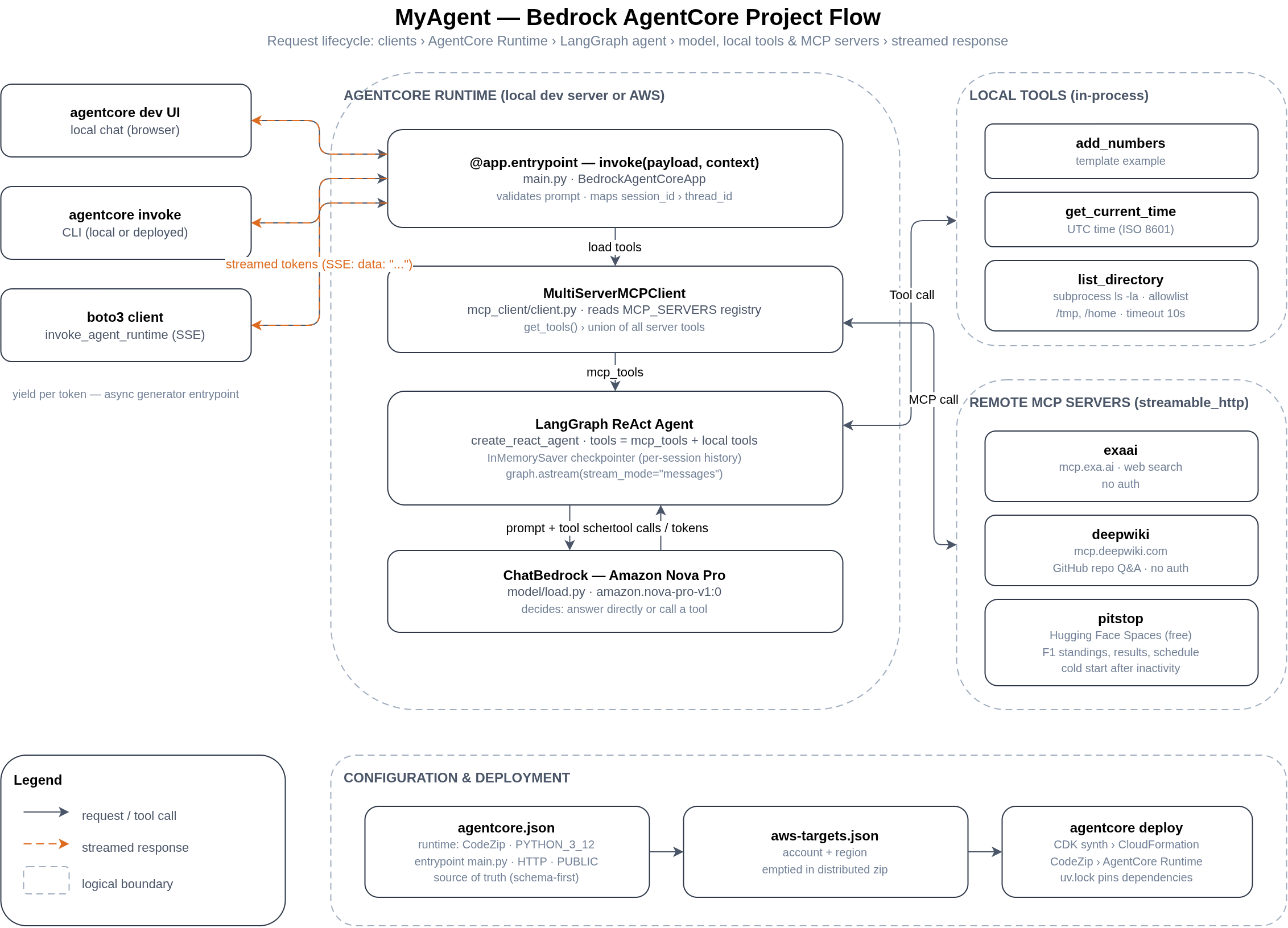
Before we move deep into the coding section, the following is a flow diagram of the entire project to get a better understanding of the codebase and workflows.
Adding Custom Tools for Our Agent
Out of the box, the agent has access to one add_numbers tool, which simply adds two numbers when invoked.
We will start by adding custom tools for the agent. The codebase already has a default agent powered by the Amazon Nova Pro LLM.
Local tools are Python functions with @tool decorator, which is part of the LangChain library. Unless they are an external API call or web search, most tools can run inside the agent process locally, without network access.
Here, we will add two tools to app/MyAgent/main.py. One for returning the current time and date and the other one that lists the directory contents.
The Current Time Tool
First, we need the following imports in main.py to create this tool.
from datetime import datetime, timezone
import subprocess
import os
Second, the following code block contains the tool itself.
@tool
def get_current_time() -> str:
    """Return the current time in UTC."""
    return datetime.now(timezone.utc).isoformat()
That is all we need for creating this tool. One important fact is that the docstring matters a lot here. The model reads it to understand what the tool does and when to invoke it.
The List Directory Tool
The second tool runs the ls command when we prompt appropriately with a path to a directory. The following code block contains everything.
ALLOWED_LS_ROOT = ("/tmp/", "/home/")

@tool
def list_directory(path: str) -> str:
    """
    List the contents of a directory, but only if it's under an allowed root.

    Executes `ls -la` as a subprocess so filesystem access goes through
    an explicit, auditable command boundary rather than a direct API call.
    """
    if not os.path.isabs(path):
        return "Error: path must be absolute."
    if not path.startswith(ALLOWED_LS_ROOT):
        return f"Error: path must be under one of {ALLOWED_LS_ROOT}."

    try:
        result = subprocess.run(
            ["ls", "-la", path],
            capture_output=True,
            text=True,
            timeout=10
        )
    except subprocess.TimeoutExpired:
        return "Error: Command timed out."
    if result.returncode != 0:
        return f"Error: {result.stderr.strip()}"
    return result.stdout
A few important design choices here:
- We deliberately implement it as a subprocess call instead of using
os.listdir()directly. This ensures that the agent cannot run destructive commands and can only runlscommand. - Only absolute paths under
/tmp/or/home/are permitted. The agent cannot wander into/etc/or other sensitive locations. timeout=10makes sure a hung command cannot block the agent forever.- We return error messages instead of raising exceptions, so the agent can read the error and recover gracefully.
Finally, we need to register both the tools.
tools = [add_numbers, get_current_time, list_directory]
After restarting agentcore dev we can ask the agent questions like, “What time is it?” or “What is the content of /home/user/blog” directory.
Adding Custom MCP Servers for Our Agents
The MCP (Model Context Protocol) ecosystem is growing rapidly, giving LLM agents access to several tools over the network. Connecting our agents to these MCPs is a great way to extend their capabilities.
In the codebase, the app/MyAgent/mcp_client/client.py manages MCPs. The Exa web search MCP is enabled by default, and we can add more with a few modifications.
By default, the MCP_SERVERS dictionary looks like the following.
EXAMPLE_MCP_ENDPOINT = "https://mcp.exa.ai/mcp"

MCP_SERVERS = {
    "exaai": {
        "transport": "streamable_http",
        "url": EXAMPLE_MCP_ENDPOINT,
    },
}
The MultiServerMCPClient reads this dictionary, connects to every server, and returns the union of all their tools. Adding a new server is just another dictionary entry, and we do not need any function changes.
In addition to the Exa web search MCP, we will also be adding the DeepWiki and F1 MCP servers.
Adding DeepWiki and F1 MCPs
Using DeepWiki MCP, we can answer questions about GitHub repositories that we are interested in. It is a free and hosted server and does not require any authentication.
To make things interesting, we will also add a Formula 1 MCP. The pitstop project hosts an MCP server providing data about F1 races, standings, telemetry data, and also news from OpenF1.
After adding the two MCPs, the Python file looks like the following.
import os
import logging
from langchain_mcp_adapters.client import MultiServerMCPClient

logger = logging.getLogger(__name__)

# ExaAI provides information about code through web searches, crawling and code context searches through their platform. Requires no authentication
EXAMPLE_MCP_ENDPOINT = "https://mcp.exa.ai/mcp"

# DeepWiki MCP.
DEEPWIKI_MCP_ENDPOINT = "https://mcp.deepwiki.com/mcp"

# F1 pitstop MCP.
PITSTOP_MCP_ENDPOINT = "https://praneeth1025-pitstop.hf.space/mcp"

MCP_SERVERS = {
    "exaai": {
        "transport": "streamable_http",
        "url": EXAMPLE_MCP_ENDPOINT,
    },
    "deepwiki": {
        "transport": "streamable_http",
        "url": DEEPWIKI_MCP_ENDPOINT,
    },
    "pitstop": {
        "transport": "streamable_http",
        "url": PITSTOP_MCP_ENDPOINT,
    }
}


def get_streamable_http_mcp_client() -> MultiServerMCPClient:
    """Returns an MCP Client compatible with LangChain/LangGraph."""
    return MultiServerMCPClient(MCP_SERVERS)
One caveat here is that the F1 MCP server is hosted on Hugging Face Space and sleeps after inactivity. So, a first call to the server might take a few extra seconds to respond.
Prompting Gotchas
There are a few prompting gotchas and caveats that we need to take care of when using the MCPs.
For DeepWiki, not all GitHub repositories are indexed by default. If not indexed, we can easily index a respository by adding the GitHub URL.
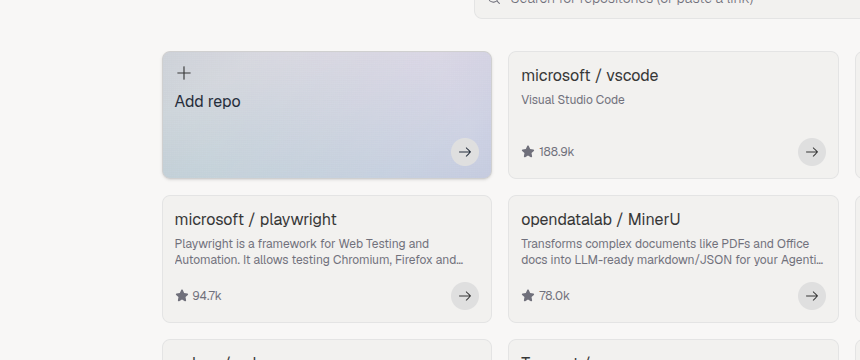
After we index a repository, we can prompt the agent with questions like “How does the checkpointer work in langchain-ai/langgraph?”. It is quite essential to use the user_name/repository_name format so that the agent knows what we are talking about, which MCP server to tap into, and which tool to call.
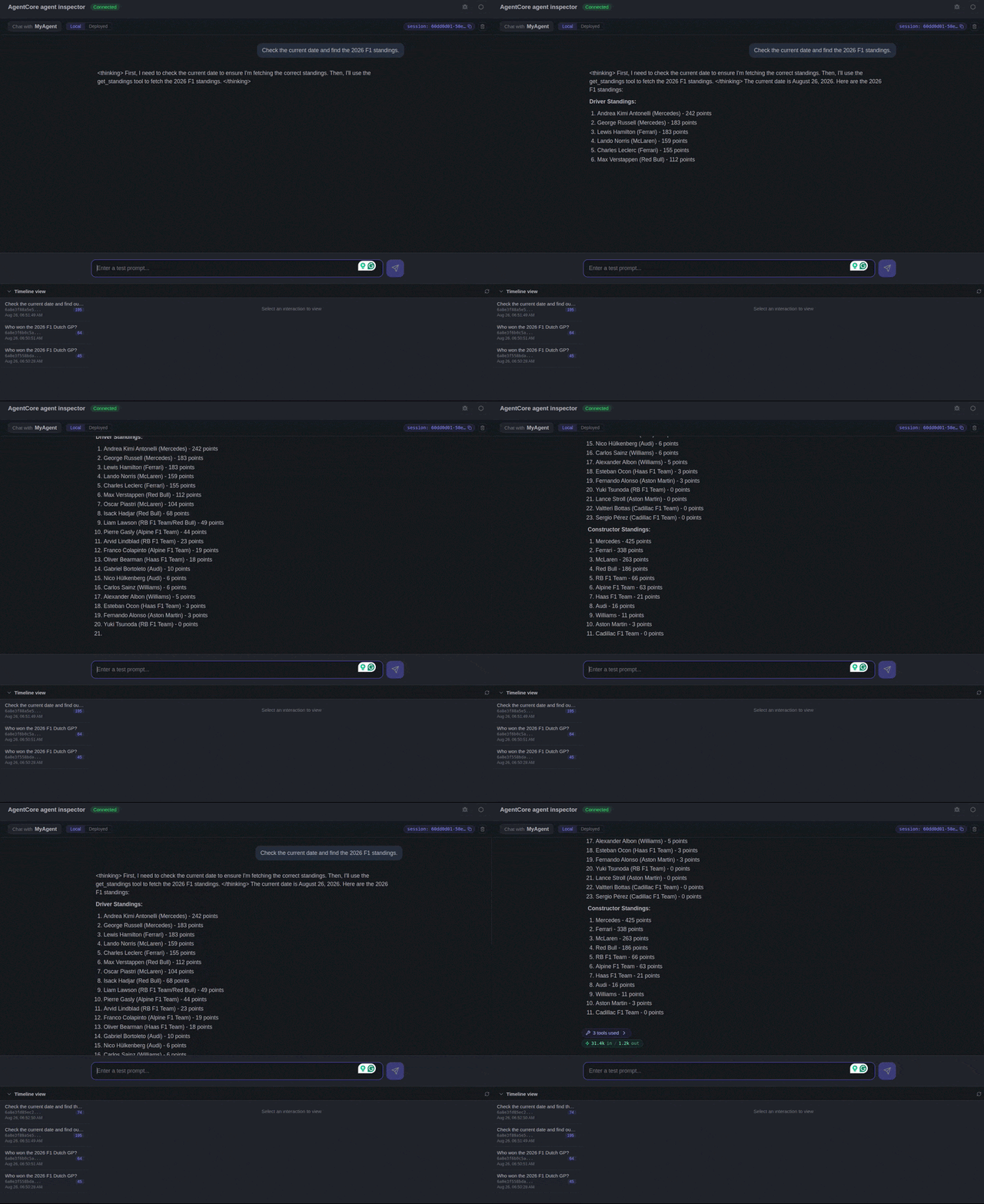
Prompting for current events using the F1 MCP is slightly more nuanced. All LLMs have a knowledge cutoff date. Let’s say our LLM was trained on data till December 2024. If we just ask “What happened in 2026 F1 Dutch GP”, it will answer something similar to “Sorry, the event has not happened yet”. To resolve this, we usually first need to ask it to fetch the information from the time tool and then call the F1 MCP. This is where our datetime tool that we added earlier becomes useful. So, our question becomes similar to “Get the current date and time, find out what happened in 2026 F1 Dutch GP, and what were the standings after the race.”.
This forces the agent to call the get_current_time tool and then the relevant tool from the MCP server.
Streaming Responses
The final change that we have made is allowing streaming responses from the agent. For this, we make two changes to main.py.
First is importing the relevant messaging classes. And second is replacing ainvoke and return statement with async generator in the invoke function.
from langchain_core.messages import HumanMessage, AIMessageChunk

@app.entrypoint
async def invoke(payload, context):
    log.info("Invoking Agent.....")

    # Get MCP Client
    mcp_client = get_streamable_http_mcp_client()

    # Load MCP Tools
    mcp_tools = []
    if mcp_client:
        mcp_tools = await mcp_client.get_tools()

    # Define the agent using create_react_agent (checkpointer is shared across invocations)
    graph = create_react_agent(
        get_or_create_model(),
        tools=mcp_tools + tools,
        prompt=DEFAULT_SYSTEM_PROMPT,
        checkpointer=_checkpointer,
    )

    # Process the user prompt
    prompt = payload.get("prompt", "What can you help me with?")
    if not isinstance(prompt, str):
        raise ValueError("prompt must be a string")
    session_id = getattr(context, "session_id", "default-session")
    touch_thread(session_id)
    log.info(f"Agent input: {prompt}")

    async for message_chunk, metadata in graph.astream(
        {"messages": [HumanMessage(content=prompt)]},
        config={"configurable": {"thread_id": session_id}},
        stream_mode="messages",
    ):
        # Only forward model tokens; skip tool-call/tool-result messages
        if not isinstance(message_chunk, AIMessageChunk):
            continue
        # Skip chunks that are tool-call scaffolding rather than text
        if message_chunk.tool_call_chunks:
            continue
        # Content may be a plain string or a list of content blocks
        # (Bedrock/Nova emits blocks like [{"text": "..."}])
        content = message_chunk.content
        if isinstance(content, str):
            if content:
                yield content
        elif isinstance(content, list):
            for block in content:
                if isinstance(block, dict) and block.get("type") == "text":
                    yield block.get("text", "")
                elif isinstance(block, str):
                    yield block
Let us break down what is happening:
astreamwithstream_mode="messages"emits a chunk for every token the model generates, instead of one final result.yieldinstead ofreturnturns the entrypoint into an async generator. AgentCore detects this automatically and streams each yielded piece to the client.- The
AIMessageChunkfilter skips tool outputs, so we never see raw tool JSON in the output. - The content block handling is important for Bedrock. Nova emits content as a list of blocks like
[{"text": "..."}], not as a plain string. When we first tried this with a simpleisinstance(content, str)check, every chunk was silently dropped and the UI showed an empty response.
This concludes all the code changes that were made.
Deploying the Agent
Before deploying the application, go to agentcore/aws-targets.json file and change the account ID to yours.
[
  {
    "name": "default",
    "description": "Default target (us-east-1)",
    "account": "YOUR_ACCOUNT_ID",
    "region": "us-east-1"
  }
]
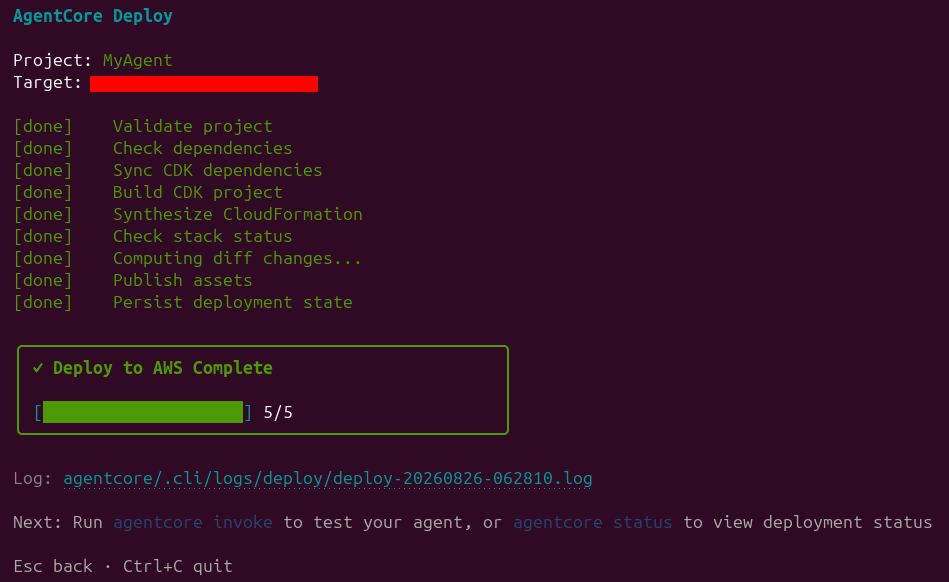
Deploying the agent is quite straightforward.
agentcore deploy
This will take a few seconds to minutes to deploy into the connected AWS account.
Invoking the Streaming Agent with boto3
Finally, we will use the boto3 Python SDK to invoke the streaming agent. We can do this with the following code.
import json
import uuid
import boto3

agent_arn = "YOUR_AGENT_ARN"
prompt = "Get the current date and time and find the 2026 F1 standings. Also, provide details of the 2026 F1 Dutch Grand Prix."

# Initialize the Amazon Bedrock AgentCore client
agent_core_client = boto3.client('bedrock-agentcore')

# Prepare the payload
payload = json.dumps({"prompt": prompt}).encode()

# Invoke the agent
response = agent_core_client.invoke_agent_runtime(
    agentRuntimeArn=agent_arn,
    runtimeSessionId=str(uuid.uuid4()),
    payload=payload,
    qualifier="DEFAULT"
)

# SSE parsing: events are "data: \n\n", but network chunks can split
# anywhere — so buffer and only process complete events.
buffer = ""
for chunk in response.get("response", []):
    buffer += chunk.decode('utf-8')
    while "\n\n" in buffer:
        event, buffer = buffer.split("\n\n", 1)
        for line in event.splitlines():
            if line.startswith("data: "):
                text = json.loads(line[len("data: "):])
                if isinstance(text, str):
                    print(text, end="", flush=True)
print()
Replace YOUR_AGENT_ARN with the ARN from agentcore status and run the script. You can also get the ARN from the AgentCore Runtime dashboard. The answer now types out progressively in the terminal, just like in the dev UI.
Alternatively, we can test our agents via agentcore dev UI as well.
Cleaning Up
As before, remember to remove the resources when you are done experimenting. Execute the following in the terminal.
agentcore remove all
agentcore deploy
Summary and Conclusion
In this article, we extended our Bedrock AgentCore agents with more tools and MCP capabilities. Starting from the setup, adding tools and MCPs, deployment, till the invocation, we covered everything. In the next article, we will explore how to orchestrate multiple agents with different task using AgentCore. I hope this article was worth your time.
If you have any questions, thoughts, or suggestions, please leave them in the comment section. I will surely address them.
You can contact me using the Contact section. You can also find me on LinkedIn, and X.