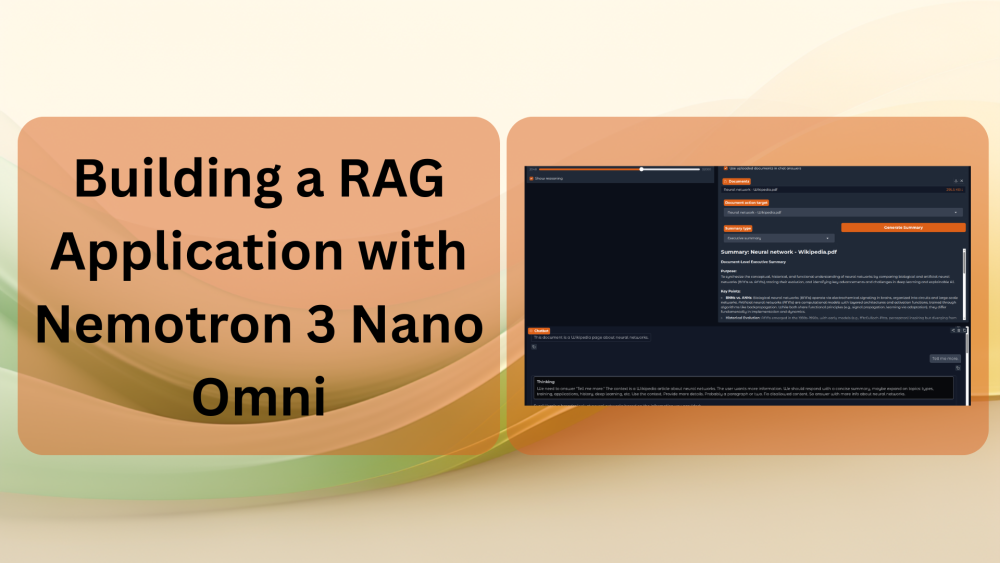
In this article, we will be building a RAG application with the NVIDIA Nemotron 3 Nano Omni model. It is a multimodal language model capable of understanding text, image, audio, and video. In one of the previous articles, we deployed the model on Modal and interacted with it from a local Gradio frontend. Here, we will extend the same to PDF, text, and document RAG.
The backend, which will be deployed on Modal, will remain more or less the same. We can deploy on a more powerful GPU with more VRAM as per the requirement for this project, along with model-specific parameters. Most of the changes will happen on the client side. We will add ChromaDB as a vector database and multi-file upload for RAG, along with other improvements that we will discuss on the way.
What will we cover while building a RAG application with Nemotron 3 Nano Omni?
- Adding ChromaDB as a vector database, along with .pdf, .txt, and .docx file support for RAG.
- Improving the UI and client script to provide context about uploaded documents and multimedia files that the model can reason about in the same turn.
- Adding a file summarization utility where we can summarize large documents page-by-page while maintaining context.
Nemotron Omni Chat GitHub
At the time of writing this, I have been working on this project for the last few days, and it now lives on GitHub.
You can find the project here => nemotron_omni_chat
The article comes with a stable zip file version of the codebase. However, I will be adding new features to the project over time. So, it might be worthwhile to take a look at the GitHub repository as well.
Project Directory Structure
Let’s take a look at how we have structured the project.
├── backend
│   ├── app.py
│   └── .env.example
├── frontend
│   ├── app.py
│   ├── chat_service.py
│   ├── config.py
│   ├── .env.example
│   ├── messages.py
│   ├── rag.py
│   ├── requirements.txt
│   ├── responses.py
│   └── theme.py
├── LICENSE
├── README.md
└── requirements.txt
- We have a
backendand afrontenddirectory. Theapp.pyfile in thebackenddirectory contains the Modal deployment script. - The
frontenddirectory, on the other hand, contains a lot of files. Here, theapp.pyfile is a runnable Gradio script. Others are supporting scripts that we will take a look at along the way.
The article comes with a zip file of the stable version of the project, which we can extract and start working on right away.
Download Code
Installing Dependencies
The global requirements.txt contains the following.
modal
vllm==0.20.0
fastapi
openai==2.36.0
transformers
huggingface_hub[hf_xet]
hf_transfer
torch==2.10.0
gradio==6.14.0
python-dotenv==1.2.2
Here, vllm==0.20.0 and torch==2.10.0 are optional as we are not executing the LLM inference locally. They are already part of the installation script of backend/app.py. You can comment them out before executing the following:
pip install -r requirements.txt
That’s all we need in terms of setup. Let’s jump into the code now.
RAG Application with Nemotron 3 Nano Omni
In this section, we will cover some of the important code snippets of the codebase.
However, we are not covering the Modal setup and the backend script here. We have covered that in detail in the Nemotron 3 Nano Omni on Modal Serverless article. I highly recommend going through the article to finish the Modal setup and understand the backend script. They mostly remain the same.
One small change we have made to the backend/app.py is moving the application name to the .env file. Create a .env file in the backend directory and add the name of the application you want to deploy. It can be anything of your choice.
APP_NAME="YOUR_APP_NAME_HERE"
This is important as the application name is part of the deployed URL endpoint.
From the next section onward, we will mostly focus on the code files in the frontend directory in this article.
Handling the Frontend of Nemotron Nano Omni Chat
There are two setups we need to complete before we explore the codebase.
The first is installing the frontend-specific libraries from the frontend/requirements.txt file.
pip install -r frontend/requirements.txt
The second is creating a .env file in the frontend directory and adding the Modal deployment URL endpoint.
API_BASE_URL=https://YOUR-NAME--YOUR-APP-NAME.modal.run/v1
Replace the YOUR-NAME--YOUR-APP-NAME with your deployment URL. This consists of your workspace name and the application name you have used in the backend/.env file. Please refer to the previous article to get an idea of how Modal manages the deployment URL name.
For example, if the Modal workspace name is debuggercafe and the application name is rag-app, then the final URL will be https://debuggercafe--rag-app.modal.run.
There are 7 Python files in the frontend directory. The following is a short summary of each of them.
config.py
The config.py file maintains the API base URL and the model name we use in other parts of the projects. Instead of hardcoding them in different scripts, we have defined them in one place to reuse them in the necessary scripts.
rag.py
The rag.py file handles everything related to the RAG service. We use the ChromaDB vector database and all-MiniLM-L6-v2 as the embedding model. If we enable RAG in the frontend, then the context is added to the message list before sending it to the model. We handle .pdf, .docx, and .txt files for RAG chat.
messages.py
As the Nemotron 3 Nano Omni model natively supports images, videos, audio, and text files, we need to manage the file types and the paths properly. The messages.py contains the code for that, along with the task of building the messages that the model can accept via API calls. It also normalizes the messages wherein the media files from previous calls are removed in subsequent calls unless the user uploads a new media file.
responses.py
responses.py is a simple file containing code to manage the thinking that extracts and decouples the reasoning content from the non-reasoning content.
theme.py
Here, we manage the color theme of the Gradio application.
chat_service.py
The chat_service.py file contains some of the most important code in this codebase. We call the RAG engine from here, consolidate everything, and make the API call to the Modal server. The streaming code and document summarization logic live here.
app.py
app.py is the executable script that we run to start the Gradio application. It combines all the logic needed and mostly contains the Gradio Chat Interface boilerplate code.
Running Chat Experiments
To start the application, we need to enter the frontend directory and execute the app.py script.
cd frontend
python app.py
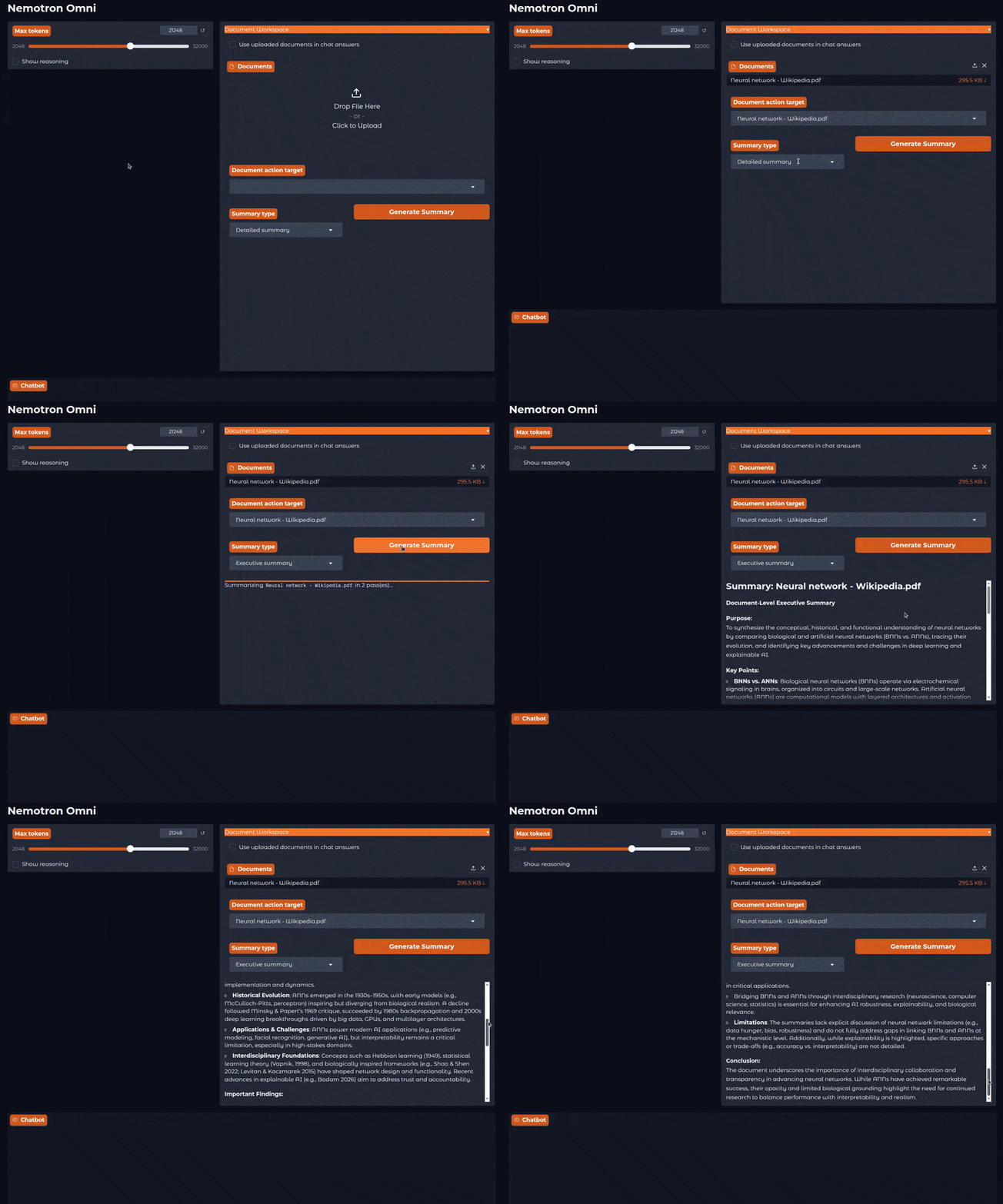
Let’s run some experiments here. The first one is document summarization.
In the above video, we upload a PDF containing information about neural networks and chose the executive summary option. We can choose from:
- Executive summary
- Detailed summary
- Study notes
- Action items
It will first summarize each page of the document while keeping the summary in memory, and create a final summary. This is helpful as we need not feed the entire document to the model for summarizing the document, which can often lead to context bloating and even failure in case the context length of the document is more than what we chose.
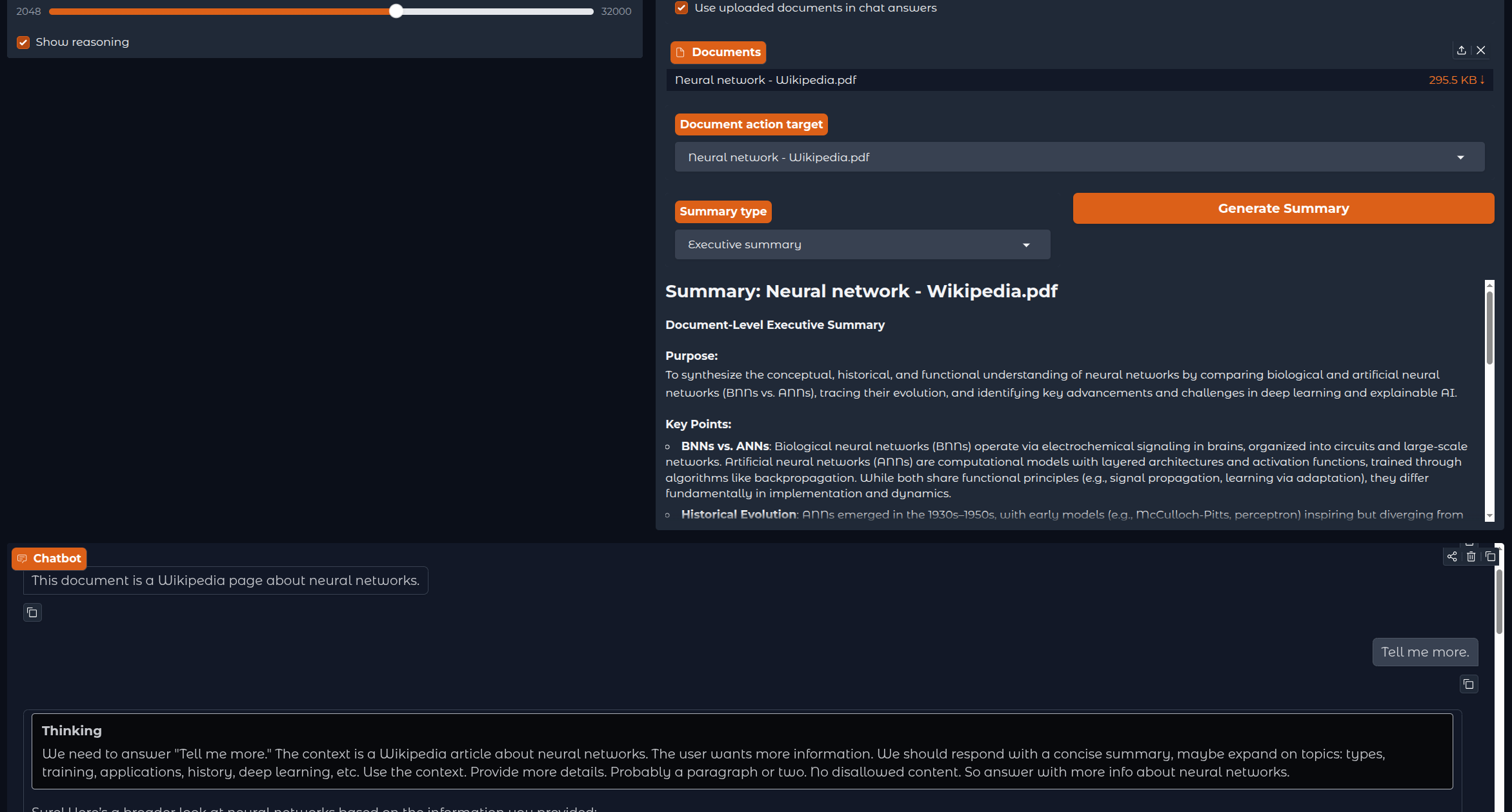
Next, we chat with the same document by enabling the RAG option.
We can either disable or enable thinking. Usually, enabling thinking leads to a more detailed answer.
In the final experiment, we upload an image and ask relevant questions about it to the model.
In the above video, we ask specific questions about the image, and we can see that the model is able to answer them correctly.
You can experiment further by uploading audio files and transcribing them, or even uploading videos with audio and asking the Nemotron 3 Nano Omni model to create a detailed summary out of it.
Summary and Conclusion
In this article, we expanded the Nemotron 3 Nano Omni chat with RAG and document summarization workflows. We started with the backend and frontend setup, while discussing the important code snippets in brief. We carried out document summarization, RAG, and image chat experiments to check how the model performs. In the near future, we will expand the application with more functionalities. I hope the article was worth your time.
If you have any questions, thoughts, or suggestions, please leave them in the comment section. I will surely address them.
You can contact me using the Contact section. You can also find me on LinkedIn, and X.