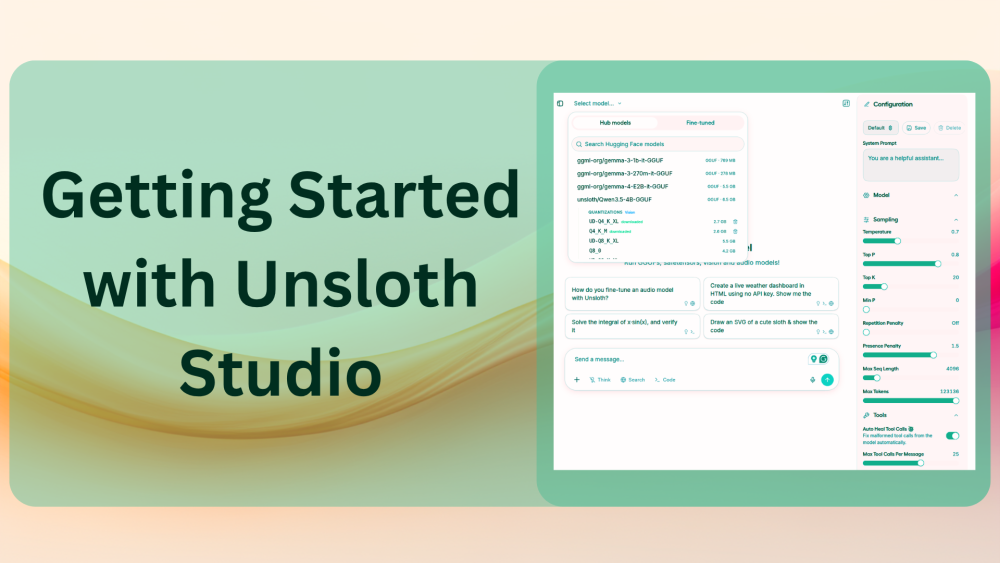
Recently, Unsloth.ai released Unsloth Studio, a UI based application to chat with and train language models. Loading GGUF models from Hugging Face with more than 100K context length, training models with just a few clicks, and using a fine-tuned model directly in the chat interface, all possible via Unsloth Studio. In this article, we are going to focus on getting started with some of the important aspects of Unsloth Studio.
Perhaps one of the best parts of Unsloth Studio is its native tool calling capability. Web search and code execution are built in. And not just simple Python code. As the entire application runs in a virtual environment, any model that supports tool calling can install dependencies to execute code that really gets the work done. For example, we can ask Qwen3.5-4B model to create a simple Linear Neural Network in PyTorch and do a training run. We will see all that and more in this article.
What are we going to cover while getting started with Unsloth Studio?
- Installing Unsloth Studio locally.
- Loading a SLM (Small Language Model) and running it through its paces in the chat interface.
- Loading a VLM (Vision Language Model) and testing several OCR and image description tasks.
- Code execution with Qwen3.5-4B.
- Training a VLM outside of Unsloth Studio and using it for inference in that chat interface.
Installing and Launching Unsloth Studio
The Unsloth AI page already has a detailed guideline for installing Unsloth Studio on Linux, macOS, WSL, and Windows. However, we will cover them here as well to make the article easier to follow.
macOS, Linux, and WSL
curl -fsSL https://unsloth.ai/install.sh | sh
Windows PowerShell
irm https://unsloth.ai/install.ps1 | iex
You should see the following window after the installation is complete:
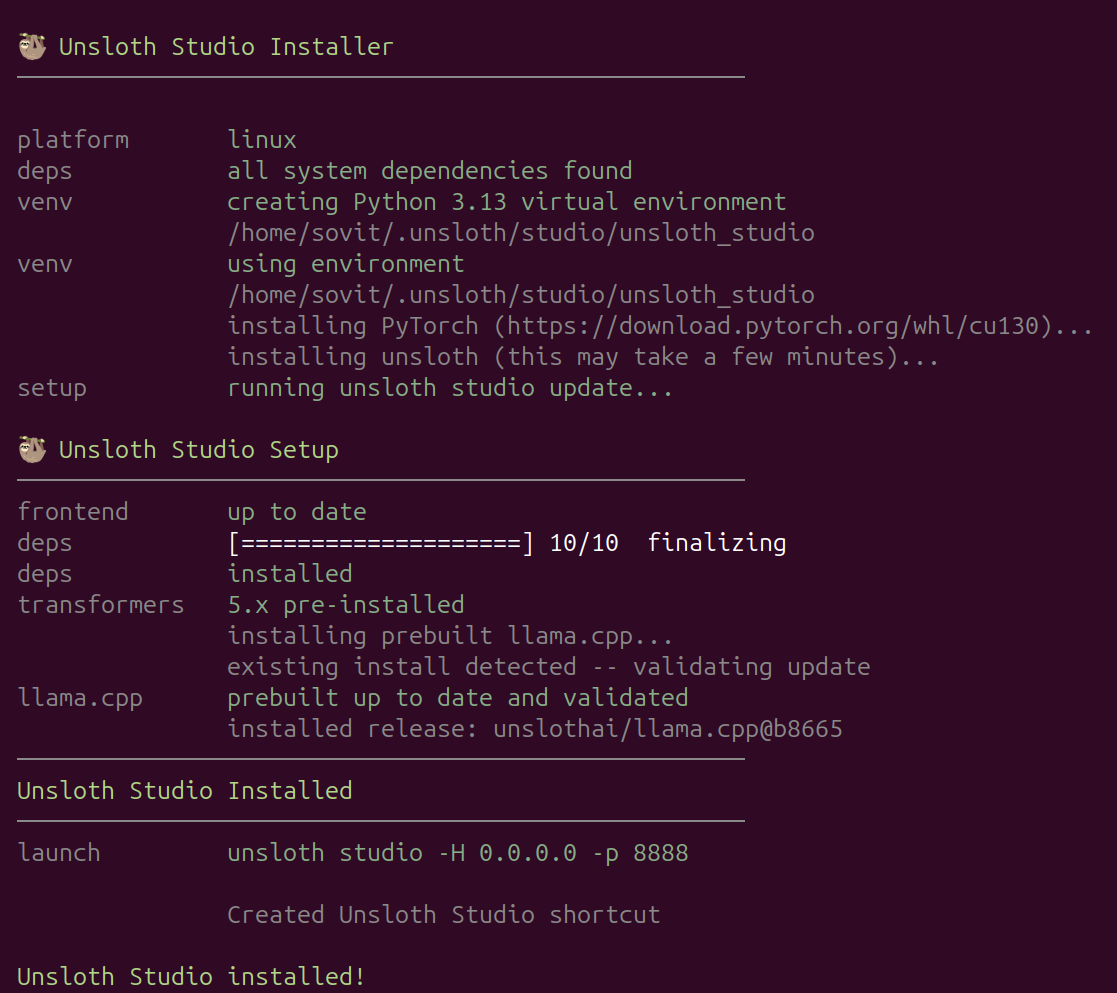
We can use the same command to update Unsloth Studio as well.
After installation, we can launch the application using the following command:
unsloth studio -H 0.0.0.0 -p 8888
You may visit the official page for more information regarding installation, updates, and supported hardware.
After launching the application, we are greeted with the following page.
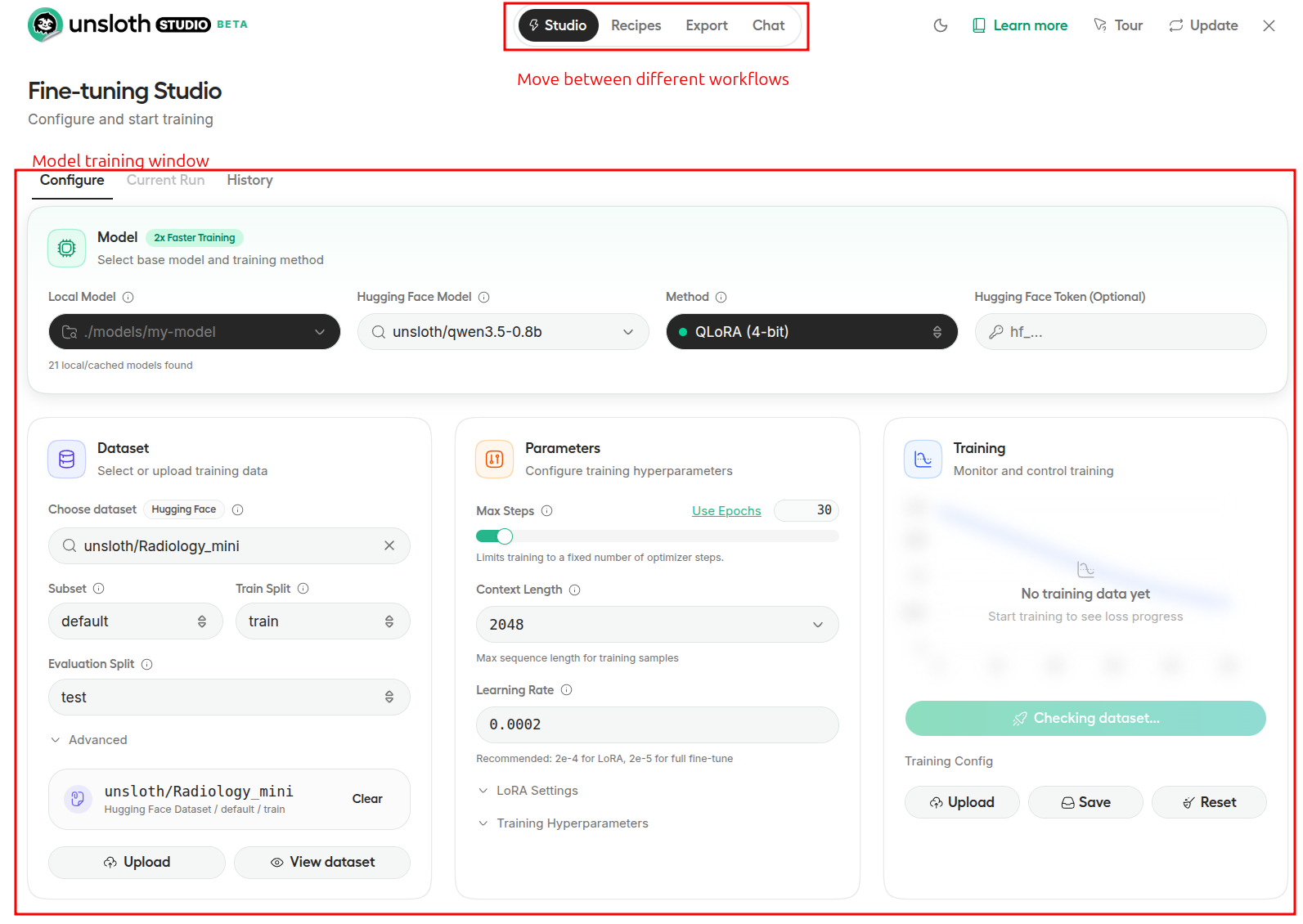
At the top, we have the tabs to move between different workflows: Training Studio, Recipes, Export, and Chat.
Let’s go to the chat window and carry out a few inference experiments.
Unsloth Chat Experiments
In the Chat window, we can select any GGUF or supported model from Hugging Face. As per the model capability, we can upload documents for RAG and images for VLM and OCR experiments.
Simple Chat Experiment
Let’s start with a simple chat experiment.
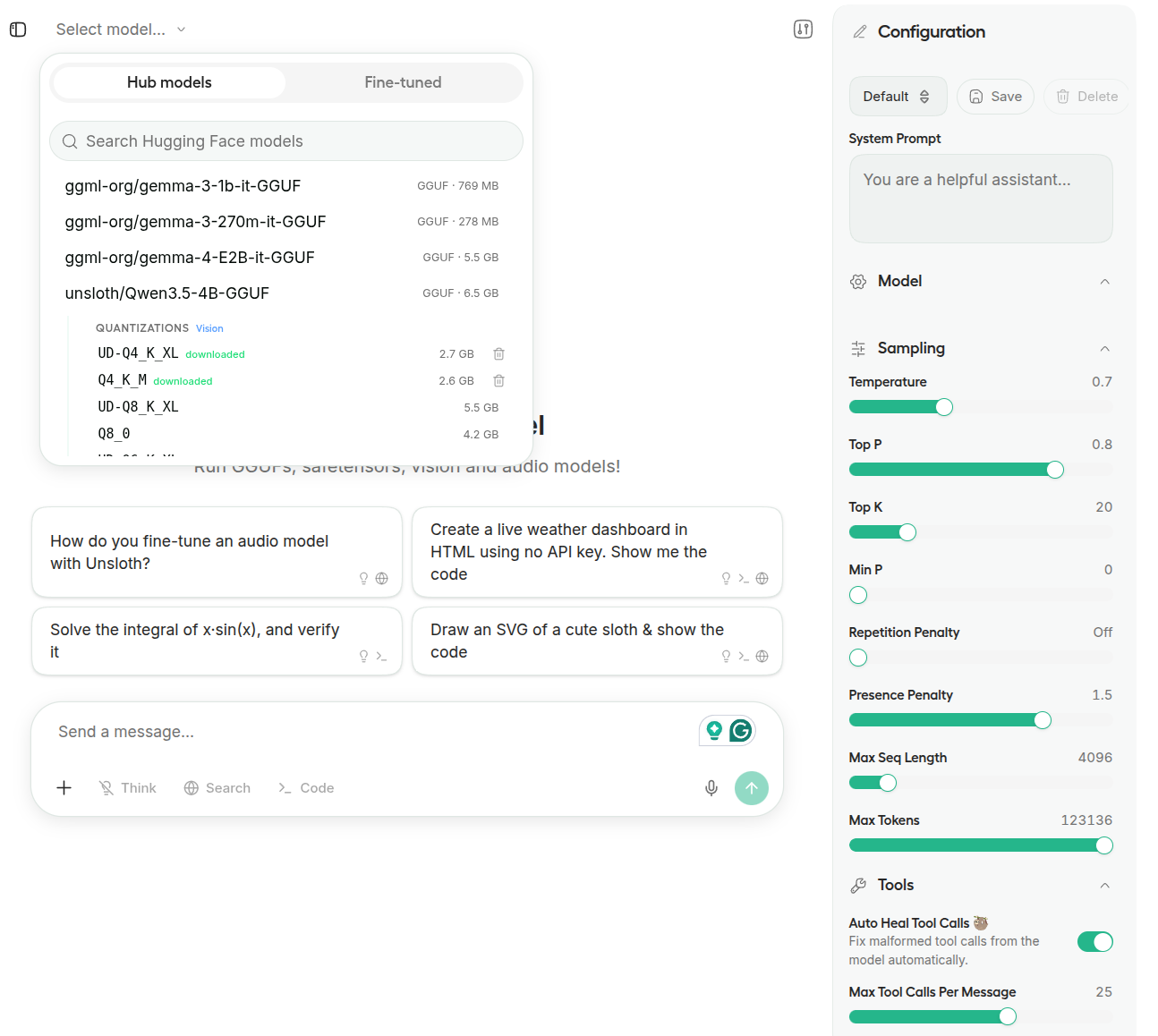
Here, we are choosing the Unsloth GGUF version of Qwen3.5-4B model. We will use the same model for other VLM and coding experiments, as it is a multimodal language model.
The right tab shows the model settings, where we can set the model’s system prompt and max context length, among others.
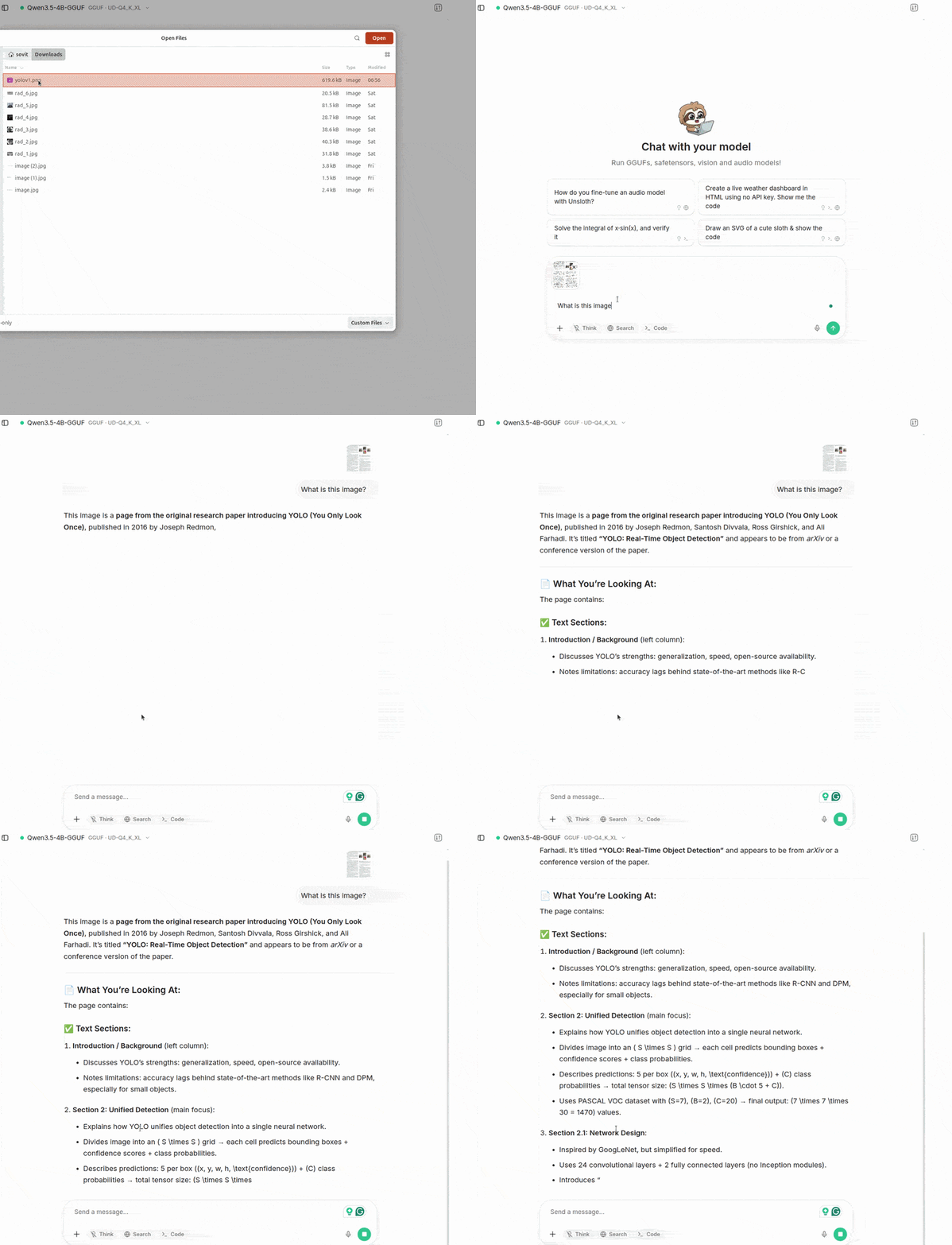
The above video shows a simple chat workflow for using the models in the Unsloth Studio chat window. However, we can use them for much more complex tasks.
Document Extraction, VLM, and RAG
We can use this chat interface for RAG and VLM experiments. Let’s upload a few documents and experiment with them.
In the above video, we ask the model about that image and to OCR it, which it does perfectly.
Web Search and Code Execution with Unsloth Studio
Web search and code execution tools are built into the Unsloth Studio. The following video shows the web search tool calls where we ask the LLM about the recent LLMs and VLMs that were released this week.
To enable tool calls, we have to choose a model that has the capability. In this case, the model was able to search for multiple sources on the internet and show the results. Although the results were not the most up-to-date, they were still pretty accurate.
Local code execution is another massive upgrade for serious workflows. In the following video, we ask the LLM to write to generate binary classification data using Scikit-Learn and execute the plotting code.
It is a long video as the model goes through a number of steps to achieve the results. It first writes the code, calls the code execution tool multiple times, faces errors, and self-corrects. Finally, it tells us where the plot has been saved after the code was executed, which we visualize at the end. It is quite impressive to see this happen locally, as a lot of paid online chat tools also do not have this functionality.
We give the model another difficult code execution task: to write a simple MNIST image classification codebase using PyTorch and train a simple Linear NN model.
The model searched the internet, found the correct sources, wrote the entire codebase, and even started the execution process. However, there was a small timeout issue with the dataset download, where the model stepped in and stopped the execution. It did not self-correct this time. Still, it is extremely impressive to what extent the 4B model was able to achieve this task locally. A slightly larger LLM will be able to do this completely and give us the final accuracy numbers.
Training a Model Outside of Unsloth Studio and Importing to Chat Interface
I was facing OOM (Out of Memory) issues when trying to carry out training experiments in the Studio environment. For that reason, we do a slightly different experiment here. We will train a VLM outside of the Unsloth Studio environment and see how to import it and use it in the chat interface. We will be using one of the Qwen3.5 models here for the fine-tuning experiment.
Specifically, we will be fine-tuning the Qwen3.5-08B model on the Unsloth Radiology dataset. Please refer to this Hugging Face dataset page for more details.
As this is a simple fine-tuning example, we will not be covering the training code in detail here. However, the training notebooks and trained LoRA are available for download.
Directory Structure
The following is the code directory structure that we have.
├── hf_eval_dataset
│   ├── data-00000-of-00001.arrow
│   ├── dataset_info.json
│   └── state.json
├── outputs
│   ├── checkpoint-496
│   └── README.md
├── qwen_lora
│   ├── adapter_config.json
│   ├── adapter_model.safetensors
│   ├── chat_template.jinja
│   ├── processor_config.json
│   ├── README.md
│   ├── tokenizer_config.json
│   └── tokenizer.json
└── qwen3_5_0_8b_ft.ipynb
- We have the
qwen3_5_0_8b_ft.ipynbJupyter Notebook that contains all the fine-tuning code. - The
outputsandqwen_loradirectories contain the intermediate and final trained LoRAs. - The
hf_eval_datasetdirectory contains the evaluation dataset that we save from the training notebook in Hugging Face Dataset format. This can help us load the evaluation dataset easily for evaluating in a standalone script.
The training notebook along with the final trained LoRa, is avaialable for download along with this article in the form of a zip file.
Download Code
Running Inference in Chat Window
While training the model, we have given the model the following instruction: “You are an expert radiographer. Describe accurately what you see in this image.”
Let’s use the same instruction and run inference on one of the test images in the chat window before fine-tuning the model.
We can see that the model gives a pretty detailed answer; however, it is not in the format of the dataset. Also, the answer is not entirely correct using the pretrained model.
Let’s check how the fine-tuned model works. In the following video, we accomplish two things. We first add the directory path containing the LoRA weights, so that we can see the list in the dropdown and select the model directory to load. Second, running inference in the chat window using the same prompt and image.
We add the root directory of the project as the path. This adds the qwen_lora and outputs directories as the model directory paths for Unsloth Studio.
Note: It is important to note that if we add qwen_lora directly as a path to Unsloth Studio, then nothing would show up in the dropdown. We need to add the root path where the LoRA directories are present. Unsloth Studio recognizes the LoRA directory paths as model paths.
In the above video, we cannot be sure that the model answers the question correctly. However, the response format is more in line with the dataset now. At this moment, the model has just learned to steer itself to learn the format rather than the correct responses. However, that is less of a concern at this moment as we were mostly trying to train a model and use it in Unsloth Studio. We can train better models and use them as well.
Summary and Conclusion
In this article, we covered a short introduction to Unsloth Studio. We started with the installation, followed by several experiments such as web search, VLM image description, OCR, and code execution. We also carried out a small fine-tuning experiment outside of Unsloth Studio and imported the model into the chat interface to use the fine-tuned model.
If you have any questions, thoughts, or suggestions, please leave them in the comment section. I will surely address them.
You can contact me using the Contact section. You can also find me on LinkedIn, and X.