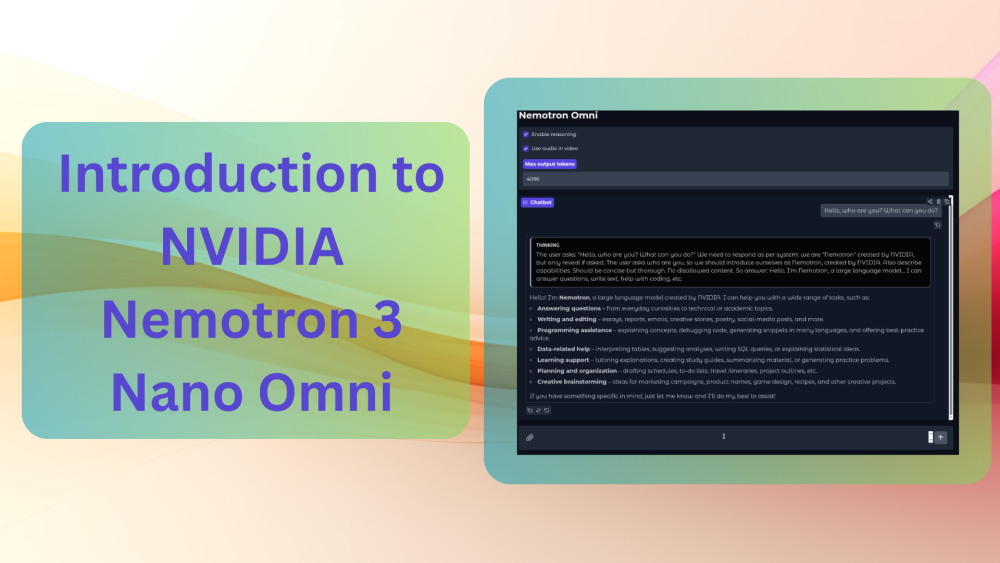
Hardly any of the tasks that we accomplish with language models today contain just text. In reality, it is a combination of text, images, video & audio files, PDFs, text documents, and much more. Naive search and retrieval techniques use multi-model pipelines to deal with such complexity. However, that’s costly, time-consuming, and results in context loss. To tackle this, recently, NVIDIA released one of the most efficient omni-modal language models, the Nemotron 3 Nano Omni. It can handle text, images, videos (with audio), audio, and documents in a single flow. In this article, we will explore the Nemotron 3 Nano Omni model and build a simple chat application by leveraging the NVIDIA API.
This article marks the start of a series based on the NVIDIA Nemotron 3 Nano Omni. We will start with a simple paper walkthrough and a Gradio application in this article, and slowly scale things up with complex applications in future articles.
What will we cover in this article while introducing Nemotron 3 Nano Omni?
- Covering the important bits of the Nemotron 3 Nano Omni paper.
- Code walkthrough of serving the model and creating a basic Gradio chat application.
- Discussing the limitations of the current application and how to scale it up.
Understanding Nemotron 3 Nano Omni: Architecture, Training, and Efficiency
In this section, we will cover the architecture of the model, the training recipes, and what makes it efficient.
The model was introduced in the paper Nemotron 3 Nano Omni: Efficient and Open
Multimodal Intelligence by researchers from NVIDIA.
It is a 30B parameter model with 3B active parameters per token.
The Architecture of Nemotron Nano 3 Omni
The model is omni-modal, capable of processing text, image, video, and audio. This means that the standard text-only pipeline will not cut it in terms of modelling. The Nemotron Nano 3 Omni model follows an encoder-projector-decoder design. For every modality (apart from text, which flows through a text tokenizer), the model processes the inputs through a modality-specific encoder plus projector, which are then processed by a shared decoder.
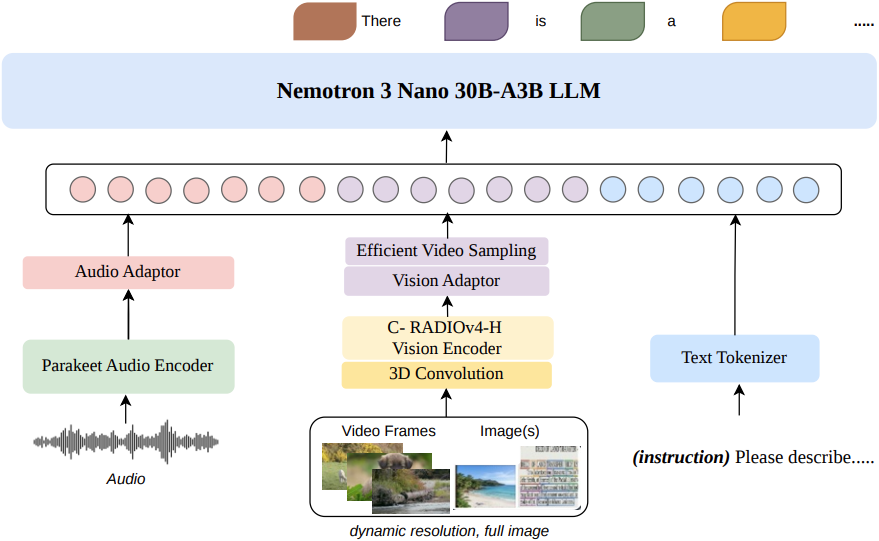
Vision and audio have their own modality encoders connected via MLP projectors. The vision encoder is C-RADIOv4-H.
The backbone is Nemotron 3 Nano 30B-A3B LLM (MoE), which is a hybrid Mambda model.
For varying image resolutions, the researchers replace the tiling strategy in previous models with a dynamic resolution processing. This preserves the native aspect ratio of the image and video frames. Although each patch in the converted image tokens is 16×16, the number of image tokens can vary between 1,024 and 13,312. For images, pixel shuffle further reduces the token count with 4x downsampling before the projection.
For videos, the authors use a Conv3D patch embedder. This maintains temporal consistency, and two consecutive video frames get compressed into one. This results in a 2x reduction in the total number of video tokens. In multimodal and model processing, videos usually require a long context, which blows up the VRAM requirement. The 2x reduction in tokens using the Conv3D patch embedder is a step forward in handling this.
For audio, the Parakeet-TDT-0.6B-v2 FastConformer encoder is used. All audio inputs are resampled to 16 kHz mono and converted to log-mel spectrograms. The audio processing step converts each second of audio into 12.5 tokens. During training, the model learns to handle audio inputs ranging from 0.5 seconds to 20 minutes. However, theoretically, it can handle audio input for up to 5 hours.
That’s not all, the model is even capable of handling videos with audio, where it handles modality tokens in temporal order, leading to joining temporal reasoning.
Nemotron 3 Nano Omni Training Recipe
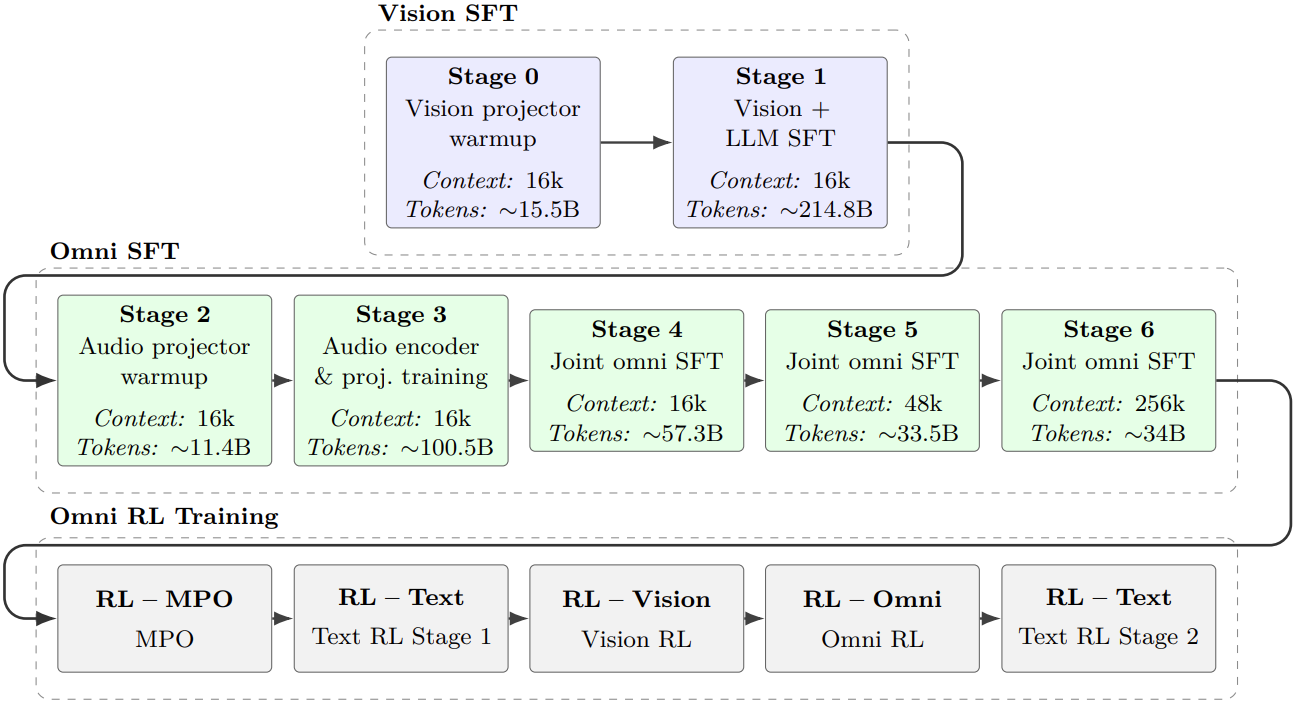
Training reasoning models is inherently difficult. When we further extend that to omni-modality with heterogeneous encoders, the orchestration needs to be right. The researchers train the model in a staged approach. The first stage is supervised fine-tuning (SFT), and the second is reinforcement learning (RL).
The SFT Stage
The authors split the SFT stage itself into seven sub-stages. This is important to introduce new modalities slowly while making the projectors learn the inputs from each of the encoders. Not to mention, the teaching of long context and handling catastrophic forgetting at the same time.
Stage 0 covers the vision projector warmup. Keeping all other components frozen, the authors train the vision MLP projector, and keep the language modality context length at 16384 tokens. The stage includes approximately 9.35 million samples of vision-text pairs, while also covering image captioning, visual grounding, OCR, document & GUI understanding, and general VQA.
Stage 1 trains the language model and the vision encoder. This enables joint vision-language fine-tuning for developing the core vision-language capabilities. This stage trains on 86.3M samples (around 214B tokens). Furthermore, a portion of the vision-language samples is re-annotated using Qwen3-VL, and usage of synthetic data via frontier open source models like Qwen 3.5, GPT-OSS, and DeepSeek-OCR.
Similar to stages 0 and 1, stages 2 and 3 train the audio MLP projector and the audio encoder, respectively. For the audio projector, the dataset consists of the Granary v1.1 ASR dataset, comprising around 59.2M samples. Next, the Parakeet-TDT encoder is trained while the LLM backbone and vision encoder are frozen. The dataset consists of ASR data, sound, music, and speech understanding.
Stages 4 and 5 are very similar in training. They train all modalities (Omni SFT) with 16K and 48K context lengths, respectively.
Finally, stage 6 extends the SFT training to 256K context length, consisting of around 34B tokens across long-context text and vision. These include 10 to 100+ page documents, charts, and tables. Although the paper mentions this stage as Omni SFT, the audio encoder and projector are frozen at this stage.
We will stop the discussion of the architecture and paper here. I highly recommend going through the paper once to cover other aspects, such as training details and the benchmarks in detail.
Running Nemotron 3 Nano Omni via the NVIDIA API
In this section, we will build a simple chat application using the Nemotron 3 Nano Omni model.
We will leverage:
- NVIDIA API key for model access and API call.
- Gradio for frontend.
- And simple per-session history management.
Project Directory Structure
Before we jump into the code, the following is the project directory structure.
├── .env
├── api.py
├── api_test.py
├── app.py
├── README.md
└── requirements.txt
- The
api.pyandapp.py, respectively, contain the backend API call logic and the Gradio frontend logic. - The
README.mdfile contains information about the project and the steps to run it.
Download Code
Handling Dependencies
We can install all the dependencies via the requirements file.
pip install -r requirements.txt
Also, we need an NVIDIA API key to make the API calls. You can go to build.nvidia website and generate an API key to work with the code in this article. The free API has rate limits (40 requests per minute), but it is enough for this article. Add that to the .env file.
NVIDIA_API_KEY=YOUR_API_KEY
This completes all the setup steps that we need.
NVIDIA Nemotron 3 Nano Omni Chatbot Code Walkthrough
We will walk through the code lightly. There is not much logic to take care of there, just handling different API calls according to the media and chat type.
API Call Code for Nemotron 3 Nano Omni
We will start with the api.py file that contains all the API calls for the models.
The first code block contains the import statements, the mime types, and the content type that we will be handling while building the chatbot.
import base64
import os

from pathlib import Path
from dotenv import load_dotenv
from openai import APIError, OpenAI

load_dotenv()

NVIDIA_API_BASE_URL = "https://integrate.api.nvidia.com/v1"
MODEL = "nvidia/nemotron-3-nano-omni-30b-a3b-reasoning"

MIME_TYPES = {
    ".png": "image/png",
    ".jpg": "image/jpeg",
    ".jpeg": "image/jpeg",
    ".mp4": "video/mp4",
    ".mp3": "audio/mpeg",
    ".wav": "audio/wav",
}

CONTENT_TYPES = {
    "image/png": "image_url",
    "image/jpeg": "image_url",
    "video/mp4": "video_url",
    "audio/mpeg": "audio_url",
    "audio/wav": "audio_url",
    "audio/x-wav": "audio_url",
}
We are building a simple chatbot here, where it will accept either text, image, video, or audio as input.
The next code block handles all the file-related operations.
def media_type_from_path_or_mime(path=None, mime=None):
    ext = Path(path).suffix.lower() if path else ""
    mime = mime or MIME_TYPES.get(ext)
    return CONTENT_TYPES.get(mime)


def file_to_data_uri(filepath):
    filepath = Path(filepath)
    mime = MIME_TYPES.get(filepath.suffix.lower())

    if mime is None:
        raise ValueError(f"Unsupported file type: {filepath.suffix.lower()}")

    with open(filepath, "rb") as file:
        encoded = base64.b64encode(file.read()).decode()

    return f"data:{mime};base64,{encoded}"


def get_file_path(file):
    if isinstance(file, (str, Path)):
        return file

    if isinstance(file, dict):
        return file.get("path") or file.get("name") or file.get("orig_name")

    return getattr(file, "path", file)


def build_file_part(file):
    url = None
    mime = None

    if isinstance(file, dict):
        url = file.get("url")
        mime = file.get("mime_type") or file.get("mime") or file.get("type")

    filepath = get_file_path(file)
    media_type = media_type_from_path_or_mime(filepath, mime)

    if url and str(url).startswith(("data:", "http://", "https://")):
        if media_type is None:
            return None

        return {
            "type": media_type,
            media_type: {
                "url": url,
            },
        }

    if filepath is None:
        return None

    if media_type is None:
        raise ValueError(f"Unsupported file type: {Path(filepath).suffix.lower()}")

    uri = file_to_data_uri(filepath)

    return {
        "type": media_type,
        media_type: {
            "url": uri,
        },
    }
These include handling the content and mime types, including the creation of a file part. Especially, the build_file_part(file) function does the following:
- Accepts a file argument that can be:
- a dictionary with keys like
url,mime_type,mime, ortype - a string/Path filename
- an object with a
.pathattribute
- a dictionary with keys like
- Determines the file’s MIME/type using:
- explicit
mime_type/mime/typefrom a dict - file extension mapping via
media_type_from_path_or_mime
- explicit
- Handles two main cases:
- If
filecontains a validurlbeginning withdata:,http://, orhttps://, then it returns a payload with the detectedmedia_typeand the URL - Otherwise, if a local file path is available, it converts the file to a
data:URI with base64 content usingfile_to_data_uri, and returns a similar payload pointing to that data URI
- If
The final code block in the API script handles the construction of the user message and makes the API calls.
def build_user_message(text, files):
    content = []
    text = text or ""

    for file in files or []:
        file_part = build_file_part(file)

        if file_part is not None:
            content.append(file_part)

    if text.strip():
        content.append({
            "type": "text",
            "text": text,
        })

    return {
        "role": "user",
        "content": content,
    }


def stream_chat(
    messages,
    enable_thinking,
    use_audio_in_video,
    temperature=0.6,
    top_p=0.95,
    max_tokens=4096,
    reasoning_budget=16384,
):
    api_key = os.getenv("NVIDIA_API_KEY")

    if not api_key:
        raise RuntimeError("Set NVIDIA_API_KEY in your environment or .env file.")

    client = OpenAI(
        base_url=os.getenv("NVIDIA_API_BASE_URL", NVIDIA_API_BASE_URL),
        api_key=api_key,
    )

    extra_body = {
        "chat_template_kwargs": {
            "enable_thinking": enable_thinking,
        },
    }

    if enable_thinking:
        extra_body["reasoning_budget"] = reasoning_budget

    if use_audio_in_video:
        extra_body["mm_processor_kwargs"] = {
            "use_audio_in_video": True,
        }

    try:
        return client.chat.completions.create(
            model=MODEL,
            messages=messages,
            temperature=temperature,
            top_p=top_p,
            max_tokens=max_tokens,
            extra_body=extra_body,
            stream=True,
        )
    except APIError as error:
        message = getattr(error, "message", str(error))
        raise RuntimeError(f"NVIDIA API request failed: {message}") from error
We have set the default maximum number of tokens to 4096 and the reasoning budget to 16384 tokens.
This is all we have for the NVIDIA API calls codebase.
The Gradio UI Code
The app.py file contains the Gradio frontend logic. I am not adding all the code blocks here; however, setting some context regarding the codebase.
It first normalizes incoming user content (text plus uploaded files), converts any file-like inputs into the same payload format, and normalizes chat history so assistant responses are extracted as plain text. That chat() function then sends the assembled messages history to stream_chat() and yields incremental answer updates to the Gradio chat interface.
Important note on chat history:
This app only keeps the chat history for the current Gradio session in memory. The history passed into chat() is local to the running app instance and is rebuilt each time we refresh the page or restart the app. We are not persisting past conversations across reloads.
With this, we complete all the code that we need to run the chat application with the Nemotron 3 Nano Omni model.
Running the Application
Let’s run the application and see what we can do with it. We can run the application by executing app.py.
python app.py
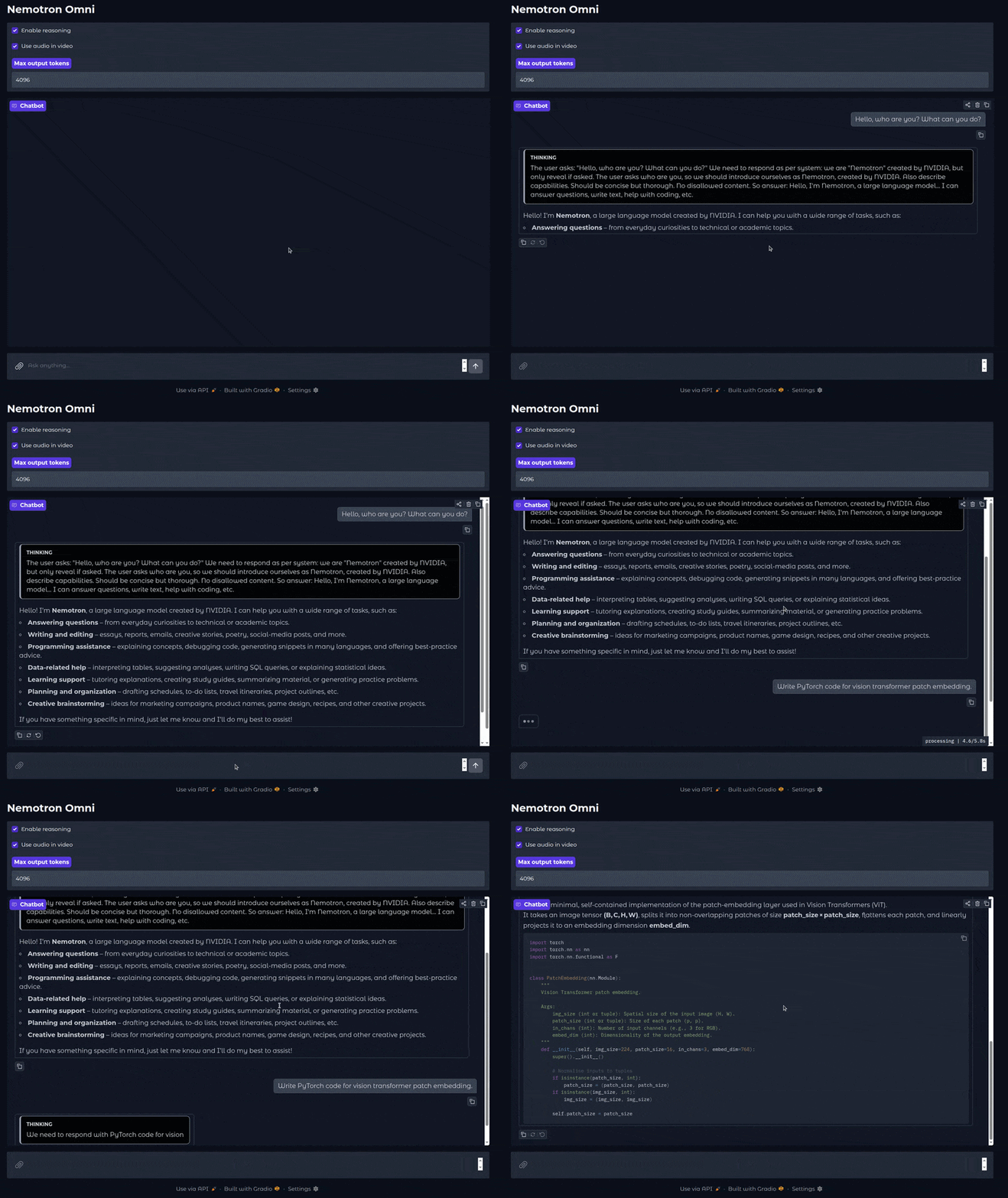
The following is how the UI looks.
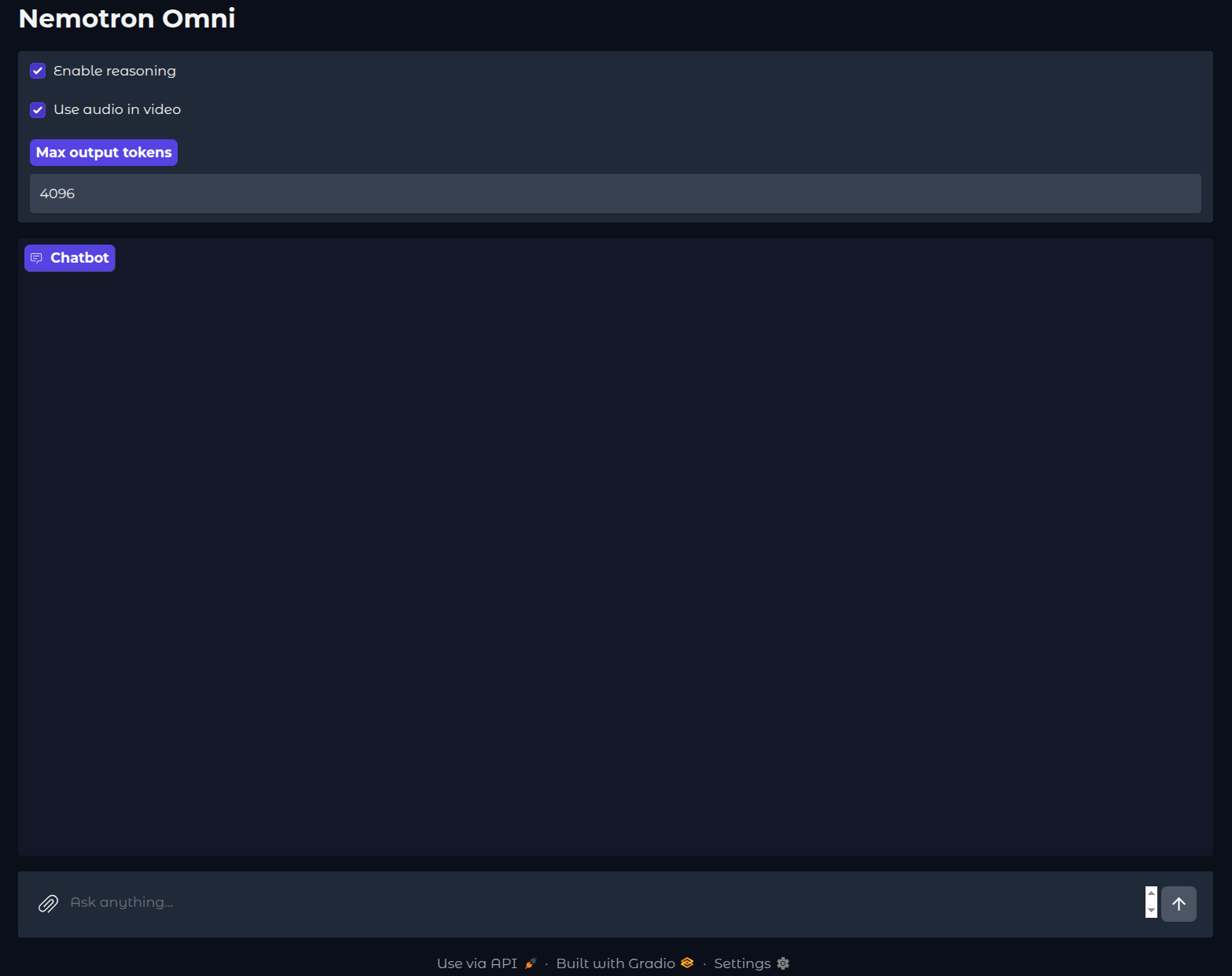
Let’s see how we can use the application for chatting with the model. The first video shows a text-mode-only conversation.
In the above video, we asked the models a few questions in reasoning mode and got the response back. The model was also able to respond correctly regarding the patch embedding code.
Note: One thing you might notice while reasoning mode is on is that the model sometimes gives garbage output. Although it is difficult to trace back the issue, NVIDIA APIs might be loading between quantized and non-quantized models in the backend, based on the load on their server, which might result in this.
Let’s check out another video where we ask the model about an image and a video.
Here, we have turned off reasoning mode. And we can surely see the difference in the results. The responses are quite shorter this time.
Takeaways and Next Steps
It will be a good experiment to run some internal evals with the reasoning model turned on and off. However, it will be quite difficult to do that with the NVIDIA API due to rate limits and throttling.
To mitigate this, we will learn how to deploy the same model on the Modal serverless in the next article, where we control the end-to-end GPU serving, latency, and context.
Summary and Conclusion
In this article, we covered the introduction to the Nemotron 3 Nano Omni model. We started with the important concepts from the paper and created a simple application to run inference via the NVIDIA API. We also discussed a few limitations and how we are going to solve them in the next article. I hope this article was worth your time.
If you have any questions, thoughts, or suggestions, please leave them in the comment section. I will surely address them.
You can contact me using the Contact section. You can also find me on LinkedIn, and X.
References


Another day, another “I’ll just skim this for 5 minutes”… which somehow turns into 30min😄.
Great article!