
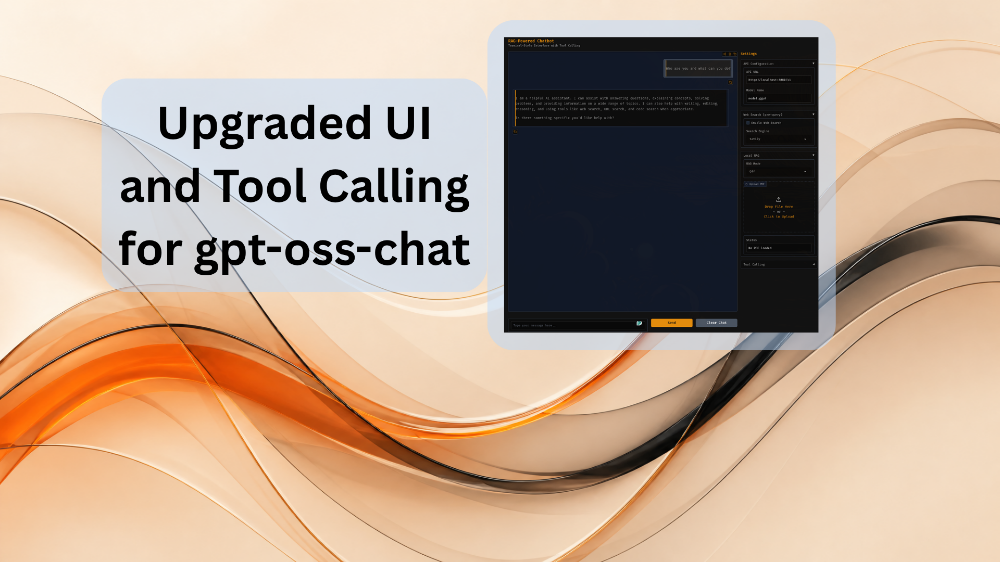
I have been working on a simple local chat application for a few months now, called gpt-oss-chat. This started as a simple learning experience to understand streaming chat, tool use, handling streaming text and tool tokens, and integrating chat components from scratch. Since then, I have been updating a few things on and off. The TUI (Terminal User Interface) was usually ahead in functionality compared to the Gradio UI. However, with the recent update, the chat UI provides a new experience, visuals, and complete integration of all tools. This is exactly what we will cover in this article. We will specifically cover the upgraded the UI and tool calling for gpt-oss-chat.
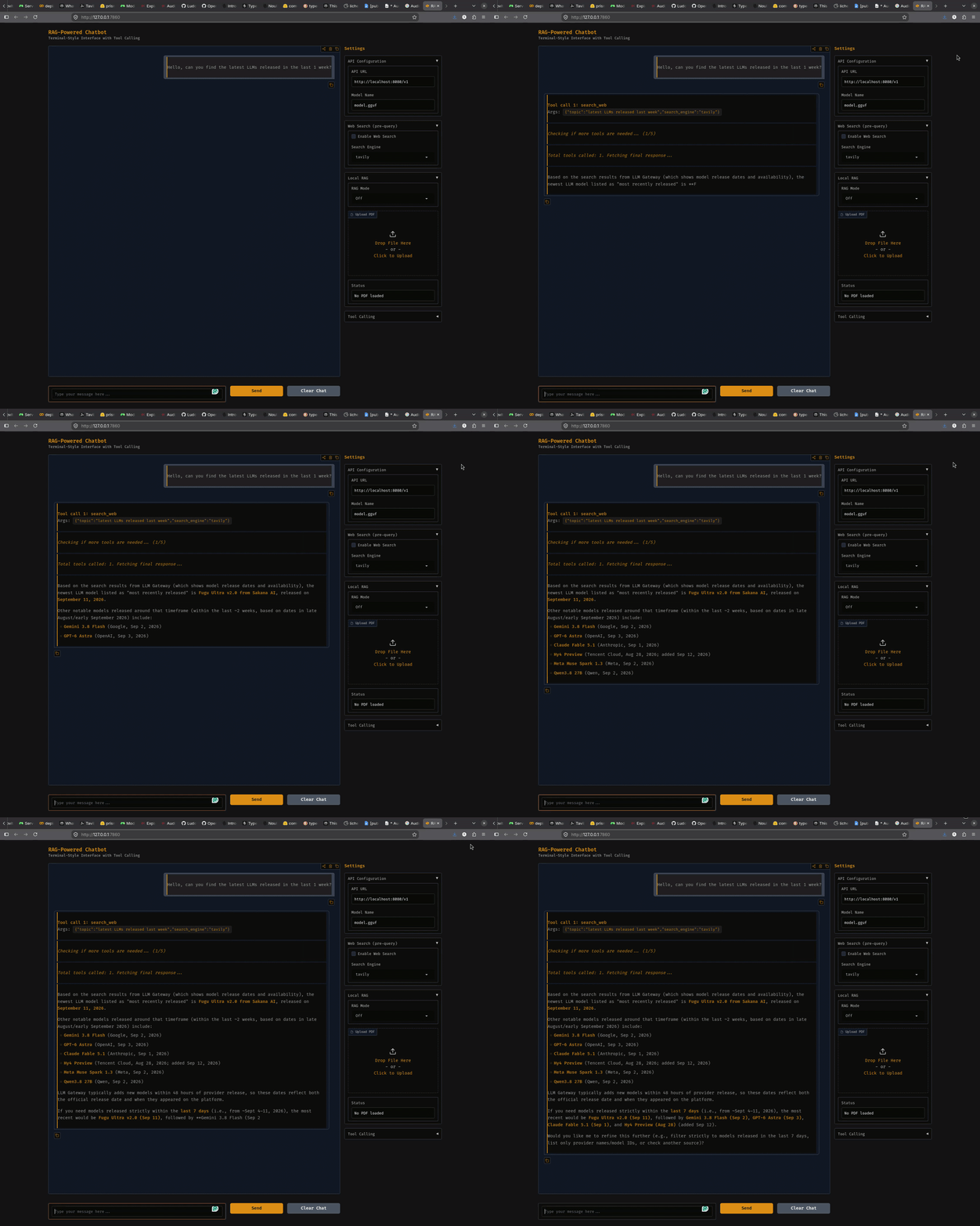
The primary LLM backend for gpt-oss-chat has always been llama.cpp. As of the new updates, we have loose integrations for vLLM and Modal endpoints as well. However, there are issues with tool calls, which are actively being worked on.
In this article, we will primarily cover the following topics:
- What updates did we make to the chat UI?
- How was the system prompt updated for better tool calling?
- What were the updates to the tool calling script to avoid general errors?
- Overall updates to the application.
Disclaimer: gpt-oss-chat is not a complete LLM application. Rather, it acts as a learning repository to understand how streaming, tool usage, and integrations are generally handled in LLM chat UIs.
What Was Already Present in gpt-oss-chat?
Prior to this, gpt-oss-chat already had a fully functioning TUI (Terminal User Interface) with tool calls such as RAG, web search, code search, and a streaming response interface. We can launch the TUI via api_call.py.
All this while, the Gradio chat interface was lagging behind in the same functional series. It just had web search and RAG options and none of the automated tool calling functionalities. We change that with the new update. We can launch the Gradio chat interface via app.py.
Now, the TUI and Gradio chat interface are entirely equal in their functionalities.
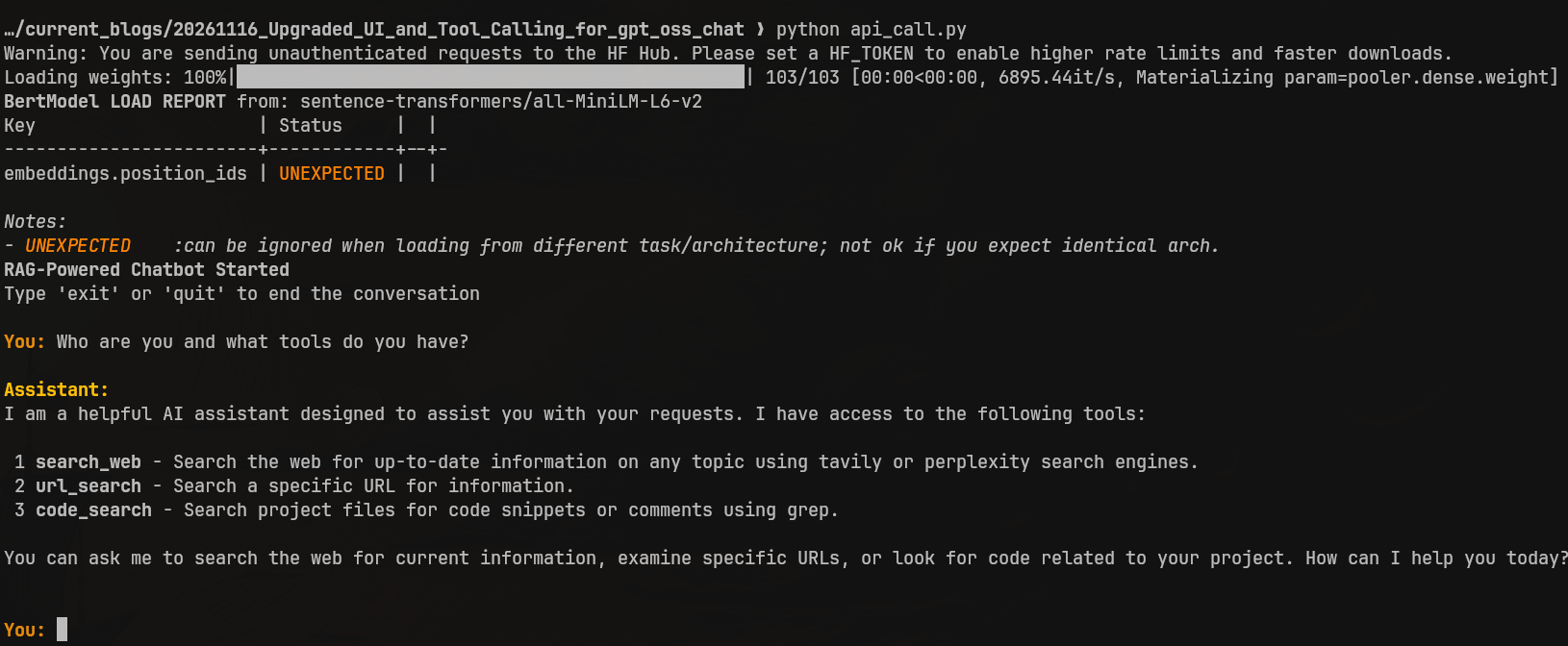
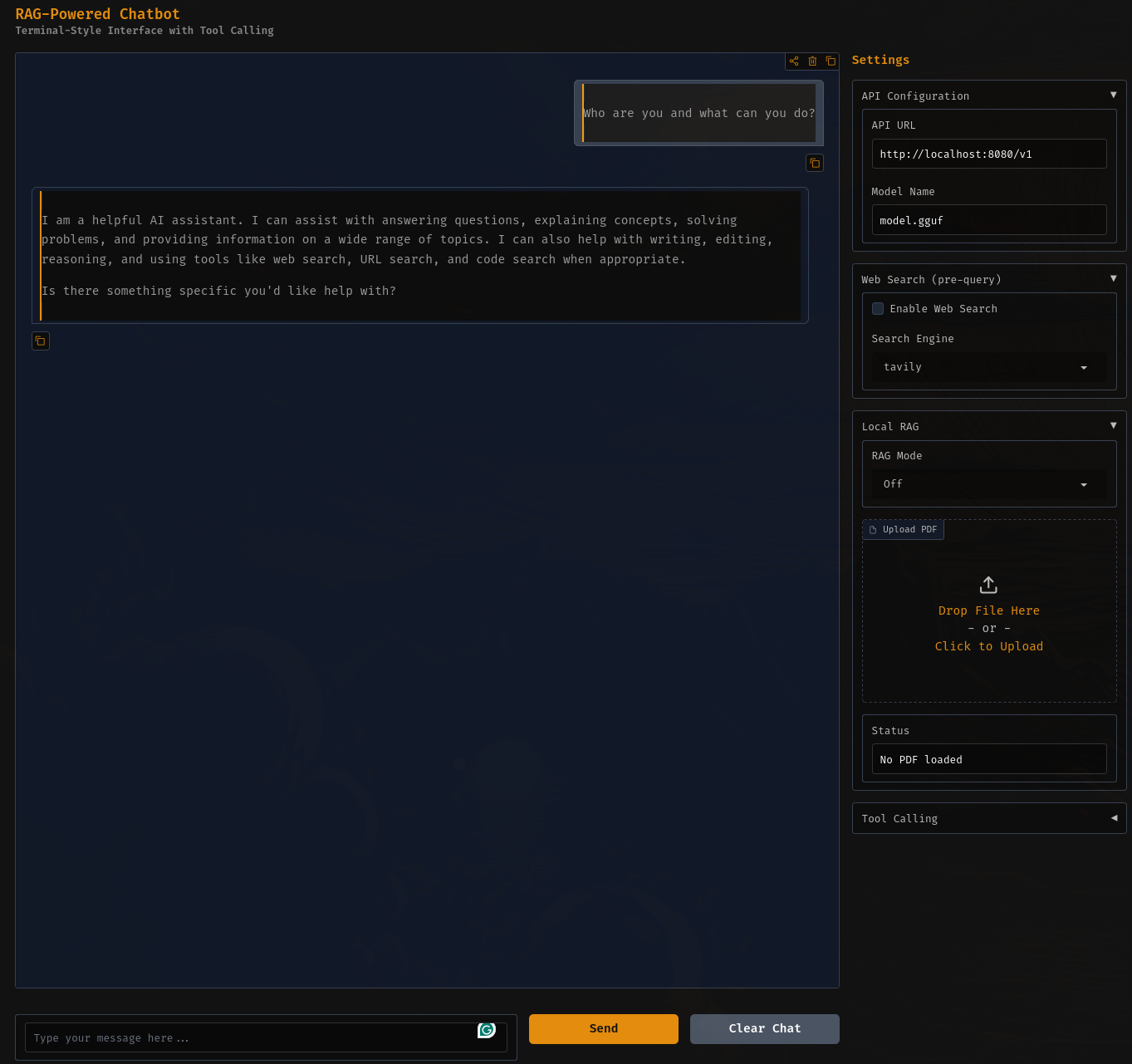
In this article, we shall focus on the changes to the tool calling functionalities and how we brought in the changes to the chat interface.
If you are interested in how the project has progressed over the last few months, the following articles cover the entire story:
- gpt-oss-chat Local RAG and Web Search
- Web Search Tool with Streaming in gpt-oss-chat
- RAG Tool Call for gpt-oss-chat
- Multi-Turn Tool Call with gpt-oss-chat
Download The Code and Local Setup
A stable version of the codebase is available in the form of a zip file with this article. You can download and extract it to get started right away.
Download Code
Project Directory Structure
We get the following directory structure after downloading and extracting the codebase.
.
├── assets
│   ├── gpt-oss-chat-terminal.png
│   └── gpt-oss-chat-ui.png
├── tools
│   ├── tool_simulation.py
│   └── tools.py
├── utils
│   └── prompt.py
├── api_call.py
├── app.py
├── LICENSE
├── README.md
├── requirements.txt
├── semantic_engine.py
└── web_search.py
- As discussed earlier,
api_call.pylaunches the TUI andapp.pylaunches the Gradio chat interface. semantic_engine.pyandweb_search.pyform the base logic for RAG and web search, respectively.- The
tools/tools.pyfile contains all the tools that are available, including RAG, web search, code search, and URL search.
Setting Up Local Dependencies
It is best to create a new virtual environment and install the requirements.
pip install -r requirements.txt
Next, we need to create .env file and add the Tavily API key for web search. In case you do not have one, create a Tavily account, and you will get 1000 credits per month for free.
TAVILY_API_KEY=your_tavily_api_key
One last setup is installing llama.cpp. I recommend following the official build guide according to the OS you are using.
This is all the setup we need for now. Let’s jump into the codebase.
Updates to the gpt-oss-chat Codebase
In the previous version of the codebase, the following issues were particularly breaking the chat workflow sometimes:
- The models were calling
local_ragtool in a few instances even when no file was uploaded for RAG, and the user rather asked for a web search. - Calling the same tool repeatedly, reaching the tool call cap, and not emitting the final answer.
- Sometimes, the LLMs were emitting raw tool call syntax in the final answer. This particularly happens when using llama.cpp as the inference backend.
Let’s take a detailed look at the updates that were made to the gpt-oss-chat codebase to mitigate the above. We will cover the changes file-by-file.
Changes to utils/prompt.py
We have a new set of system prompts. It is a bit dynamic now, considering the situation whether the user uploads a document for local RAG or not.
We replace the SYSTEM_MESSAGE string with build_system_message(include_local_rag=bool). This allows us to hide the local RAG capability when no document has been uploaded.
An example when build_system_message(include_local_rag=True).
You are a helpful assistant. You never say you are an OpenAI model or chatGPT.
You are here to help the user with their requests.
When the user asks who are you, you say that you are a helpful AI assistant.

You have access to the following tools:
1. search_web: Search the web for up-to-date information on any topic...
2. local_rag: Search the user's uploaded document for relevant information.
3. url_search: Search a specific URL for information.
4. code_search: Search a specified directory for code snippets...
...
And the following snippet shows an example when build_system_message(include_local_rag=True).
You are a helpful assistant. You never say you are an OpenAI model or chatGPT.
You are here to help the user with their requests.
When the user asks who are you, you say that you are a helpful AI assistant.

You have access to the following tools:
1. search_web: Search the web for up-to-date information on any topic...
2. url_search: Search a specific URL for information.
3. code_search: Search a specified directory for code snippets...
...
The above allows the local_rag reference to be hidden from the LLM when the user does not upload a file.
Another important factor is how many times the models were allowed to call the tools. It was set to 5 times before. One of the notorious ones was the code_search tool, which uses grep to find the query matches. This sometimes resulted in context bloat. Now, any tool call is limited to 3 times only, and after a user has provided the query, a single assistant turn is limited to 3 total tool calls.
Changes to tools/tools.py
There are major changes to the tool calling workflows as well. There were no try-except blocks earlier, resulting in silent errors and no recovery options for the LLMs. Earlier, the turn just got killed if any silent error happened.
The following is an example:
search_web("latest LLM news", "tavily")
# => "Error: web search (tavily) failed: TAVILY_API_KEY not found in environment. Please check your .env file"
This also gives the model options to move on from empty web results when the web search errors out, and it can answer similarly to the following => “No web search results found”.
For the code_search tool, we have reduced the grep context from -C 10 to -C 3, resulting in retrieval of 3 lines of context instead of 10. For less capable agents and smaller context windows, 10 lines of context over 3-5 turns can result in adding a huge amount of context. This is in active experimentation now, as larger context from grep allows better results for more capable LLMs.
Changes to api_call.py (Terminal UI)
The terminal UI in general first sees the changes that were made to the system prompt, such as the dynamic local RAG message and the updated system prompts.
There is new tool_call_cache dictionary as well, which deduplicates identical tool calls in the same assistant turn. Furthermore, we have added an experimental MAX_TOOL_RESULT_CHARS = 4000 which limits the context of any single tool call. Again, this is useful for less capable models and smaller context windows, and for more capable models it can be turned off.
Sometimes, the models were not answering after the tool call cap was hit. The new FINAL_ANSWER_INSTRUCTION leads the LLMs to make another call to generate a final answer with the context from tool calls but without making any further tool calls.
The following is an example.
You: How is the gpt-oss model used in this codebase? /home/user/project

Tool call 1: code_search ::: Args: {"directory":"/home/user/project","query":"gpt-oss","max_results":10}
Checking if more tools are needed...
Tool call 2: code_search ::: Args: {"directory":"/home/user/project","query":"llama-server","max_results":10}
Checking if more tools are needed...
Tool call 3: code_search ::: Args: {"directory":"/home/user/project","query":"model.gguf","max_results":10}
Checking if more tools are needed...
Warning: Reached maximum tool calls (5)
 Total tools called: 5. Fetching final response...

Assistant:
Based on the code search results, gpt-oss-20b is used via llama.cpp's server mode.
The README shows the startup command: `./build/bin/llama-server -hf ggml-org/gpt-oss-20b-GGUF`...
Changes to app.py (Gradio UI)
The biggest overhaul was made to the app.py file that launches the Gradio UI. The logical changes that control api_call.py are also valid here.
Apart from that, the entire UI has been updated with a new accent. It now shows tool calls made and the number of tool calls in the assistant response.
The best part is that the entire functionality of the Gradio UI now matches the TUI.
However, both files have redundant logic. In future updates, the plan is to have one core module with all the logic as API calls and have the TUI and Gradio UI use them.
Running LLM Experiments with the New gpt-oss-chat Codebase
Let’s run some experimental workflows with the new codebase.
gpt-oss-chat Gradio UI Powered by llama.cpp
We will start by running the LLM via llama.cpp first.
llama-server -hf ibm-granite/granite-4.2-8b-GGUF --reasoning off -c 64000
Here, we are running the Granite 4.2 8B model with reasoning tuned off and a context limit of 64000.
Then launch the Gradio UI from the project directory.
python app.py
The following video shows the web search capability using the gpt-oss-chat tool calling.
The UI shows the tools called along with the parameters for better visibility for the users.
Let’s check another instance where we ask the model to do code search in a directory.
Here we asked the model to search the PyTorch codebase for ResNet50 fine-tuning examples. Although the model did 5 rounds of code_search with relevant queries, it was not able to find a proper example. This shows the limitation in grep, where we are only retrieving 3 lines. This will be addressed in one of the future updates.
Using vLLM Inference Backend
As discussed earlier, we can use the vLLM backend as well for running the LLMs and running inference. However, currently, it is only limited to chat, and tool calls do not work as expected. This is actively being worked on.
Before getting started, make sure that you have installed vLLM. Next, launch any model of your choice.
vllm serve Qwen/Qwen3.5-0.8B \
--port 8000 \
--max-model-len 16000 \
--gpu-memory-utilization 0.6 \
--max_num_seqs 1 \
--enable-auto-tool-choice \
--tool-call-parser qwen3_xml
For example, in the above command, we are launching a very small Qwen 3.5 0.8B model. By default vLLM launches the model on port 8000. Go to the Gradio UI and change the port from 8080 to 8000 and the model name from model.gguf to Qwen/Qwen3.5-0.8B.
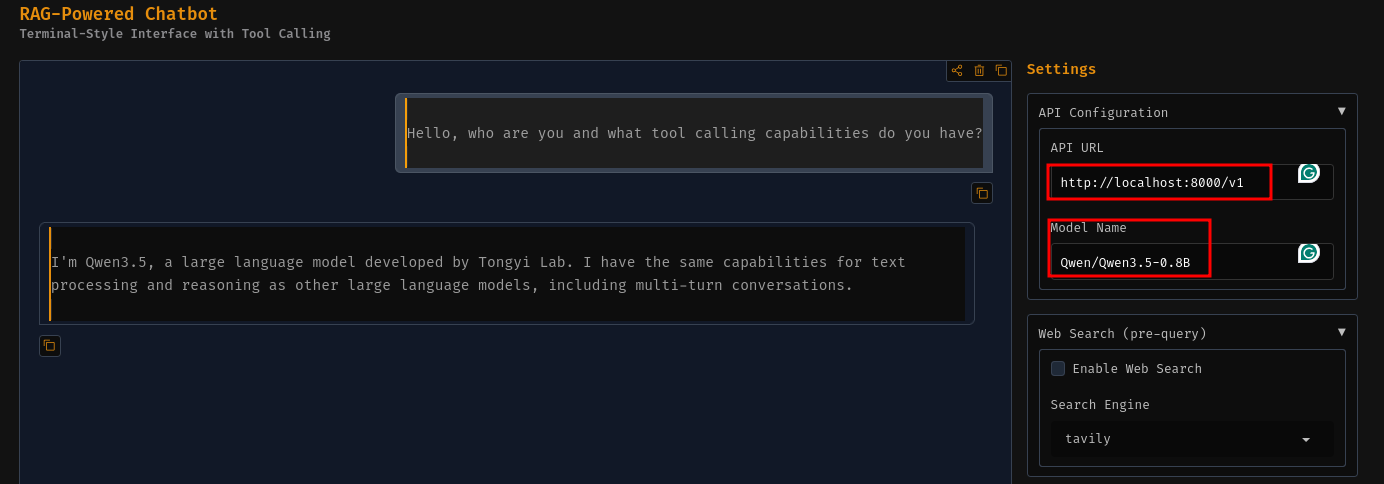
This also shows that we can use any model, be it via llama.cpp, vLLM, or proprietary providers, as long as they support an OpenAI-compatible backend.
Summary and Conclusion
In this article, we covered the updates that were made to the gpt-oss-chat project recently, mainly, the Gradio UI and better tool calling capabilities. We started with the exploration of the previous issues and how we mitigated them. Next, we saw the new UI demo for tool calling and how we can use the vLLM backend as well. I hope this article was worth your time.
If you have any questions, thoughts, or suggestions, please leave them in the comment section. I will surely address them.
You can contact me using the Contact section. You can also find me on LinkedIn, and X.