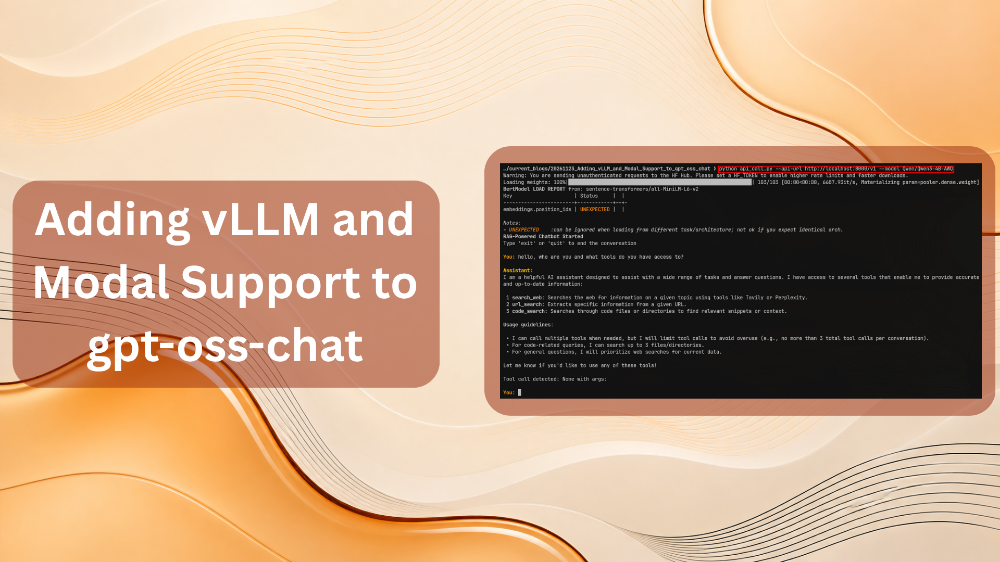
Up until now, the gpt-oss-chat backend was primarily powered by llama.cpp. Although this works well for local setup, there were major limitations when trying to tap into the benefits of other high performance inference engines, like vLLM or Modal endpoints. This is exactly what the latest update brings to gpt-oss-chat. We are adding vLLM and Modal endpoint support to gpt-oss-chat, which are OpenAI-compatible, complete with tool use and streaming.
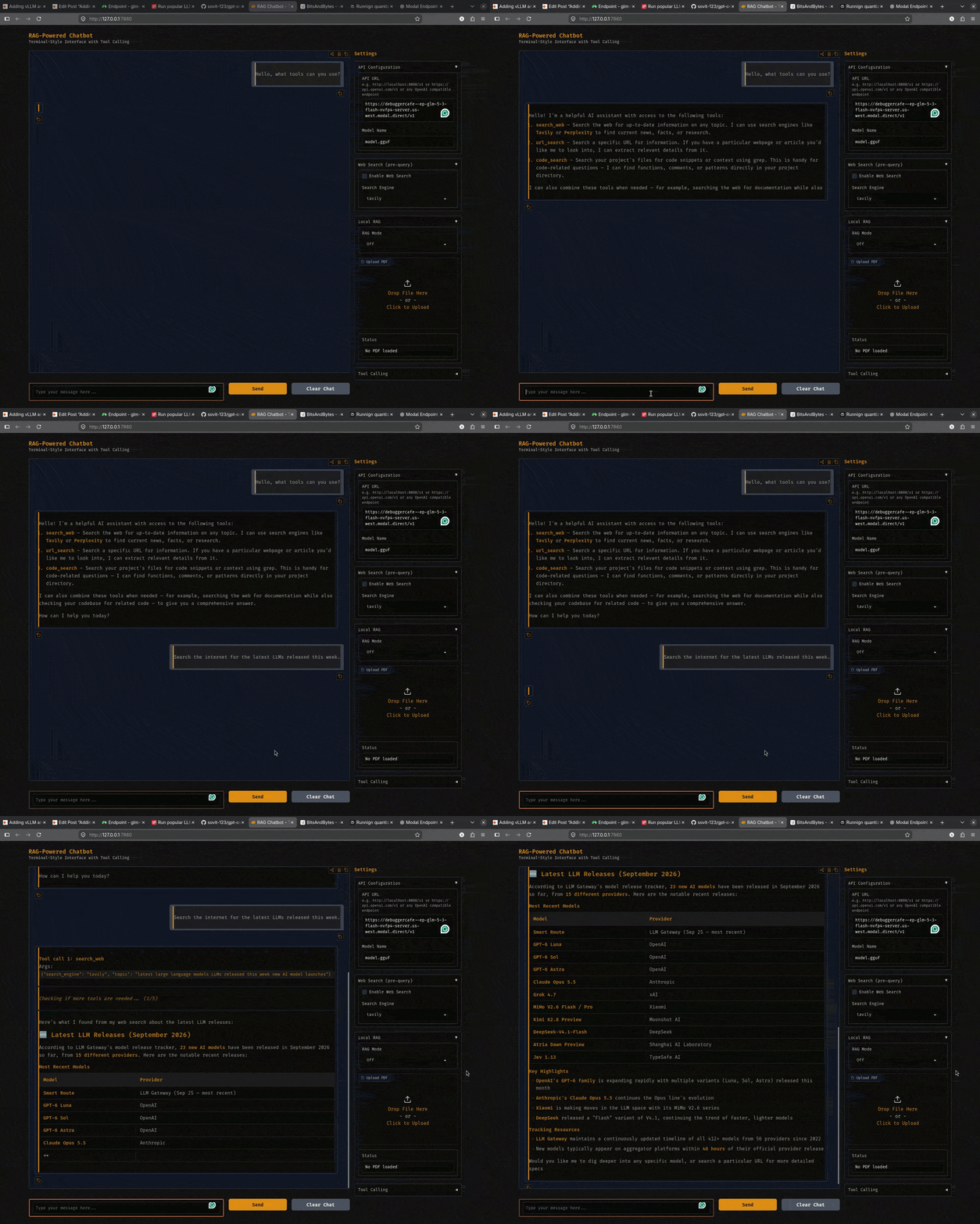
All of these updates come to both Gradio UI and TUI (Terminal User Interface) with full support for the current tools, which include:
- Web search
- URL search
- Code search
- RAG as a tool
The current update allows us to use the benefits of the high performance vLLM engine and gives access to some of the highest-performing open-source LLMs via Modal endpoints. We will cover the changes and the other details further in the article.
Here is what we are going to cover in the article:
- Changes made to the code and tool calling logic to make the vLLM and Modal endpoints work.
- How do we use locally hosted vLLM models?
- How do we use Modal endpoints, both self-hosted and via the new Endpoints?
Code Download and Local Setup
A stable version of the codebase is available for download along with this article. We can extract it, set it up locally, and get started right away.
Download Code
Project Directory Structure
We get the following directory structure after extracting the codebase.
├── assets
│   ├── gpt-oss-chat-new-tui-1.png
│   ├── gpt-oss-chat-new-ui-1.png
│   ├── gpt-oss-chat-terminal.png
│   └── gpt-oss-chat-ui.png
├── tools
│   ├── tool_simulation.py
│   └── tools.py
├── utils
│   └── prompt.py
├── api_call.py
├── app.py
├── LICENSE
├── README.md
├── requirements.txt
├── semantic_engine.py
└── web_search.py
- The
app.pyfile runs the Gradio UI andapi_call.pyruns the TUI. semantic_engine.pyandweb_search.pyform the base logic for the RAG and web search tools.
The above are the important ones that we need to keep in mind.
Local Setup
It is best to create a new virtual/Anaconda environment before installing the packages via the requirements file.
pip install -r requirements.txt
Next, create a .env file in the project root directory and add the Tavily web search API key. Tavily provides 1000 credits per month for free, which is great to get started with LLM powered web search tool calling experiments.
TAVILY_API_KEY=YOUR_TAVILY_API_KEY
There are other Modal API key specific setup that we will cover later in the article in the corresponding sections.
Installing llama.cpp:
I recommend following the official build guide for installing llama.cpp according to the OS you are using.
Installing vLLM:
For vLLM, follow the official documentation and install it based on your hardware configuration.
This is all the setup we need for now. Let’s jump into the codebase.
Making Tool Calling Work on vLLM in gpt-oss-chat
One interesting fact about the entire update is that, we need not make separate updates for vLLM and Modal endpoints. Modal endpoints are inherently deployed using vLLM. So, once we make the necessary changes for local vLLM deployment, the same carries over to the Modal endpoints, and virtually any other provider that uses vLLM for deploying LLMs at scale.
The Problem with vLLM and Tool Calling
With vLLM endpoints, tool calling was the only isuse. The simple chat components worked well as we saw in the previous article where we covered upgrade to UI and tool calling for gpt-oss-chat.
The model would reply with text like “I will search the web now…”. However, the tool never got invoked.
The Reasons for Failed Tool Calls with vLLM
In both Gradio UI and TUI, we made one assumption. If the LLM content starts streaming (non-tool call parts), then the response does not contain a tool call.
Example of the code that was present.
for event in stream:
    if event.choices[0].delta.tool_calls is not None:
        ...  # capture tool name/args
    if event.choices[0].delta.content is not None:
        dangling_stream_content = event.choices[0].delta.content
        break   # <-- gives up on tool-call processing for this response
This assumption is correct for llama.cpp backend. Because llama.cpp response format keeps the content and tool calls separate. However, with vLLM, it can write the tool call and the text in the same response (stream or delta).
So, with vLLM, the LLM might reply, “I will search the internet for the latest LLMs…” and simply start emitting tool calls like search_web without tool_calls tag in the delta. When this happened, the client saw the first chunk and assumed that there was no tool call. The initial text was shown in the UI, and the tool call invocation never happened.
We have to correct this in both, app.py and api_call.py. The detection pass now consumes both content deltas and tool call deltas. Text streams will arrive in the UI, and if tool calls are to be made, then an internal invocation happens, and then we emit the final tool call response to the UI.
There are a few other smaller issues that also got fixed in the process:
- Sometimes vLLM would send keep-alive chunks with empty
choiceslist. So,choices[0]would raise andIndexError. With the update, we skip the streaming wheneverlen(event.choices) == 0. - Earlier, we were checking whether
delta.tool_callswasNoneor not. However, they can arrive as empty lists also. Now we check that as well. - Sometimes, parallel tool calls would happen and they would merge the argument fragments of two calls into one string. To mitigate this, we track the
first_call_index, execute the first call only, and ignore the others. - When
json.loadspasses malformed or empty arguments, it used to crash earlier. Now, we wrap it intry/except json.JSONDecodeError, print a warning, and leave the tool loop cleanly.
In summary, primarily all of the code changes happened in the following files:
app.py and api_call.py
- In the tool call detection pass, the old code broke out of the stream on the first tool call content chunk. Now, a variable called
tool_args_straccumulates the tool-call arguments. They are joined together after the initial streaming and the tool call happens. - A forced API call to the LLM happens after the tool call. This is without any tool calls but with the content of the tool calls appended into the context, so that the LLM can emit a final response based on the gathered context.
The above changes apply to both app.py and api_call.py. The RAG/PDF ingestion process was left untouched. Furthermore, the llama.cpp based streaming logic is also unchanged, so any model that is supported via llama.cpp will continue to run without any issues.
Running Local vLLM Models via gpt-oss-chat
Let’s run a model via local vLLM and use its OpenAI-compatible endpoint in both the Gradio UI and the TUI. Here, we will run the Qwen3-4B AWQ quantized model. This is just for testing, so we are using a much smaller model.
vllm serve Qwen/Qwen3-4B-AWQ \
  --port 8000 \
  --max-model-len 16000 \
  --gpu-memory-utilization 0.9 \
  --max-num-seqs 1 \
  --enable-auto-tool-choice \
  --tool-call-parser hermes \
  --reasoning-parser qwen3 \
  --quantization awq
Now, from the project directory, execute the following command to launch the Gradio UI.
python app.py
After launching the UI, we need to update the API URL endpoint and the model name on the right-side tab.
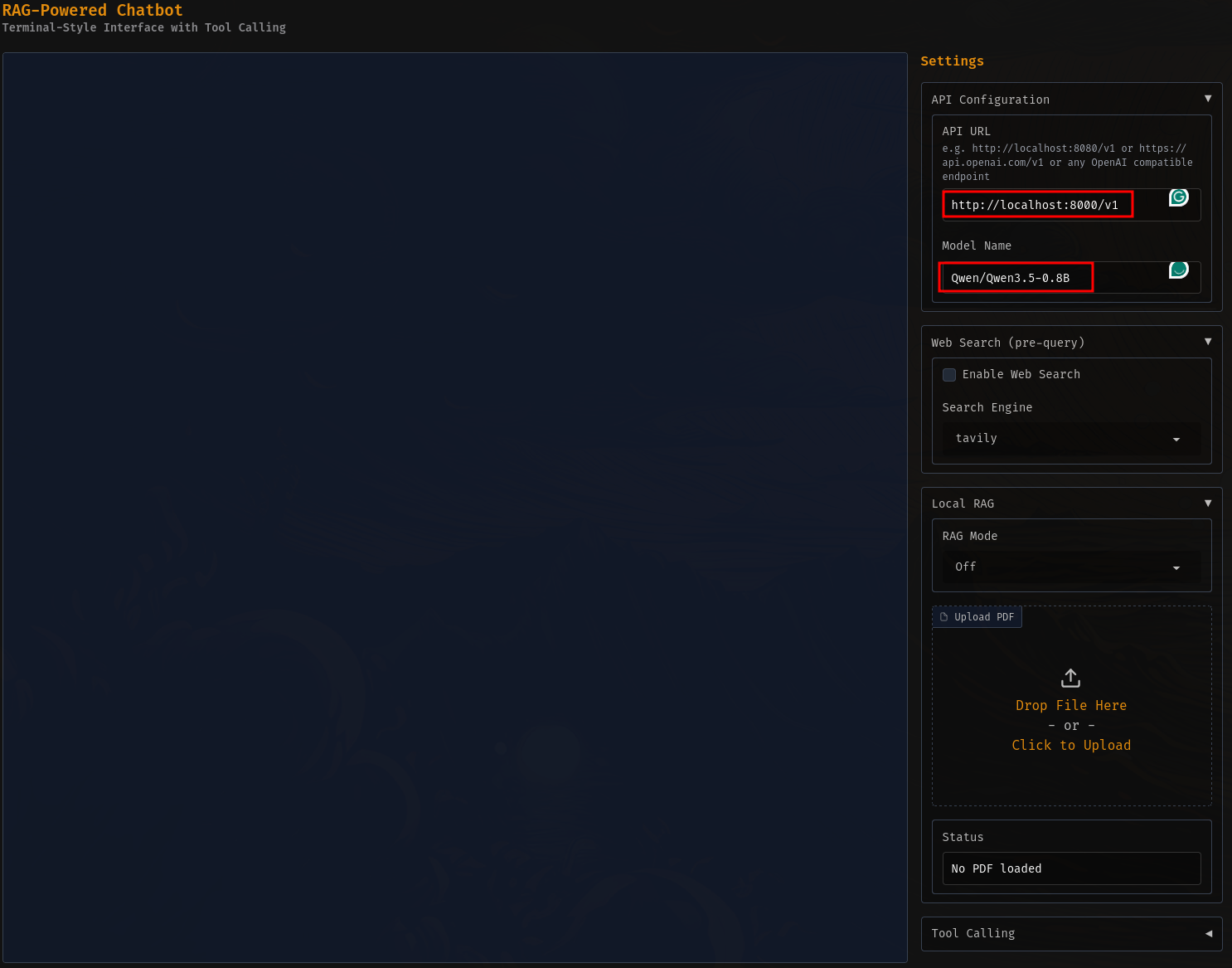
As the model is running on port 8000, the same should reflect in the Gradio UI API URL, and the model name should also match exactly.
The following video shows the working of the model in the chat UI.
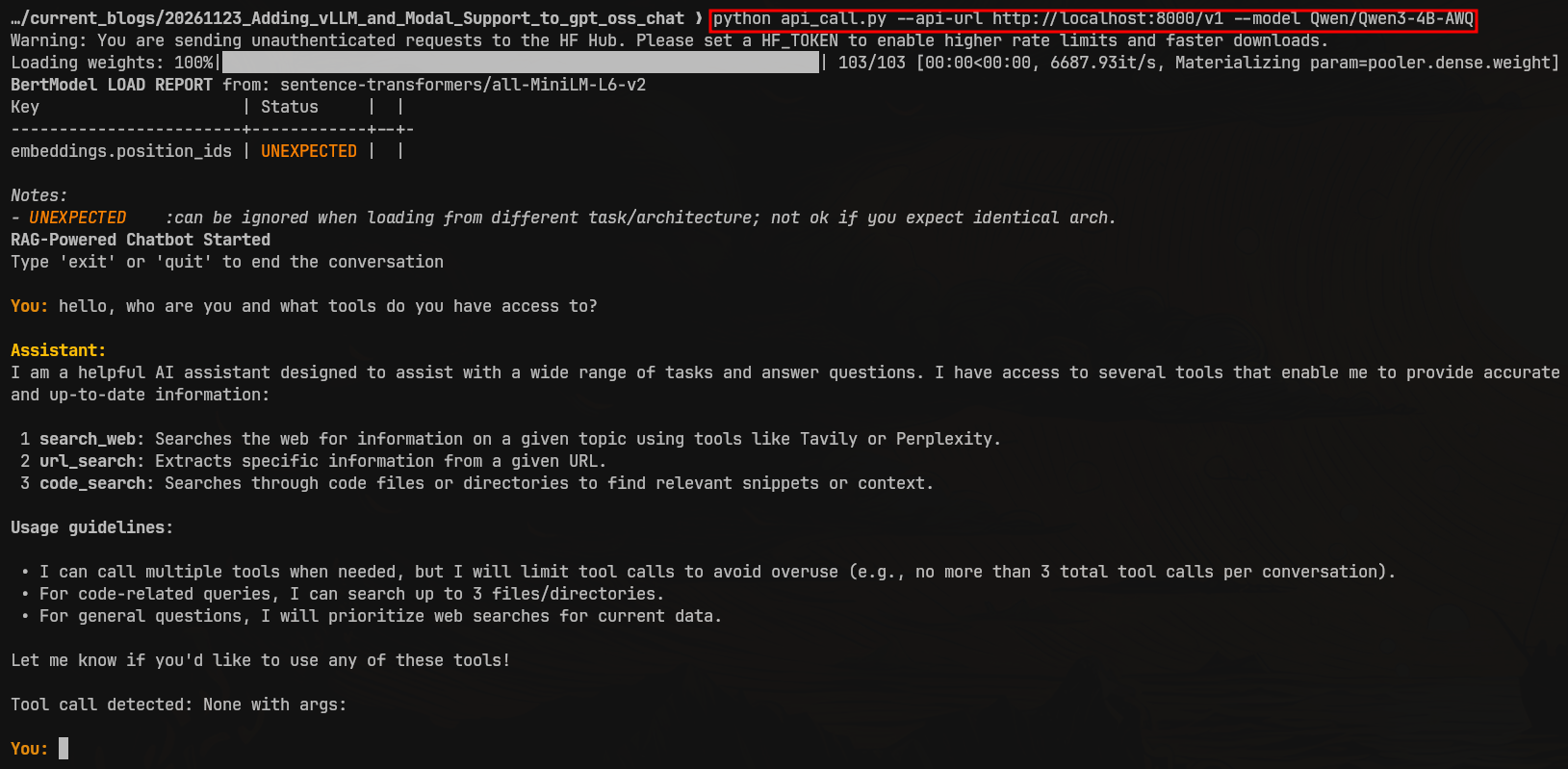
We can also use the TUI (api_call.py) by providing a custom --api-url endpoint and --model name. The following block shows the command where the above Qwen3-4B-AWQ model is used.
python api_call.py --api-url http://localhost:8000/v1 --model Qwen/Qwen3-4B-AWQ
And the following figure shows what a chat session in the TUI for the same looks like.
Running Models via Modal Endpoints using gpt-oss-chat
Now, this is the interesting part. As we support vLLM endpoints, we can virtually use any provider’s endpoints as well that serve models via vLLM.
For now, we have only tested Modal as one of the possible providers. With Modal, we have two types of endpoints:
- Dedicated
- Shared
The shared endpoints are newly launched and give us access to the frontier models easily with just a few clicks. I recommend exploring the Modal Endpoints to get to know more about it. We will explore both possibilities here.
We will start with the shared endpoint. First, launch a model via the shared endpoint.
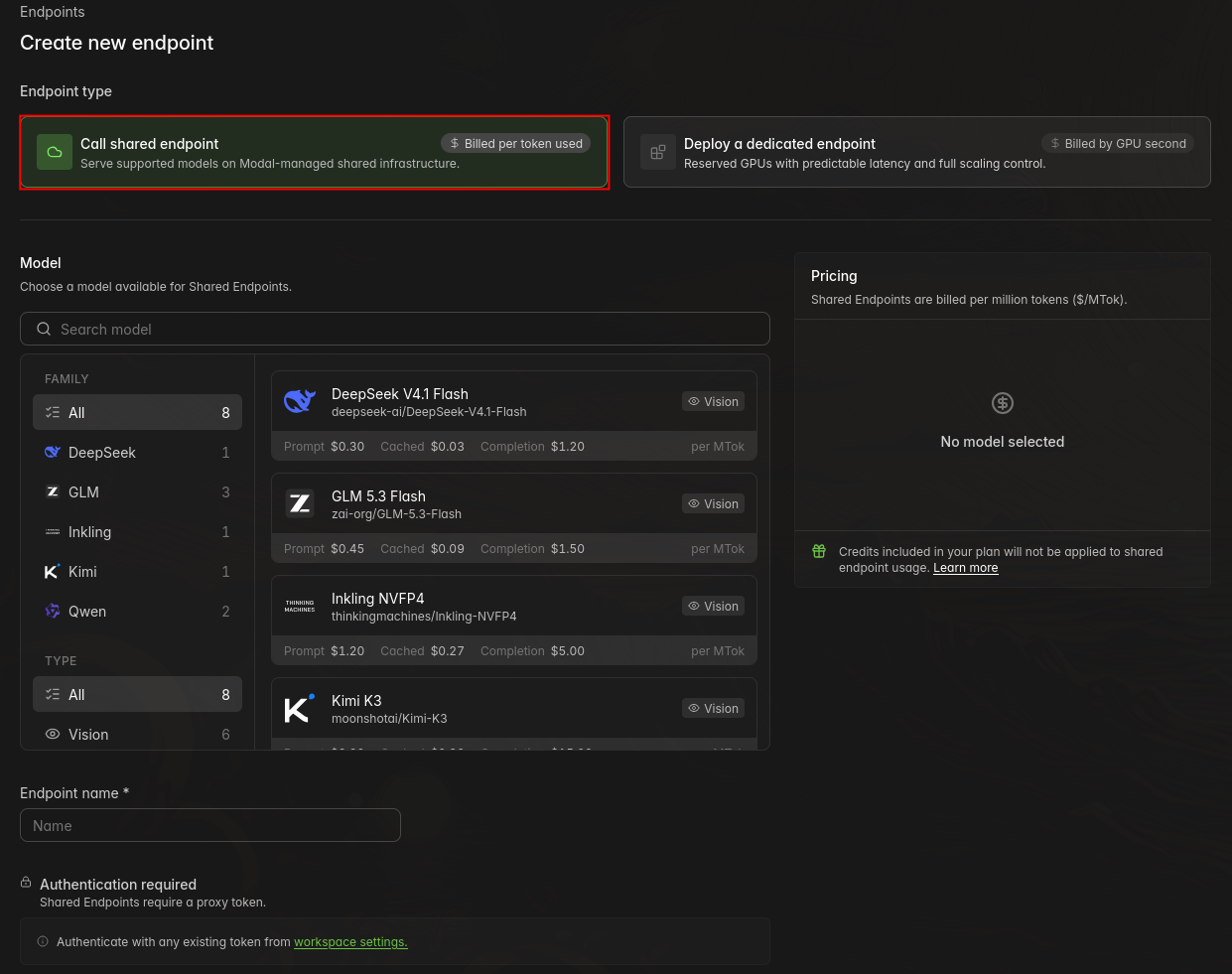
Launch any model available via shared endpoints. The good thing about shared endpoints is that they are billed as per token usage. So, we will not be billed anything until we make an API call. When we launch a shared endpoint for the first time, we also get a MODAL_PROXY_TOKEN_ID and MODAL_PROXY_TOKEN_SECRET. We get to see the MODAL_PROXY_TOKEN_SECRET only once, so store that somewhere safely. Together, these form the API key.
Now, open the .env file in the project directory and set the following as the Modal API key.
AVILY_API_KEY=YOUR_TAVILY_API_KEY

MODAL_API_KEY=MODAL_PROXY_TOKEN_ID.MODAL_PROXY_TOKEN_SECRET
Both keys joined by a . act as the API key.
After this, we are set to run any model via Modal endpoints.
In the Gradio UI, update the API URL to the following.
https://{ORG_NAME}--ep-glm-5-3-flash-nvfp4-server.us-west.modal.direct/v1
The ORG_NAME should be your workspace name. The following screenshot shows an example.
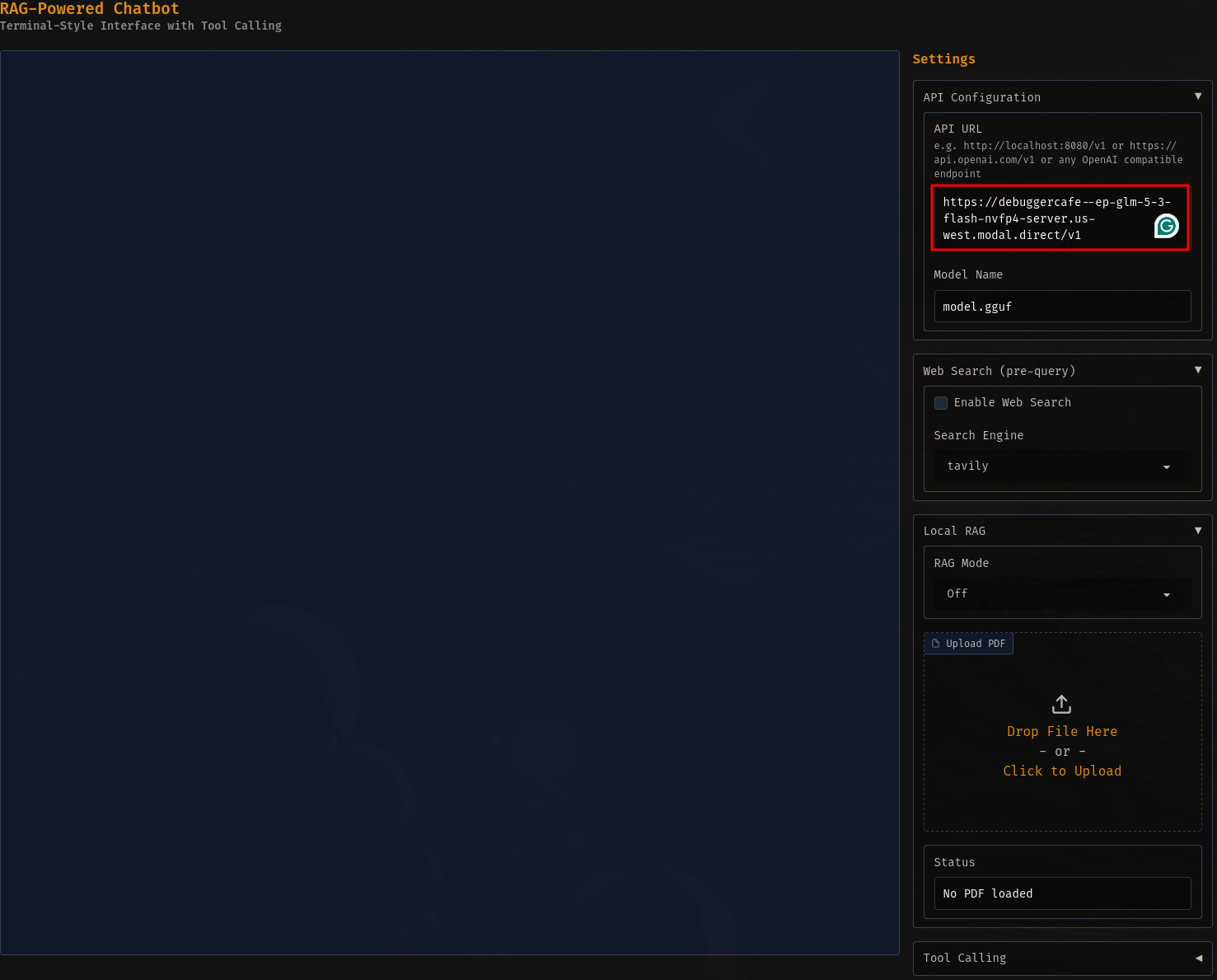
We do not need to update the model name for the Modal endpoints; we can leave it as is.
The following video shows a simple chat session with the GLM 5.3 model we chose.
Similarly, we can deploy a dedicated endpoint with any open-source model on Modal.
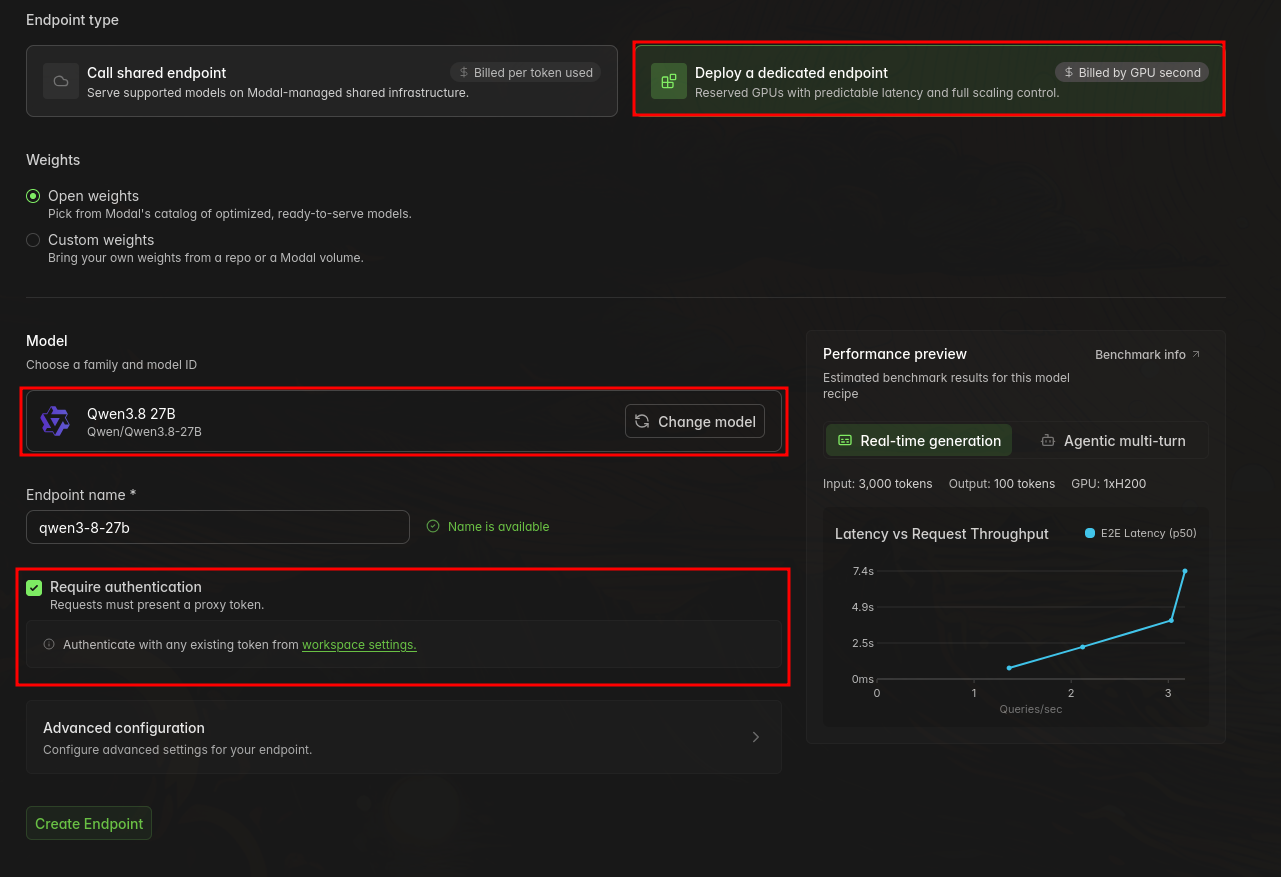
For example, in the above figure, we have chosen the Qwen3.8-27B model. After deployment, we get a similar endpoint to the shared one. We can use the same API key that we did in the previous case. No other changes are required.
Furthermore, just like we did in the case of the local vLLM deployment, we can use the same endpoint with the TUI (api_call.py), and launch the application by providing the correct endpoint to the --api-url command line argument.
Summary and Conclusion
In this article, we covered an update made to the gpt-oss-chat project where we broght vLLM powered OpenAI-compatible endpoints to the application. We can run both local vLLM models and models from Modal. There are a lot of other modular changes coming to the application as well, which we will share in the near future. I hope this article was worth your time.
If you have any questions, thoughts, or suggestions, please leave them in the comment section. I will surely address them.
You can contact me using the Contact section. You can also find me on LinkedIn, and X.