
Qwen2.5-Omni is an end-to-end multimodal model. It can accept text, images, videos, and audio as input while generating text and natural speech as output. Given its strong capabilities, we will build a simple video summarizer using Qwen2.5-Omni 3B. We will use the model from Hugging Face and build the UI with Gradio.
This is going to be a small code-focused article. We will entirely focus on building the simple application while keeping aside the conceptual parts.
You can refer to the introductory article on Qwen2.5-Omni to know more about it.
What will we cover while building the video summarizer application using Qwen2.5-Omni 3B?
- Setting up the environment and installing the necessary packages.
- Coding the video summarizer application. This includes the approach and logic to handle long videos.
- Running experiments using the built application.
Project Directory Structure
Following is the directory structure that we follow.
├── input
│   ├── video_1.mp4
│   └── video_2.mp4
└── video_summarizer.py
- We have a single script,
video_summarizer.pywhich contains all the code. - The
inputdirectory contains the videos for which we will generate the summary.
Download Code
Installing the Requirements
We need the framework and specific library related installations. Along with that, we also need to install Flash Attention 2, which is necessary to use the speedups and GPU memory saving techniques in Ampere GPUs and above.
It is recommended to install these requirements in a new Anaconda/Miniconda environment.
PyTorch with CUDA 12.4
pip install torch==2.6.0 torchvision==0.21.0 torchaudio==2.6.0 --index-url https://download.pytorch.org/whl/cu124
Hugging Face Transformers, Accelerate, and BitsAndBytes
pip install -U transformers accelerate bitsandbytes
OpenCV and Qwen Utils for Image/Video Processing
pip install -U opencv-python qwen-omni-utils[decord]
Gradio for UI
pip install gradio
Flash-Attention
pip install flash-attn --no-build-isolation
Coding the Video Summarizer Application
Our application will take a video uploaded by the user, process it in segments (chunks), and generate an overall summary. The UI will provide real-time feedback on the progress and display the results.
All the experiments shown in this article were run on a 10GB RTX 3080 GPU.
Overall Approach
Let’s outline the overall approach that we will follow while creating the Qwen2.5-Omni 3B video summarizer application.
Configuration and Model Loading
- First, we define constants for the model ID (
Qwen/Qwen2.5-Omni-3B) and flags for enabling Flash Attention 2 and 4-bit quantization. - Next, we load the Qwen2.5-Omni 3B model and its processor from Hugging Face. We apply the specified optimizations (4-bit quantization via
BitsAndBytesConfigand Flash Attention 2 viaattn_implementation). This step is crucial for running a relatively large model on consumer hardware.
System Prompts
- We define two system prompts: one (
SYSTEM_PROMPT_ANALYTICS) to guide the model in analyzing individual video chunks, and another (SYSTEM_PROMPT_SUMMARY) to guide it in generating the final summary from the collected chunk analyses.
Video Chunking (save_video_chunk_for_model)
- Processing longer chunks of video at once is GPU intensive (check the Qwen Omni requirements). To mitigate this, we will break the input video into smaller chunks.
- A helper function,
save_video_chunk_for_model, will use OpenCV (cv2) to extract a segment of the video (defined by start and end frames) and save it as a temporary MP4 file. We will then feed this temporary file to the Qwen model.
Main Analysis Logic (analyze_video)

- This is the core Gradio event handler function, implemented as a Python generator (yield) to stream updates to the UI.
- State Reset: Crucially, at the beginning of each call, it resets key state variables to ensure that subsequent analyses of different videos don’t interfere with each other.
- Input Validation: Checks if a video is uploaded and if the chosen chunk duration is within a reasonable range.
- Video Processing Loop:
- Opens the video file using
cv2.VideoCapture. - Calculates the number of chunks based on the video’s FPS and the user-defined chunk duration.
- Iterates through each chunk:
- Updates a progress text in the UI showing the current chunk being processed and the overall percentage complete.
- Saves the current video chunk to a temporary file using
save_video_chunk_for_model. - Constructs a multimodal conversation input for Qwen, including the video chunk and a text prompt (using
SYSTEM_PROMPT_ANALYTICS) asking it to describe the segment. - Uses
qwen_omni_utils.process_mm_infoand the processor to prepare the inputs for the model. - Calls
model.generate()to get the textual analysis for the current chunk. - Appends this chunk’s analysis to an accumulating log (
current_accumulated_log) which is displayed in one of the UI textboxes. - Stores the clean analysis for later use in the final summary.
- Deletes the temporary video chunk file.
- Opens the video file using
Final Summary Generation

- After all chunks are processed, the collected individual analyses are concatenated.
- This concatenated text is then used to form a new conversation input for Qwen, this time with
SYSTEM_PROMPT_SUMMARY, asking for an in-depth overall summary. - To stream the final summary token by token,
transformers.TextIteratorStreameris used.
Error Handling and Cleanup
A try…except…finally block ensures that any errors during processing are caught and reported in the UI, and that temporary files and directories are cleaned up. It also attempts to clear the PyTorch CUDA cache to free up GPU memory for subsequent runs.
Gradio User Interface
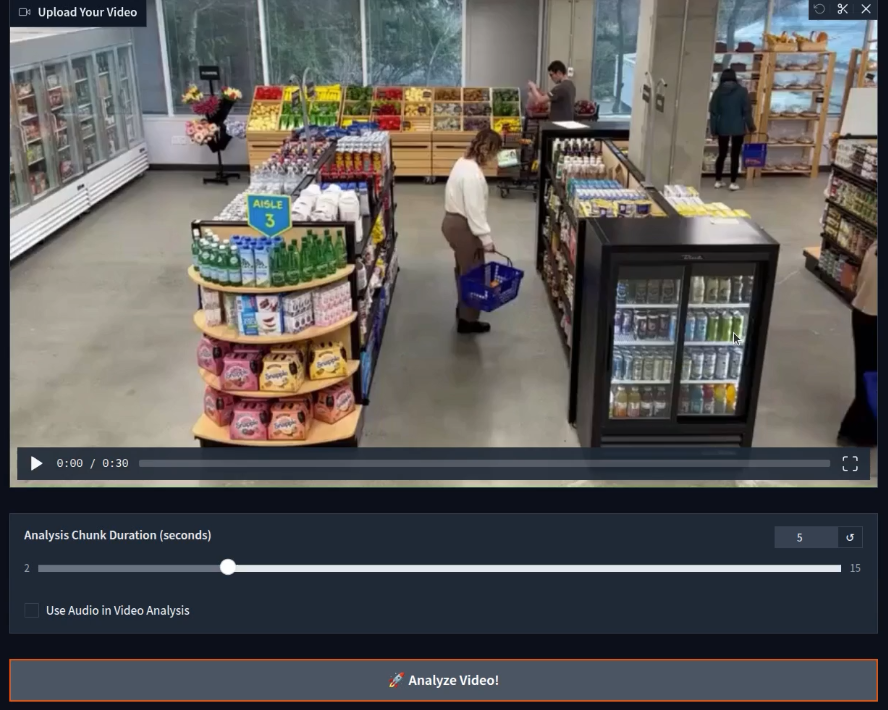
gr.Textbox(Accumulated Chunk Analysis Log): This displays a running log of the analysis for each processed chunk and appends new information as it becomes available.gr.Textbox(Overall Progress & Status): This shows text updates like “Processing Chunk X/Y (Z%)”, “Generating Final Summary…”, or “Analysis Complete!”.gr.Textbox(Final In-depth Summary): For streaming the final summary generated by the model, token by token.- The
analyze_btn_main.clickevent links the button to theanalyze_videofunction, specifying the input and output components. demo.queue().launch()is used to start the Gradio app, enabling proper handling of the generator function and streaming updates.
Explanation of Key Code Sections
Let’s focus on the key code sections.
Model Loading and Configuration
The initial part of the script handles loading the Qwen/Qwen2.5-Omni-3B model.
# Configuration.
MODEL_ID = 'Qwen/Qwen2.5-Omni-3B'
USE_FLASH_ATTENTION_2 = True
USE_4BIT_QUANTIZATION = True

# Model loading.
print('Loading model... This might take a while.')
quantization_config = None
if USE_4BIT_QUANTIZATION:
    quantization_config = BitsAndBytesConfig(
        load_in_4bit=True,
        bnb_4bit_quant_type='nf4',
        bnb_4bit_compute_dtype=(
            torch.bfloat16 if torch.cuda.is_bf16_supported()
            else torch.float16
        ),
        bnb_4bit_use_double_quant=True,
    )
model_kwargs = {'device_map': 'auto'}
if quantization_config:
    model_kwargs['quantization_config'] = quantization_config
if USE_FLASH_ATTENTION_2:
    if torch.cuda.is_bf16_supported():
        model_kwargs['torch_dtype'] = torch.bfloat16
    else:
        model_kwargs['torch_dtype'] = torch.float16
    model_kwargs['attn_implementation'] = 'flash_attention_2'
else:
    model_kwargs['torch_dtype'] = 'auto'

try:
    model = Qwen2_5OmniForConditionalGeneration.from_pretrained(
        MODEL_ID, **model_kwargs
    )
    processor = Qwen2_5OmniProcessor.from_pretrained(MODEL_ID)
    print('Model loaded successfully.')
except Exception as e:
    print(f"Error loading model: {e}. Exiting.")
    exit()
Here we apply 4-bit quantization using BitsAndBytesConfig and enable Flash Attention 2 by setting attn_implementation='flash_attention_2' and the appropriate torch_dtype. These are crucial for making such a model runnable on systems with limited VRAM.
The Main Analysis Function: analyze_video
The analyze_video gets triggered when the user clicks the “Analyze Video!” button.
def analyze_video(
    video_path_main,
    chunk_duration_ui,
    use_audio_in_video_flag
):
    # Explicit State Reset for each call.
    run_temp_dir = None
    cap = None
    all_individual_analyses_for_summary = []
    current_accumulated_log = ''
    # End State Reset.

    # Initial UI clear and status
    yield {
        accumulated_chunk_text_out: 'Awaiting video upload...',
        # ... other initial yields ...
    }
    # ... (input validation) ...
    try:
        run_temp_dir = tempfile.mkdtemp(prefix='video_run_')
        # ... (video capture and chunking loop) ...
        for i in range(num_iterations):
            # ... (save chunk, prepare inputs) ...

            # Process chunk with Qwen (Chunk Analysis).
            # ... (conversation_chunk, inputs_chunk setup) ...
            generated_ids_chunk = model.generate(
                **inputs_chunk, return_audio=False, # ...
            )
            # ... (decode response_text_for_chunk) ...
            current_accumulated_log += response_text_for_chunk + '\n'
            all_individual_analyses_for_summary.append(
                # ... formatted chunk analysis ...
            )
            yield {accumulated_chunk_text_out: current_accumulated_log}
            # ... (cleanup chunk file) ...

        # ... (after loop, prepare for final summary) ...

        if not all_individual_analyses_for_summary:
            # ... (handle no content case) ...
        else:
            # TextIteratorStreamer for Final Summary.
            # ... (setup inputs_for_summary, streamer, generation_kwargs) ...
            thread = threading.Thread(
                target=model.generate, kwargs=generation_kwargs
            )
            thread.start()
            generated_summary_text = ''
            for new_text_token in streamer:
                generated_summary_text += new_text_token
                yield {final_summary_out: generated_summary_text}
            thread.join()
            yield {final_summary_out: generated_summary_text} # Final assurance
    # ... (except and finally blocks) ...
Key aspects here are:
- Generator Function: We use yield to make this a generator, allowing Gradio to receive multiple updates and stream them to the UI components.
- State Reset: The variables at the top are reset each time, crucial for handling multiple video uploads correctly.
- Looping through Chunks: The
for i in range(num_iterations):loop processes the video segment by segment. - Updating
accumulated_chunk_text_out: Inside the loop, after each chunk is analyzed, we append the chunk tocurrent_accumulated_log, and yield this growing log to the UI. - Streaming Final Summary: We use
TextIteratorStreamerandthreading.Threadfor the final summary. Thefor new_text_token in streamer:loop effectively pulls tokens from the background generation process and yields them to update thefinal_summary_outtextbox in real-time. finallyBlock: This ensures that resources like the video capture object (cap) are released and the temporary directory (run_temp_dir) is deleted, even if errors occur. Thetorch.cuda.empty_cache()call helps manage GPU memory between runs.
Gradio Interface Definition
We construct the UI using gr.Blocks.
# Gradio Interface.
orange_theme = gr.themes.Monochrome( # ... theme definition ... )

with gr.Blocks(theme=orange_theme) as demo:
    # ... (Markdown titles) ...
    with gr.Row(): # Input controls
        with gr.Column(scale=1):
            video_input_main = gr.Video(...)
            chunk_slider_main = gr.Slider(...)
            use_audio_main = gr.Checkbox(...)
            analyze_btn_main = gr.Button(...)
    with gr.Row(): # Output areas
        with gr.Column(scale=1): # Accumulated log
            gr.Markdown('### 📜 Accumulated Chunk Analysis Log')
            accumulated_chunk_text_out = gr.Textbox(...)
        with gr.Column(scale=1): # Progress and Final Summary
            gr.Markdown('### 📊 Overall Progress & Final Summary')
            overall_progress_text_out = gr.Textbox(...)
            final_summary_out = gr.Textbox(...)

    outputs_for_click = [ # List of components to update
        accumulated_chunk_text_out,
        overall_progress_text_out,
        final_summary_out
    ]
    analyze_btn_main.click(
        fn=analyze_video, # Changed function name to match code
        inputs=[video_input_main, chunk_slider_main, use_audio_main],
        outputs=outputs_for_click
    )

if __name__ == '__main__':
    # ... (launch app) ...
- Layout: We use
gr.Rowandgr.Columnto organize the input and output components. outputs_for_click: This list explicitly tells Gradio which components theanalyze_videofunction will be yielding updates to. The keys in the dictionaries yielded byanalyze_videomust correspond to these component objects.
This structure allows for a responsive UI that provides continuous feedback to the user while the video is being processed in the background.
Inference Experiments and Results for Qwen2.5-Omni 3B Video Summarizer
Let’s jump into creating video summaries using our video summarizer. We will test a few videos here and analyze how well our pipeline works.
The first video is a traffic intersection overview.
Here, we choose a chunk duration of 5 seconds. You can choose a larger time chunk if you have more VRAM.
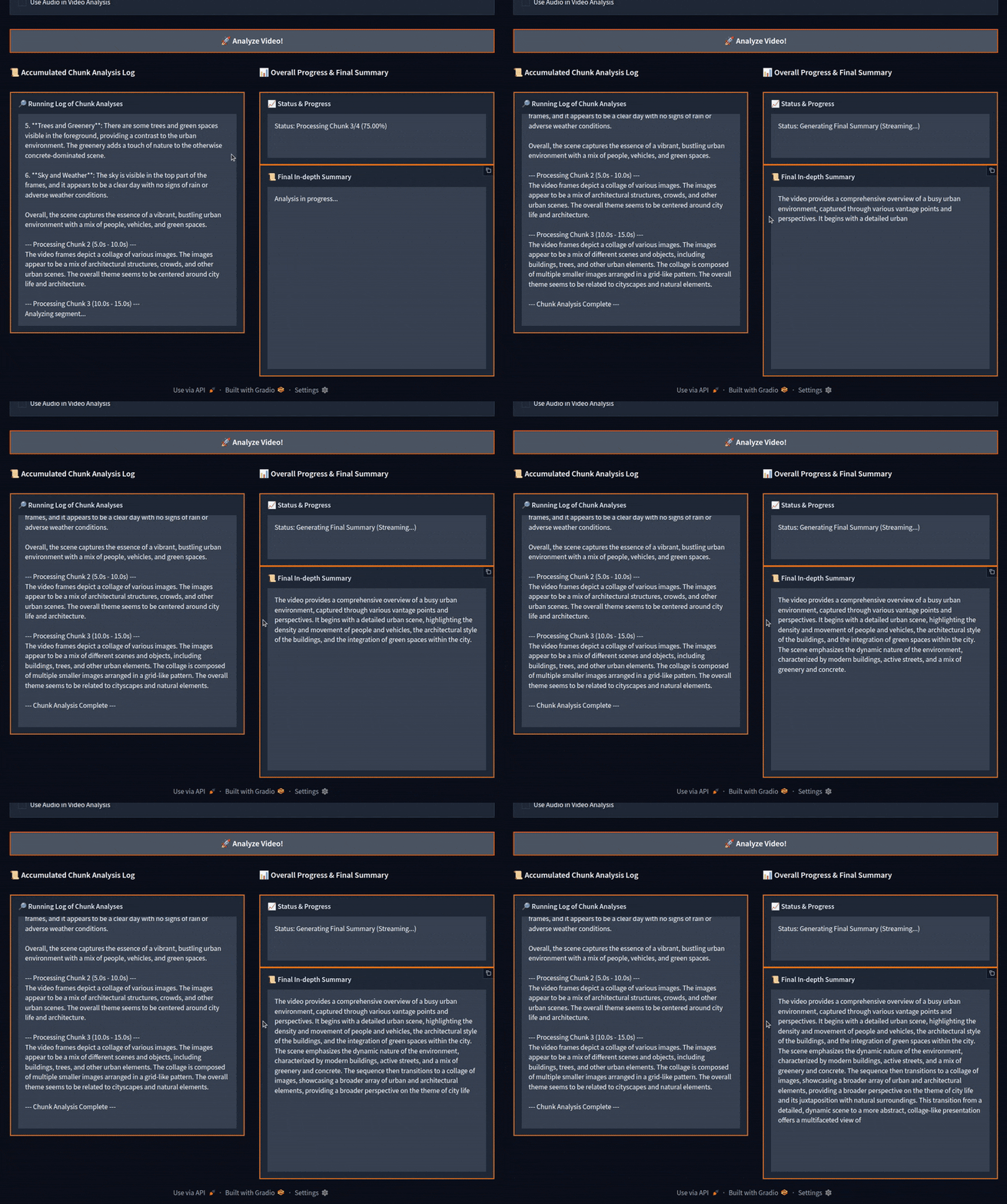
We can see that the video was divided into four parts. After accumulating the logs, the program gave a final summary, which is fairly accurate.
Let’s check the result on a bit longer 30-minute video.
Initially, the model starts generating the chunk summaries correctly. However, around the third chunk, it starts telling these scenes are from the Minecraft video game. For some of the chunks later on, it goes on to describe them correctly. However, most of them are wrong, which makes the final summary partly wrong as well.
Note: Although we are chunking the videos into 5 second time duration, OOM (Out Of Memory) errors can still occur during the final summary generation. If the video is extremely long, say more than 2 minutes, then it will be around 100-170 chunks. All these accumulated chunk summaries will go the final summary generator, leading to a larger user input which can result in OOM.
Now, one final test. We will take an extremely simple video of two people walking and test our system.
Interestingly, the result is mostly wrong in this case. The model hallucinates, concluding that these are corrupted pixels and only describes the snowy forest once. Pointing out the exact reason behind this is difficult. It might be that running the model in full precision (FP16/BF16) will give correct results. But I have not tested that at the moment.
Feel free to play around with your own videos and see where our system falters.
Improvements and Future Plans
We can make several improvements to this system. Instead of just a video summarizer, we can build a complete open-source video analytics platform like Azure Vision Studio powered by VLMs and speech synthesis.
- Finding frames pertaining to a specific scenario/instance/incident that a user searches through natural language.
- Adding time stamps to where these incidents occur.
- Adding speech capabilities using Qwen2.5-Omni to use the full spectrum of features of the model.
- Using the audio tracks present in videos to create more dense, in-depth summaries.
- Finding the issues with current approach and why the model misunderstands the frames at times.
However, Gradio might pose some limitations in terms of UI for such an advanced application. It most probably will need a full-fledged UI.
Summary and Conclusion
In this article, we built a simple video summarizer using the Qwen2.5-Omni 3B model. It is a simple application, and we observed where the model performs well and where it fails. We also discussed some of the future improvements.
If you have any questions, thoughts, or suggestions, please leave them in the comment section. I will surely address them.
You can contact me using the Contact section. You can also find me on LinkedIn, and X.