
In the last article, we introduced Together AI, a serverless generative AI inference service. We created minimal scripts for LLMs, VLMs, image generation, and a simple Gradio application to chat with LLMs. In this article, we will extend upon the same application and create a multimodal Gradio app with Together.

We will integrate tabs for chatting with LLMs, VLMs, image generation, and audio transcription under a single Gradio application. While doing so, we will try to include as many serverless models as available, both free and paid.
What will we cover while building the multimodal Gradio app with Together?
- As our base chat application is already present from the previous article, we will put our thought process into the other three, namely, VLM chat, image generation, and automatic speech transcription.
- We will check all the models that we include for both, including the latest OpenAI OSS (gpt-oss) models for chat.
- Finally, we will integrate all of these elements into a single application.
If you wish to get an introduction to Together AI, be sure to give the last article a read, where we use Together AI for serverless inference.
The Project Directory Structure
Let’s check out the directory structure for this project.
├── app.py
├── .env
└── requirements.txt
- We have one Python file that contains all the logic that we need for our multimodal Gradio application using Together.
- The
.envfile contains the Together API key. - And the
requirements.txtfile contains all the library dependencies.
The Python file and the requirements file are available via the download section.
Download Code
Install the Requirements
We can install all the dependencies via the requirements file.
pip install -r requirements.txt
Together Account and API Key
In case you do not have a Together AI account, you need to create one. Upon signing up, you will receive $25 credits that you can use for paid models as well. However, the application in this article has a free model support for each modality.
Then go to your dashboard and copy the API key into the .env file in the project folder.
TOGETHER_API_KEY=YOUR_API_KEY
Jumping Into the Code – Multimodal Gradio App with Together
Let’s jump directly into the code. We will not go through all the lines of code, the file is more than 600 lines. However, we will cover how each tab is structured for different modalities.
Code Structure and Model Configuration
Before diving into each modality, let’s understand how we’ve structured our multimodal Gradio application.
Model Dictionaries and Configuration
The application starts by defining comprehensive dictionaries for all supported models:
# Chat Models - Free and Paid
CHAT_MODELS = {
    # Free Models
    'Llama 3.3 70B Instruct Turbo (Free)': 'meta-llama/Llama-3.3-70B-Instruct-Turbo-Free',

    # Paid Models (50+ models including latest DeepSeek R1, OpenAI GPT-OSS, etc.)
    'DeepSeek R1 Distill Llama 70B': 'deepseek-ai/DeepSeek-R1-Distill-Llama-70B',
    'OpenAI GPT-OSS 120B': 'openai/gpt-oss-120b',
    # ... many more models
}
This structure allows us to:
- Clearly separate free and paid models
- Use user-friendly display names while maintaining API compatibility
- Easily add new models as they become available
The get_model_choices() function creates organized dropdown menus with separators between free and paid models, making it easy for users to identify which models they can use without credits.
Chat Functionality – LLM Integration
Let’s discuss the chat model streaming section first.
The Core Streaming Chat Function
def chat_stream(api_key, model_display_name, user_message, chat_history, temperature, max_tokens, top_p):
    # Input validation
    if not api_key:
        raise gr.Error('TOGETHER_API_KEY is required. Please enter it on the left.')

    # Get actual API model string
    model_api_string = CHAT_MODELS[model_display_name]

    # Initialize Together client
    client = Together(api_key=api_key)

    # Format conversation history
    messages = []
    for user_msg, assistant_msg in chat_history:
        messages.append({'role': 'user', 'content': user_msg})
        if assistant_msg:
            messages.append({'role': 'assistant', 'content': assistant_msg})
    messages.append({'role': 'user', 'content': user_message})

    # Stream the response
    stream = client.chat.completions.create(
        model=model_api_string,
        messages=messages,
        temperature=temperature,
        max_tokens=int(max_tokens),
        top_p=top_p,
        stream=True
    )

    # Yield tokens as they arrive
    for chunk in stream:
        content = chunk.choices[0].delta.content or ''
        chat_history[-1][1] += content
        yield chat_history
Key Features:
- Real-time streaming: Tokens appear as they’re generated, providing immediate feedback
- Conversation memory: Maintains full chat history for context
- Error handling: Graceful error messages for API issues
- Parameter control: Temperature, max tokens, and top-p for fine-tuning responses

The chat interface includes over 40 models, including DeepSeek R1 reasoning models and OpenAI’s newly released GPT-OSS models. The streaming implementation ensures users see responses in real-time, creating a more interactive experience.
Vision-Language Model Integration
Next, we have the VLM tab for chatting with images.
Handling Images and Text Together
def vlm_stream(api_key, model_display_name, user_message, image_file, chat_history, temperature, max_tokens, top_p):
    # Get VLM model string
    model_api_string = VLM_MODELS[model_display_name]

    # Prepare message with text and optional image
    current_message_content = [{'type': 'text', 'text': user_message}]

    # Add image if provided
    if image_file is not None:
        base64_image = encode_image_from_file(image_file)
        if base64_image:
            current_message_content.append({
                'type': 'image_url',
                'image_url': {
                    'url': f'data:image/jpeg;base64,{base64_image}',
                },
            })

    messages.append({'role': 'user', 'content': current_message_content})
    # ... streaming logic similar to chat
Image Encoding Function
def encode_image_from_file(image_file):
    """Encode an uploaded image file to base64."""
    if image_file is None:
        return None

    with open(image_file, 'rb') as f:
        return base64.b64encode(f.read()).decode('utf-8')
Key Features:
- Image upload support: Users can upload images directly through the interface
- Base64 encoding: Images are encoded and sent to the API securely
- Multimodal messaging: Combines text and image inputs in a single request
- Visual feedback: Shows “[Image uploaded]” indicator in chat history

The VLM tab supports models like Llama 3.2 11B Vision (free tier available) and Llama 3.2 90B Vision for more complex image analysis tasks. Users can upload images and ask questions about them, making it perfect for image description, analysis, and visual Q&A.
Image Generation Capabilities
The third modality is image generation, where we have support for all the FLUX image generation models.
FLUX Model Integration
def generate_image(api_key, model_display_name, prompt, steps, num_images):
    # Get model info including default steps
    model_info = IMAGE_MODELS[model_display_name]
    model_api_string = model_info['api_string']

    # Use provided steps or model default
    if steps == 0:
        steps = model_info['default_steps']

    # Generate images
    response = client.images.generate(
        prompt=prompt,
        model=model_api_string,
        steps=steps,
        n=int(num_images)
    )

    # Download and convert to PIL Images
    images = []
    for img_data in response.data:
        img_response = requests.get(img_data.url)
        image = Image.open(io.BytesIO(img_response.content))
        images.append(image)

    return images
Image Model Configuration:
IMAGE_MODELS = {
    # Free Models
    'Flux.1 [schnell] (Free)': {'api_string': 'black-forest-labs/FLUX.1-schnell-Free', 'default_steps': 4},

    # Paid Models
    'Flux.1 [pro]': {'api_string': 'black-forest-labs/FLUX.1-pro', 'default_steps': 28},
    'Flux1.1 [pro]': {'api_string': 'black-forest-labs/FLUX.1.1-pro', 'default_steps': 28},
    # ... more FLUX variants
}
Key Features:
- Multiple FLUX variants: From fast Schnell (4 steps) to high-quality Pro (28 steps)
- Batch generation: Generate up to 4 images simultaneously
- Flexible steps: Auto-detect optimal steps per model or manual override
- Gallery display: Clean grid layout for generated images
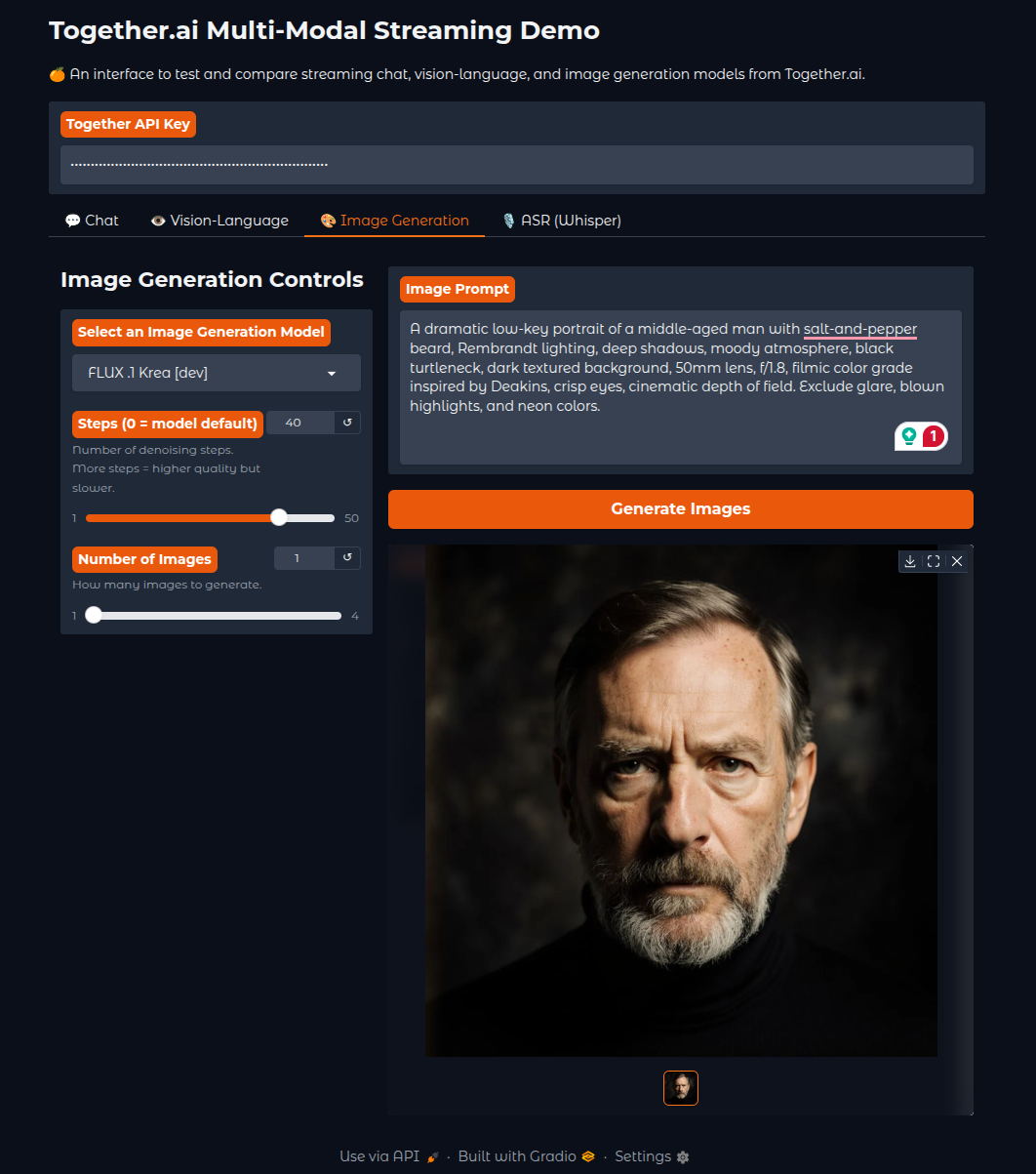
The image generation tab includes the complete FLUX model family, from the free Schnell model for quick prototypes to the professional-grade FLUX.1 Pro and FLUX 1.1 Pro for high-quality outputs.
Audio Transcription with Whisper
The final modality is audio transcription, where we use the OpenAI Whisper Large V3 model.
ASR Implementation
def transcribe_audio(api_key, model_display_name, audio_file):
    """Transcribe audio using Together's Whisper large-v3 model."""
    model_api_string = ASR_MODELS[model_display_name]

    client = Together(api_key=api_key)

    response = client.audio.transcriptions.create(
        file=audio_file,  # Direct file path from gr.Audio
        model=model_api_string,
        language='en',
        response_format='json'
    )

    return response.text
Key Features:
- OpenAI Whisper Large-v3: State-of-the-art speech recognition
- Simple upload interface: Drag-and-drop or click to upload audio
- Multiple audio formats: Supports common audio file types
- Accurate transcription: High-quality text output from audio input
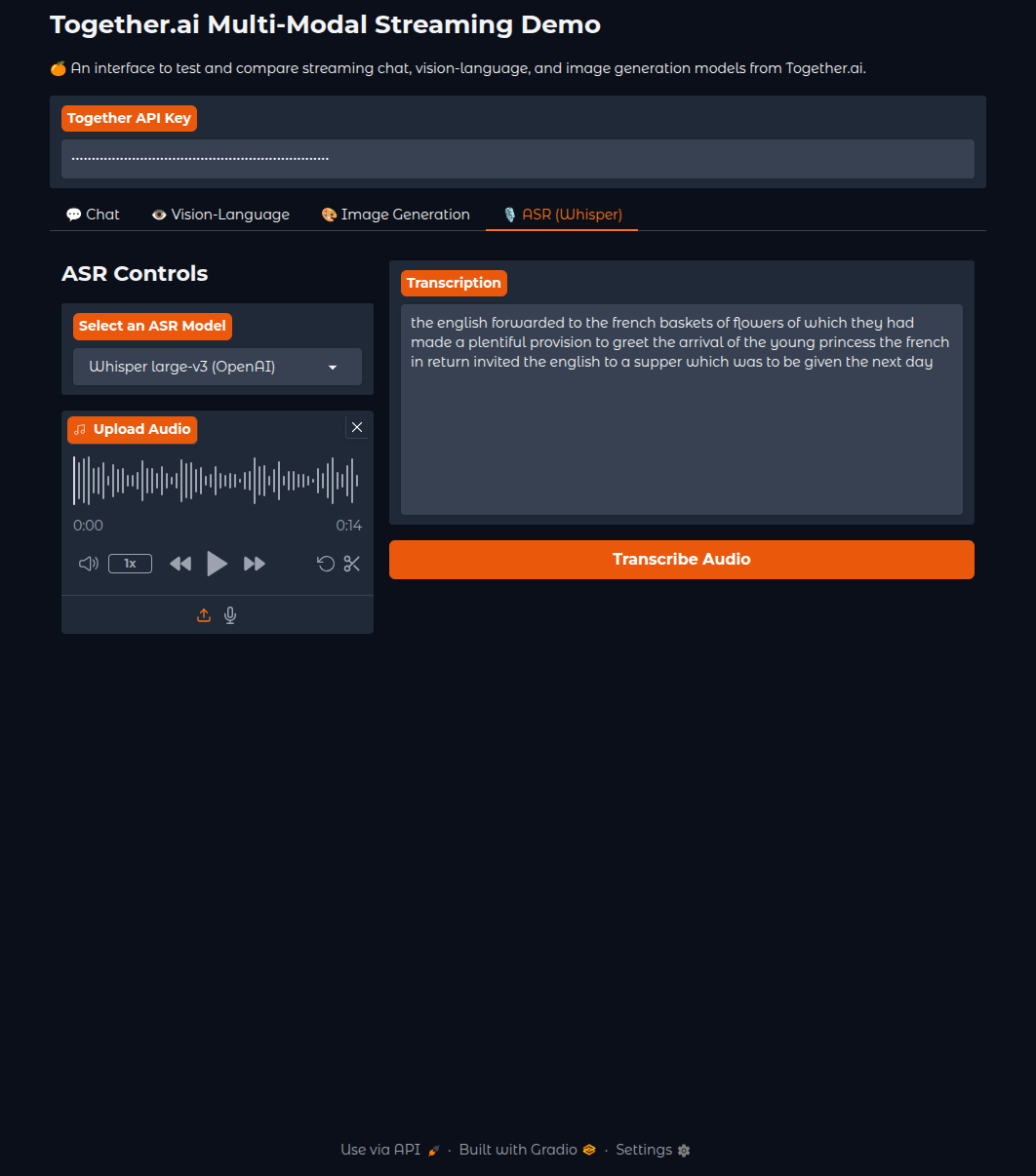
The ASR tab uses OpenAI’s Whisper Large-v3 model, providing highly accurate transcription for various audio types, from podcasts to meeting recordings.
Bringing It All Together – The Complete Interface
Finally, we bring all this together under a single Gradio interface.
Gradio Interface Structure
with gr.Blocks(
    theme=gr.themes.Soft(primary_hue='orange', secondary_hue='orange'),
    css=custom_css
) as demo:
    gr.Markdown('# Together.ai Multi-Modal Streaming Demo')

    # Global API key input
    api_key_input = gr.Textbox(
        label='Together API Key',
        value=os.getenv('TOGETHER_API_KEY', ''),
        type='password'
    )

    with gr.Tabs():
        # Chat Tab
        with gr.TabItem("💬 Chat"):
            # ... chat interface

        # VLM Tab
        with gr.TabItem("👁️ Vision-Language"):
            # ... VLM interface

        # Image Generation Tab
        with gr.TabItem("🎨 Image Generation"):
            # ... image generation interface

        # ASR Tab
        with gr.TabItem("🎙 ASR (Whisper)"):
            # ... audio transcription interface
Advanced Features
Responsive Design:
- Clean tabbed interface separating each modality
- Collapsible advanced settings panels
- Responsive layout that works on different screen sizes
User Experience Enhancements:
- Global API key input shared across all tabs
- Clear visual feedback for all operations
- Error handling with helpful messages
- Model categorization (Free vs Paid) in dropdowns
Technical Optimizations:
- Streaming responses for real-time feedback
- Efficient image encoding and handling
- Queue management for concurrent users
- Memory-efficient file processing
Running the Complete Application
To launch the multimodal application:
python app.py
The application will start on localhost:7860 with all four modalities accessible through the tabbed interface. Users can:
- Chat with 40+ language models including reasoning models
- Analyze images with vision-language models
- Generate images using FLUX models
- Transcribe audio with Whisper
This multimodal application demonstrates the power of Together AI’s diverse model ecosystem, all wrapped in a user-friendly Gradio interface that makes advanced AI accessible to everyone.
The modular design makes it easy to add new models as they become available on Together AI, ensuring the application stays current with the latest AI developments.
Summary and Conclusion
In this article, we leveraged Together’s APIs to build a multimodal Gradio application. We can chat with LLMs, discuss with VLMs, generate images, and transcribe audio with it. This also gives us a glimpse of all kinds of interesting applications that we can build with such a platform.
If you have any questions, thoughts, or suggestions, please leave them in the comment section. I will surely address them.
You can contact me using the Contact section. You can also find me on LinkedIn, and X.